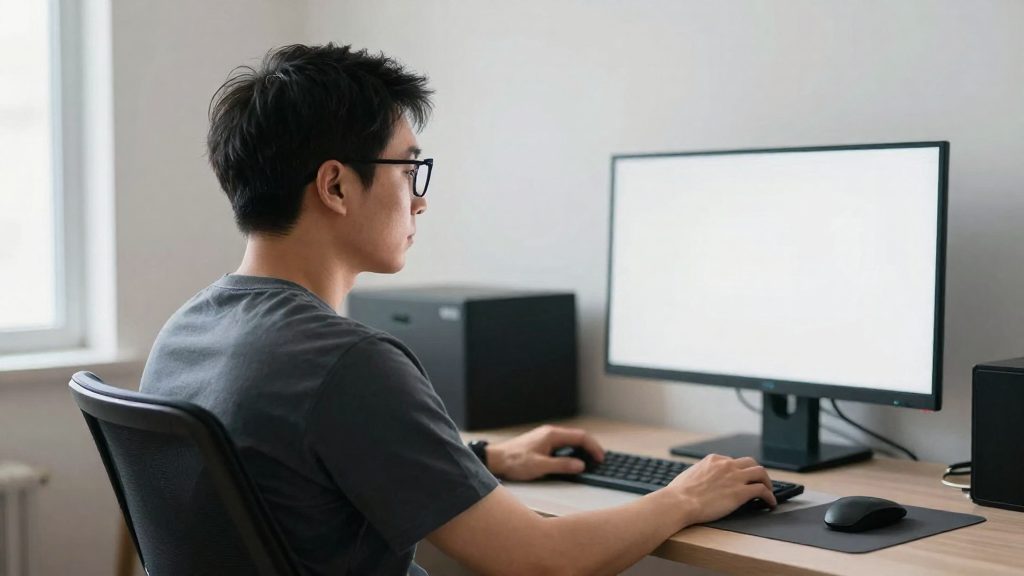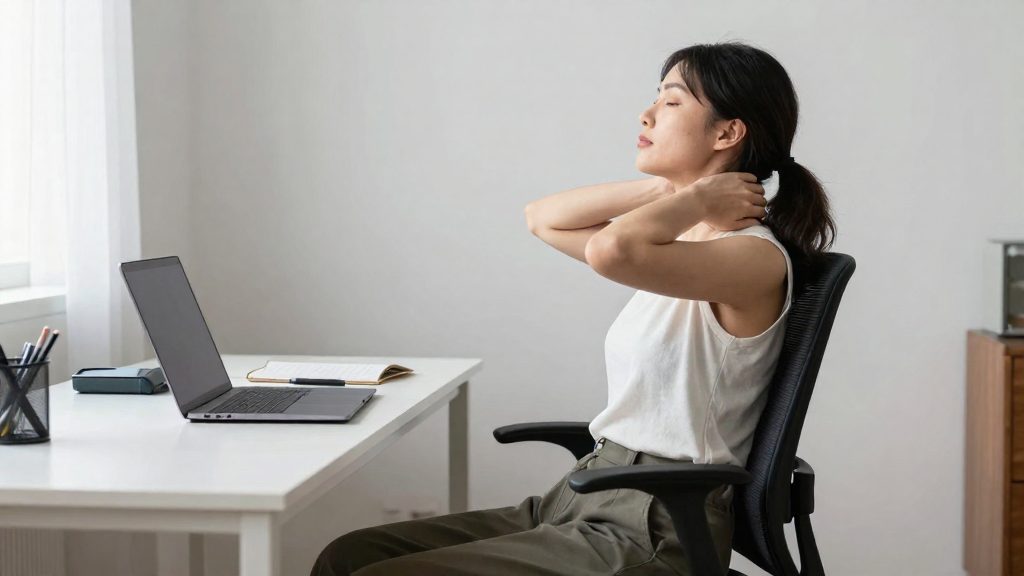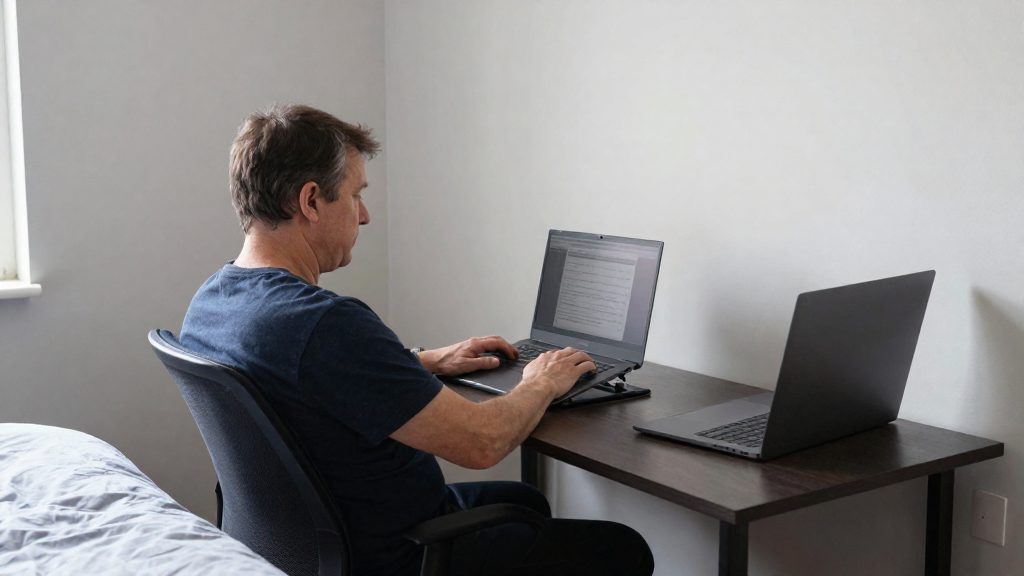
A laptop used flat on a desk usually places the display too low, so you have to look down to read it. This keeps your head forward of your shoulders and your neck flexed for the whole session.
Why laptops cause neck pain
Laptops cause neck strain mainly through forward head posture. When the screen sits low, the head tilts forward so the eyes can reach the display. When the screen sits low, the head tends to tilt forward to reach the display. Forward head posture is commonly associated with neck discomfort, although the sources for this article do not quantify the effect.
A built-in screen has no height adjustment, so the neck flexion is fixed by the device itself. The angle stays the same whether you are reading a document or typing, and it persists through long calls and focused work. On a laptop, raising the screen is the main way to reduce the flexion, for example with a stand, books or a sturdy box.
The third factor is muscle fatigue from a static position. Holding the head in a fixed forward position for long periods is widely considered tiring for the neck, which is one reason to vary your posture. The sources used here do not measure this effect.
| Factor | Flat or low laptop screen | Screen raised to eye level |
|---|---|---|
| Head position | Tilted forward, eyes pointed down | Upright, eyes looking straight ahead |
| Neck flexion | Sustained for the whole session | Reduced, as the neck is not bent to read |
| Postural muscle load | Continuous contraction | Lower, as the head is supported in a neutral position |

What is the correct laptop height?
The correct laptop height places the screen so you can read it while sitting upright, without bending or tilting your head. CMD Ltd, a UK ergonomics consultancy, advises setting the screen so you can see it easily without bending your neck, and to look straight ahead at it. A laptop left flat on a desk is usually too low, which pushes the head forward and down. No fixed measurement is given for this height, so the target is defined by posture rather than by a number.
Looking straight ahead without tilting the head
Sit upright and look straight ahead with your head level. You should be able to read the screen easily without bending your neck or tilting your head back. If you have to look down to read it, raise the laptop. If you have to tilt your head back, lower it. Keep the neck neutral, with the head balanced over the shoulders.
Measuring the height from a seated posture
Check the height from the chair, not while standing, because your eye level changes once you sit down.
| Step | What to check |
|---|---|
| 1. Sit in your usual working posture | Back supported, body relaxed |
| 2. Look straight ahead at the laptop | Eyes meet the screen without a head tilt |
| 3. Note the gap | Is the top edge above or below eye level? |
| 4. Adjust the laptop height | Raise or lower until you can see the screen easily without bending your neck |
| 5. Recheck after adjusting | Neck neutral, no forward lean |
How far should the screen be?
According to CMD Ltd, a UK ergonomics consultancy, the recommended viewing distance is 20 to 40 inches. The right value within that range depends on text size, desk space and eyesight. The goal is a distance where you can read the screen while looking straight ahead, without leaning forward or tilting your head.
Adjusting distance to text size and eyesight
Text size is the main factor. Larger text stays legible from farther away, so you can sit toward the 40-inch end of the range. Smaller text requires a closer position, toward the 20-inch end. Increasing the font size or the display zoom in your operating system or applications changes this balance without changing your posture.
Eyesight works the same way. If you have to lean in to read, either enlarge the text or bring the screen closer within the range. If your current glasses were not prescribed for screen work at this distance, check them before adjusting the setup.
Desk depth limits how far the screen can sit
The desk depth sets the upper limit. A shallow desk leaves little room behind the keyboard, so the screen cannot reach the 40-inch end even when your text size would allow it. In that case, use the largest comfortable text size and position the screen as far back as the desk permits.
Use this table to see how each factor moves the viewing distance:
| Factor | Effect on viewing distance |
|---|---|
| Larger text | Allows a distance toward 40 inches |
| Smaller text | Requires a distance toward 20 inches |
| Limited desk depth | Caps how far the screen can sit |
| Reduced eyesight | Calls for larger text or a closer position within the range |
Do you need an external keyboard?
Yes, if you raise the laptop screen. Once the screen is at a comfortable height, the built-in keyboard sits higher than your elbows, so your hands have to reach up to type. A separate keyboard and mouse let you set the input devices at the right height without changing the screen position.
Setting the keyboard and mouse height
Keep the keyboard and mouse level with your elbows. Use this sequence:
- Sit with your back supported and your shoulders relaxed, so your upper arms hang close to your sides.
- Adjust the chair so your elbows are at about 90 degrees.
- Place the keyboard at elbow height. Your forearms should then run roughly parallel to the floor.
- Place the mouse at the same height as the keyboard, close enough that you do not stretch your arm sideways.
If your elbows rise when you reach for the keyboard, the keyboard is too high. If your hands must drop below your elbow line, it is too low.
Keeping the wrists neutral
A neutral wrist stays straight, without bending up, down or sideways, while you type and click. With the screen raised, a built-in keyboard usually forces the wrists to bend upward. A separate keyboard placed at elbow height removes that bend, because the hands can rest in line with the forearms.
| Body part | Position to aim for |
|---|---|
| Elbows | About 90 degrees |
| Keyboard and mouse | Level with the elbows |
| Wrists | Straight, in line with the forearms |

How to raise a laptop on a budget
You can raise a laptop with low-cost items instead of a dedicated stand. CMD Ltd names a stand, books or a sturdy box as ways to raise the screen so you can see it without bending your neck. The goal is a stable support that holds the laptop still while you type.
Stacked books or sturdy storage boxes
Books are the simplest option. Stack them on a flat surface and place the laptop centrally on top, so its weight is not carried by one edge. A storage box works the same way and gives a wider top, but choose one with a rigid base and walls that do not flex when the laptop is set down.
Stability checks for improvised stands
Test the setup before you rely on it:
- Press one corner of the laptop. It should not rock or tilt.
- Confirm the laptop sits fully on the support, with no overhang past the edge.
- Type and move the trackpad. The laptop and support should not slide.
- Lift the laptop slightly and set it back down. The stack or box should stay in place.
Repeat these checks after you move the setup or add items to the stack.
Ventilation gaps under raised laptops
A raised laptop leaves a ventilation gap underneath, which supports airflow through the underside vents. Keep that space open rather than placing the laptop on soft surfaces such as cushions or bedding, which can block the vents.
Does screen height really change neck strain?
Screen height affects head and neck posture, but the sources available for this article do not quantify how much it changes neck muscle load. A stand, books or a sturdy box can raise the screen to a comfortable height. The principle is clear, but the sources do not report measured neck muscle activity at different heights, so the link between height and strain should be treated as a practical principle rather than a measured effect.
Limits of the current evidence
The sources provided contain no study comparing screen height with neck muscle activity, and no figures on muscle load or symptom rates. Any precise claim about how much strain a given height reduces would therefore be unsupported. The available guidance is descriptive and depends on several variables that a single height value cannot capture. These variables interact. A height that suits one desk and one viewing distance may not suit another setup.
Individual variation in response
Body size, eyesight and the tasks performed all differ between people, so the same screen position does not affect everyone in the same way. A person who reads small text may sit closer and lean in, which moves the head forward even when the screen is at a suitable height. Someone with reduced near vision may need larger text, or a closer position within the 20 to 40 inch range, rather than leaning in. The sources give no threshold at which symptoms begin or change, so the setup is best judged by how the neck feels during and after work.
If symptoms persist after a height adjustment, change one variable at a time: viewing distance first, then text size, then input device position. Recording each change makes it easier to see which adjustment affects your symptoms.
When should you see a doctor?
Correcting the screen height, keyboard position and posture is a sensible first step, but it may not resolve every case. Adjusting the workstation is the first step, but it does not replace a medical assessment when symptoms suggest a problem beyond muscle fatigue. Consult a doctor if pain continues after the setup has been corrected, or if you notice numbness, weakness or pain that travels into the arm. If symptoms remain after you have applied these corrections consistently, the workstation is probably not the only cause.
Pain that persists despite adjustments
Neck or upper back pain that stays the same or worsens after you have set the laptop correctly deserves a professional evaluation. Pay attention to pain that:
- Continues during rest, not only while typing or looking at the screen
- Wakes you during the night
- Limits your ability to turn your head or lift your arms
- Returns quickly each time you resume work, even with a corrected setup
A healthcare professional can determine whether the cause is a muscle or joint problem, a disc issue or something unrelated to your desk.
Numbness, tingling or arm weakness
Numbness or tingling in the fingers, hand or forearm, and arm weakness such as difficulty gripping a mug or holding a pen, can indicate nerve involvement in the neck. These symptoms should not be treated as ordinary strain. Make a note of which fingers or areas are affected and whether they appear during typing, after long sessions or at night. This detail helps the clinician work out the cause quickly.
Headaches or pain spreading into the arm
Headaches that begin at the base of the skull and accompany neck stiffness are worth reporting. So is pain that radiates down the arm, which differs from localised soreness in the neck muscles. Seek urgent medical care for a sudden, severe headache, weakness on one side of the body, or difficulty walking.
Frequently asked questions
What height should the top of my laptop screen be?
CMD Ltd does not give a fixed top-edge measurement. It advises positioning the screen so you can read it while keeping your neck in a neutral position, with your eyes looking straight ahead.
How far should I sit from a raised laptop?
The source gives a viewing distance of 20 to 40 inches (about 51 to 102 cm), depending on text size, desk space and eyesight. Choose a point in that range where text stays comfortable to read at your usual font size.
Should I use a separate keyboard and mouse with a raised laptop?
Yes. The source recommends pairing a raised laptop with a separate keyboard and mouse, which helps keep your wrists neutral. Set them level with your elbows, with your elbows at about 90 degrees.