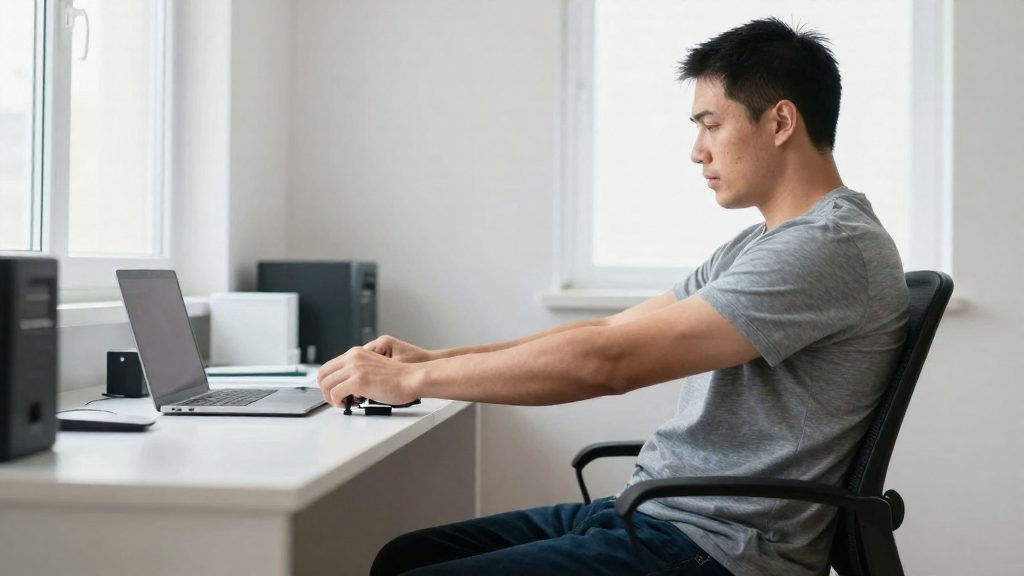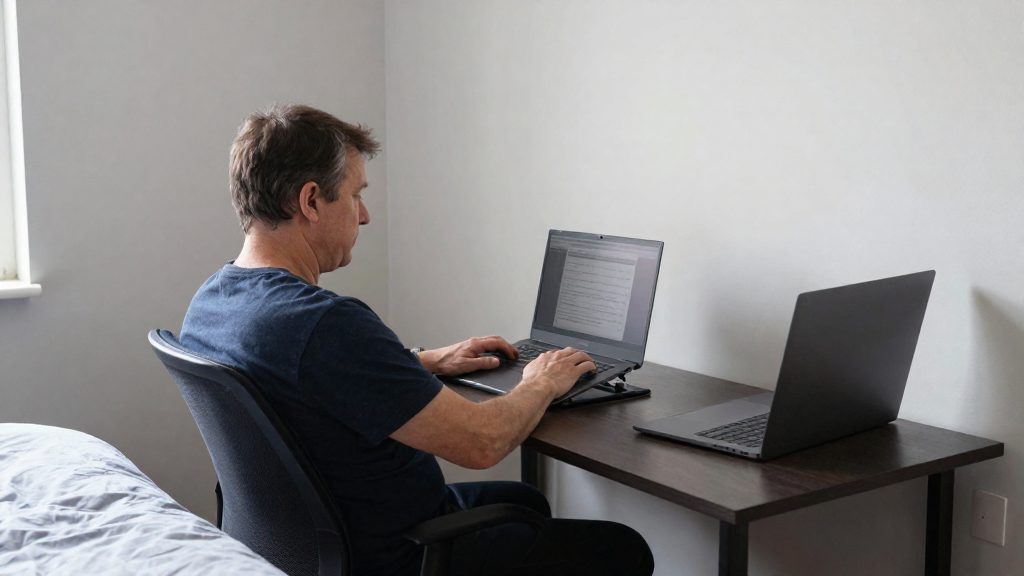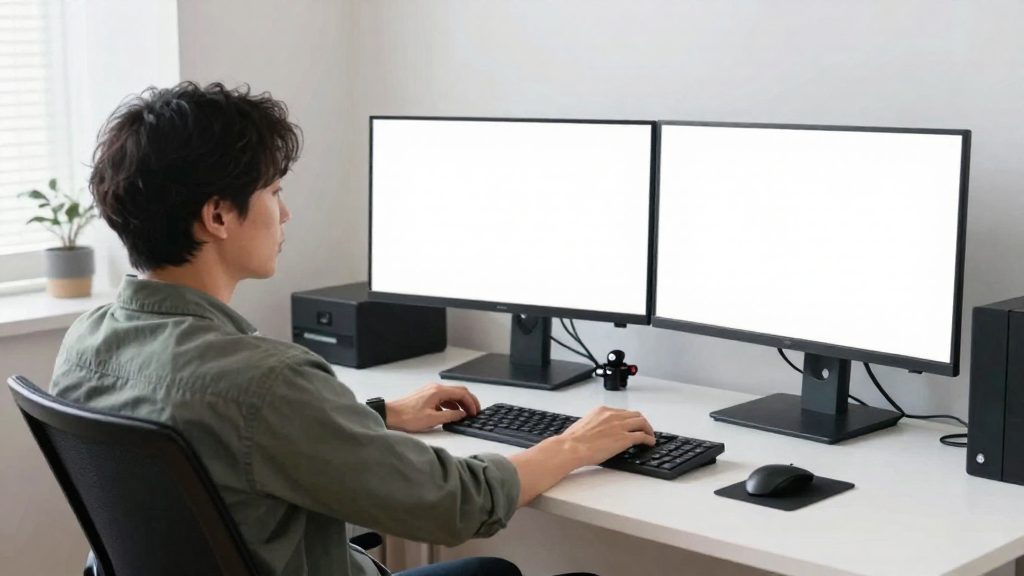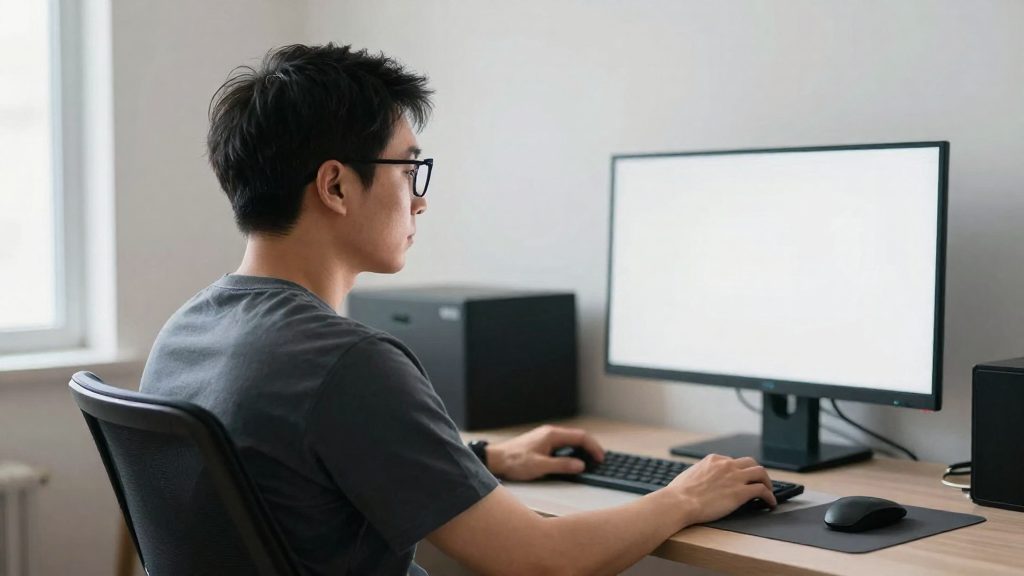
Bifocal wearers usually prefer the screen about 15 to 20 degrees lower than people who don’t wear bifocals. Without an adjustable monitor, they often lift their head to look through the bottom of the lenses, which strains the neck, back and shoulders. Lowering the monitor reduces that lift.
Why bifocals change the ideal monitor height
The mid-range sweet spot of progressive lenses sits below pupil height. A monitor set at eye level therefore places the screen above the part of the lens you use for it, so you have to tilt your head back to see it. Cardinus notes that this head-back position can cause neck pain, which is why the monitor may need to be lowered.
Head lift is the core mechanism. Repeated over a workday, lifting the head to look through the lower lens portion adds load to three areas:
- Neck: held at an upward angle for long periods
- Back: the upper body compensates to keep the head raised
- Shoulders: they tend to rise and tighten to support the head position
Lower screen position is the adjustment. People with progressive addition lenses also prefer the monitor slightly lower than people who don’t wear them.
To check your own setup:
- Sit in your normal working posture and notice whether you tilt your head back to read the top of the screen.
- Lower the monitor until your head stays roughly neutral while you read the screen through the lens portion you use for it.
- If the monitor cannot go lower, use a height-adjustable stand or monitor arm to make the change without moving the desk.
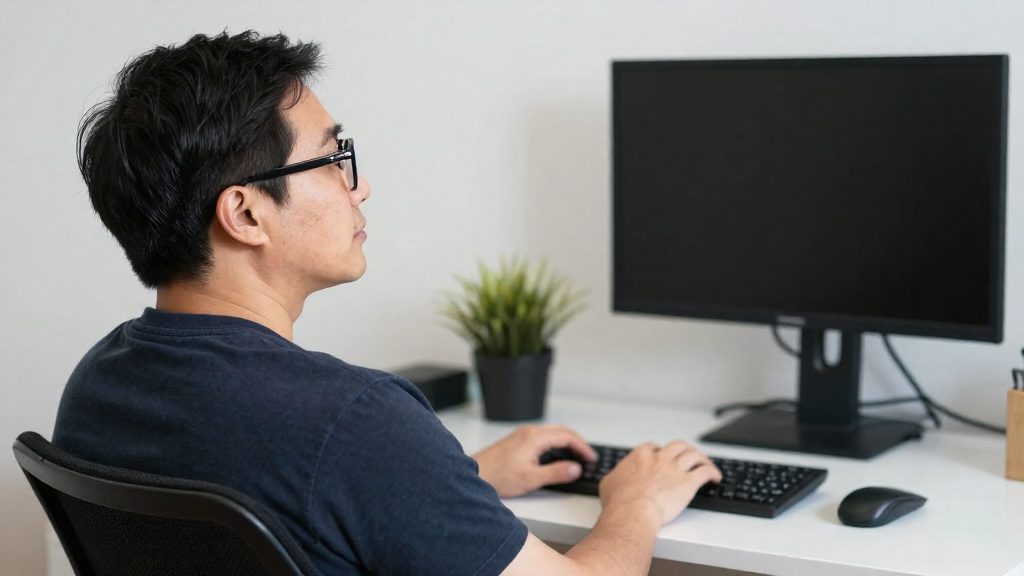
How low should a monitor go with progressives?
For progressive wearers, the monitor should sit lower than it would for someone without corrective lenses. Cardinus places the mid-range sweet spot of progressive lenses below pupil height, while Kensington frames the check as your line of sight landing on the top third of the screen through the distance portion of the lens. The two sources describe the lens zone differently, so ask your eye care professional which zone you use for the screen. Herman Miller’s white paper adds that people with progressive addition lenses prefer the monitor slightly lower than people without them.
Kensington (2019-03-26) gives a practical check: for bifocal or progressive wearers, your line of sight should land on the top third of the screen, which is the part viewed through the distance portion of the lens. For a standard setup, Kensington also states that your eyes should fall about 2-3 inches below the top of the monitor casing.
| Reference point | Source | Target |
|---|---|---|
| Mid-range sweet spot | Cardinus (2023-01-16) | Below pupil height |
| Line of sight | Kensington (2019-03-26) | Top third of the screen |
| Standard baseline | Kensington (2019-03-26) | Eyes 2-3 inches below casing top |
To apply these figures, sit in your usual working posture with your glasses on, and look at the screen without raising your chin. Then lower the monitor until your gaze lands on the top third of the display. The 2-3 inches below the casing top is Kensington’s baseline for a standard setup, and bifocal or progressive wearers should go lower. If you have to tilt your head back to see the top of the screen, the monitor is still too high.
Does tilting the screen help bifocal wearers?
Yes, but only after the monitor is lowered. Kensington advises bifocal and progressive-lens wearers to set the monitor lower than usual and to tilt the screen back 30 to 40 degrees, instead of the traditional 10 to 20 degrees. Kensington pairs the steeper tilt with the lower monitor position.
| Setting | Backward tilt | Source |
|---|---|---|
| Traditional setup | 10 to 20 degrees | Kensington (manufacturer), 2019-03-26 |
| Bifocal or progressive wearers | 30 to 40 degrees | Kensington (manufacturer), 2019-03-26 |
The lower height and the steeper tilt address the same issue.
To apply the tilt:
- Tilt the top edge backward to somewhere in the 30 to 40 degree range.
- Check the text at your normal working distance, looking through the distance portion of your lenses.
- Make small adjustments to height and tilt together, rather than changing one far beyond the other.
What viewing distance works best?
Preferred viewing distances for computer screens range from 20 to 39 inches, and the preferred distance often changes with age. The usual starting point is arm’s length, with a minimum of 20 inches between your eyes and the screen. For bifocal or progressive wearers, distance still matters, and preferred distances often change with age, so test the distance with your actual glasses on.
Kensington’s setup guidance for a standard desk gives the following rules:
| Factor | Guidance |
|---|---|
| Preferred range (Herman Miller) | 20 to 39 inches |
| Minimum distance (Kensington) | At least 20 inches from the eyes |
| Starting point (Kensington) | Arm’s length |
| Monitor size (Kensington) | Larger monitors are placed farther from the eyes |
To apply the arm’s length rule, sit upright in your usual chair, extend one arm straight forward, and check whether your fingertips reach the screen. If they do not, move the monitor closer. If your hand reaches the screen with your elbow bent, the monitor is probably too close.
Adjust the distance for the screen you use. A larger monitor needs more space, so a display that is too close can fill your field of view and make you lean forward. Because preferred distances change with age, recheck your setup after a change in prescription, and if you have bifocals or progressive lenses, test the distance with your actual glasses on rather than relying on a fixed measurement.
Should you get computer glasses instead?
Computer glasses are single-vision lenses designed for the intermediate distance of a monitor. Unlike bifocals or progressive lenses, they have one focusing zone across the whole lens, so the screen is more likely to be in focus without needing to search for a lens zone. Whether they suit you depends on how much of your day you spend at the screen and how often you switch between screen, paper and phone.
The main difference is where the correction sits. Bifocals have a distinct reading segment in the lower part of the lens, and progressives have a mid-range zone. Because the mid-range zone sits below pupil height, a monitor set too high can force you to tilt your head back to use it. This constrains where you can place the monitor and how far you tilt it.
| Factor | Bifocals or progressives | Single-vision computer glasses |
|---|---|---|
| Focus zone at the monitor | Partial, depends on lens segment | Whole lens, set for intermediate distance |
| Head posture needed | Often lifted or tilted to find the right zone | Usually neutral, without zone-hunting |
| Monitor placement | Constrained by lens zones | Less constrained by lens design |
| Reading paper or phone | Handled by the same lenses | Requires a second pair or removing the glasses |
Single-vision computer lenses suit people who work mainly at a screen and find that their multifocal lenses force awkward head positions. Multifocal lenses suit people who move frequently between screen, documents and phone, since one pair covers all distances.
When to ask an eye care professional
Consult an optometrist or ophthalmologist before buying computer glasses, especially if you already wear bifocals or progressives. Ask whether an intermediate-distance prescription is appropriate for your screen distance, and whether your current lenses can be adjusted. Schedule an appointment if neck, shoulder or eye strain persists after you have adjusted your monitor and posture.
Quick desk setup checklist
Adjust the chair first, then the desk and keyboard, then the monitor, so each step starts from a fixed reference. For bifocal wearers, the monitor comes last because its ideal height depends on where your eyes already sit. Work through the steps in this order, then run the checks below.
- Set the chair. Adjust seat height so your feet rest flat on the floor and your thighs are roughly level. Your eye level depends on the chair, so fix it first.
- Set the keyboard and desk. Position the keyboard so your forearms rest with relaxed shoulders. Keep the desk height consistent with the chair so the keyboard does not raise your shoulders.
- Set the viewing distance. Start at arm’s length and keep the monitor at least 20 inches from your eyes. Larger screens go farther away. Preferred viewing distances range from 20 to 39 inches (Herman Miller).
- Set the height. Place the monitor so your eyes fall about 2 to 3 inches below the top of the casing (Kensington). For bifocal or progressive wearers, lower it further.
Post-setup check
After a normal working session, check the following:
- Neck: Your head stays upright, with no lifting of the chin to read the screen.
- Eyes: You read the top third of the screen through the lens without strain or repeated head movement.
- Shoulders and back: They feel relaxed, not raised or hunched forward.
Signs the setup needs another adjustment
- You lift your head to read the bottom lines of text.
- You lean forward to see the screen clearly.
- Neck, back, or shoulder discomfort appears during work.
- Your eyes sit at or above the top of the monitor casing.
Frequently asked questions
Do I need to lower my monitor if I wear bifocals?
Usually, yes. Bifocal wearers tend to prefer the screen about 15 to 20 degrees lower than people without bifocals, because the reading zone sits low in the lens. Lowering the screen keeps your head from lifting to look through that area.
Where should my line of sight land on the screen with progressive lenses?
For bifocal or progressive wearers, one manufacturer advises setting the monitor so your line of sight falls on the top third of the screen, viewed through the distance portion of the lens. Other guidance places the progressive mid-range zone below pupil height, so these two references describe the lens zones differently. Test both positions during a real workday and keep the one that avoids neck strain.
Should I tilt the screen back more if I wear bifocals?
Some guidance suggests it. One manufacturer recommends tilting the screen back 30 to 40 degrees for bifocal or progressive wearers, compared with the traditional 10 to 20 degrees. A steeper tilt helps the lower lens zone reach the screen without a head lift, so adjust tilt together with height.