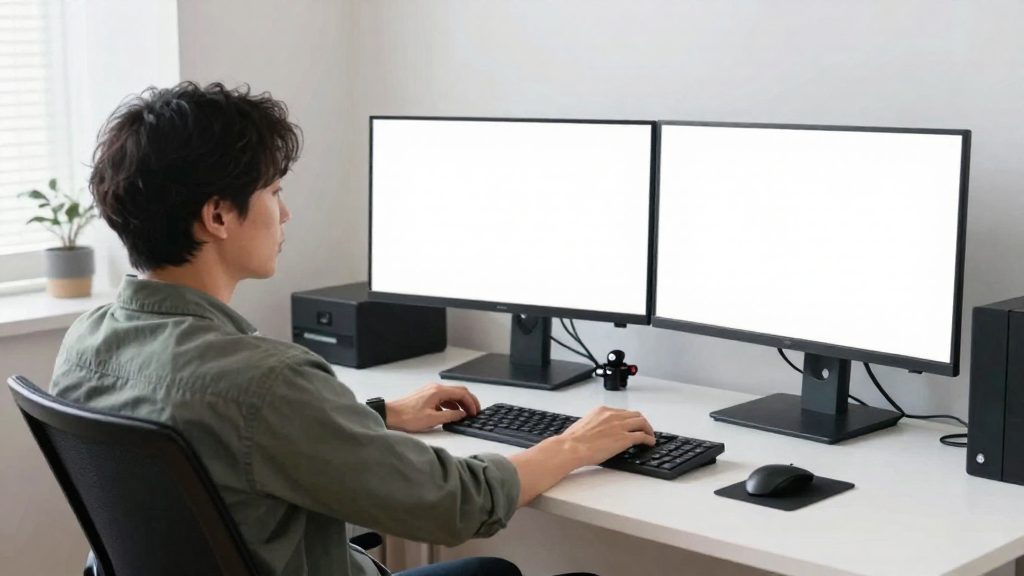
Why a dual monitor arm helps your posture
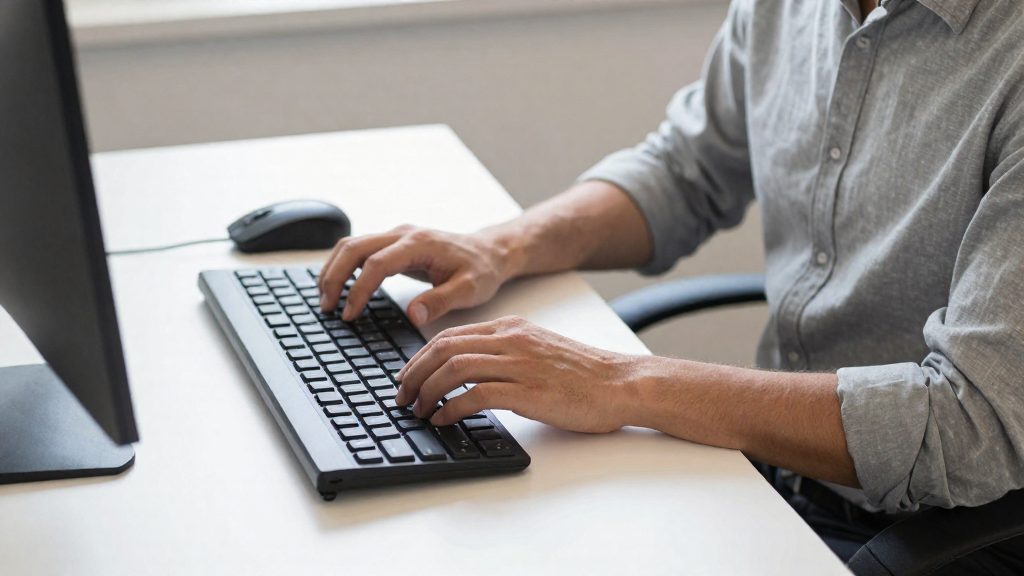
Desk space. Two fixed stands each need their own footprint on the desk. A dual monitor arm attaches both screens to a single mounting point, so the surface in front of you is free for the keyboard, mouse, and documents. Without that clearance, the keyboard often ends up pushed back or the screens sit too far forward.
Head and neck strain. Low fixed stands tend to keep the screen below the level you need, so the head tilts forward to read it. Repeated over a working day, this pattern is known as forward head posture, and it loads the neck and upper back. A monitor arm removes the base from the equation: the screens can be raised or lowered on the arm.
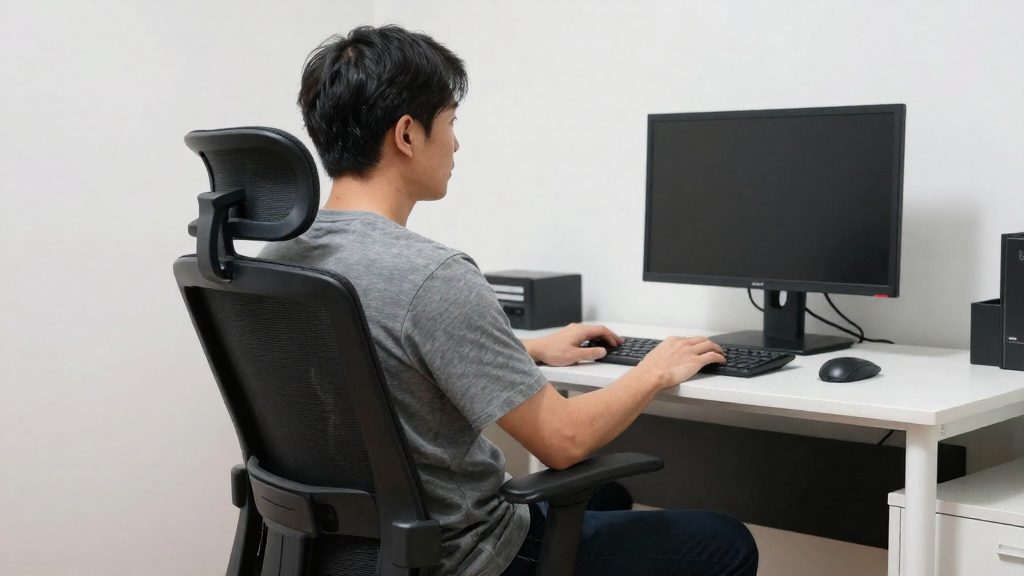
Adjustment order. Set the arm after you have sat in your working position. Sit with your back against the chair, your feet flat, and your forearms on the desk at about 90 degrees, then move the screens into place. Adjusting the arm first, while standing or leaning, often produces a height that does not match the seated posture you will actually use.
Which screen should be your main monitor?
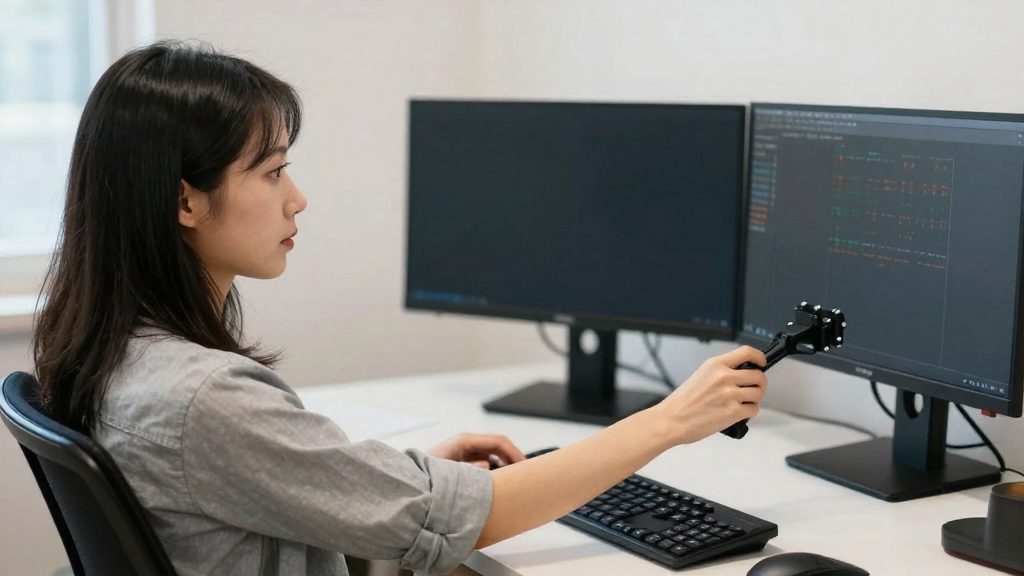
Your main monitor is the screen you use for typing and spreadsheets. Herman Miller’s dual-monitor method lists designating this screen as the second of its four steps, and it comes before you position either monitor. Choose it based on the work you do most. If most of your day is spent in a word processor or a spreadsheet, that screen should be the main one, and the other screen takes a secondary role.
Point the mouse toward the main screen
Once the main monitor is chosen, orient the mouse toward it. Herman Miller notes that this avoids the far-reach zone, where the elbow angle approaches 180 degrees. A mouse parked near the secondary screen forces your arm to extend sideways, and that stretch is what this step prevents.
Keep the main monitor within 35 degrees of your center line
Place the main monitor directly in front of you. OSHA advises centering the main monitor no more than 35 degrees to the left or right. This limit applies to the main monitor only. The secondary screen is positioned relative to it, as described in its own section. Staying inside that angle keeps your head and torso from turning far each time you look at your primary work.
| Setup element | Guideline | Source |
|---|---|---|
| Main monitor horizontal placement | Centered in front of you, no more than 35 degrees left or right | OSHA, 2012 |
Designating the main monitor first gives every later placement decision a fixed reference point. Once the main screen is set, the mouse and the secondary screen can be arranged relative to it.
How high and how far should two monitors be?
For the main screen, the vertical position and the distance from your eyes determine comfort more than the monitor model does. OSHA recommends that the top edge of the main screen sit at or just below eye level, with the screen center about 15 to 20 degrees below horizontal eye level. The recommended viewing distance is 20 to 40 inches (50 to 100 cm) from your eye to the front of the screen. These eye-level and angle values apply to the main screen only. The secondary screen is set at a parallel height instead, as described in its own section.
| Parameter | OSHA recommendation (main screen) |
|---|---|
| Top edge of the screen | At or just below eye level |
| Screen center | About 15 to 20 degrees below horizontal eye level |
| Viewing distance (eye to front of screen) | 20 to 40 inches (50 to 100 cm) |
Setting the height
- Sit in your normal working posture and look straight ahead at a point on the wall.
- Note where your eyes are level with the main screen.
- Adjust the monitor arm until the top edge of the main screen is at that line or just below it.
- Check that the center of the main screen falls about 15 to 20 degrees below horizontal eye level. This means your eyes drop slightly to see the center. Your head should stay upright rather than tilting forward.
Setting the distance
Use the monitor arm’s reach to place the main screen within 20 to 40 inches (50 to 100 cm) of your eyes. Choose a position within that range where you can read the text without leaning forward. Once set, avoid repositioning the screen every time you change tasks, so your posture stays consistent during the workday.
Setting the angle of the second screen
The secondary monitor is a reference surface beside your main work, not a competing focal point. The eye-level and 35-degree limits do not govern it; it is set relative to the main screen. In Herman Miller’s dual-monitor method, the final step places the main monitor at eye level and sets the secondary monitor at a parallel height, so both screens share the same horizontal plane.
Then set its orientation and tilt:
| Setting | Guideline | Source |
|---|---|---|
| Height | Parallel to the main monitor | Herman Miller |
| Orientation | Perpendicular to your line of sight | OSHA, 2012 |
| Tilt | No more than 10 to 20 degrees | OSHA, 2012 |
| Placement relative to windows | Perpendicular to the window | OSHA, 2012 |
Keeping the screen perpendicular to your line of sight means its face points toward you when you look at it, rather than at an angle that forces your eyes to work harder. Apply the tilt only as needed to reach that perpendicular position, and keep it within the 10 to 20 degree limit. A tilt beyond this range moves the screen away from the perpendicular position OSHA describes.
Assign the secondary monitor a clear role. Herman Miller’s method uses the secondary screen for reference material, such as documents, web pages, or notes. Keeping that split consistent means you turn your head or glance toward the secondary monitor only when you need the material.
Mounting the arm: clamp, weight and cables
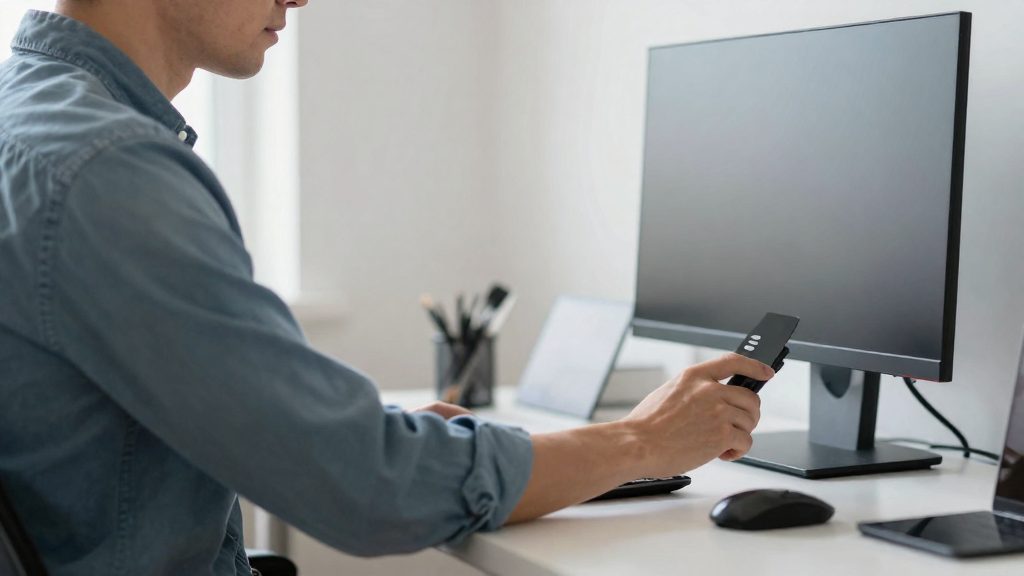
The mount is where the arm’s base and the combined weight of both monitors meet the desk. Two base types are common: a clamp mount that grips the desk edge, and a grommet mount that passes through a hole in the desk surface. Choose based on your desk’s construction and whether you can drill into it. Before you fix anything, confirm the weight rating in the manufacturer’s documentation, and make sure it covers both screens together.
Clamp versus grommet mounting
| Mount type | What it requires | Key consideration |
|---|---|---|
| Clamp | A desk edge thick and solid enough for the clamp jaws to grip | Tighten the clamp evenly; a thin or hollow edge can flex under load |
| Grommet | A hole through the desk surface, usually near the back edge | Requires drilling; keep the base level so the arm sits square |
Use a clamp when the desk edge is solid and you want to leave the surface untouched. Use a grommet when the edge is too thin or too soft to hold a clamp, or when the desk has a pre-existing cable hole that matches the base.
Checking the weight rating
Add the weight of both monitors and compare the total with the arm’s rated capacity. Check how the manufacturer states the capacity: some dual arms give a limit per arm (per screen) and others a total for the whole arm. Compare each monitor’s weight, or the combined weight, with the matching figure, and do not exceed it. Confirm that the monitors’ mounting plates fit the arm’s attachment. Standard VESA patterns are the usual compatibility check, and the manufacturer’s listing states which patterns the arm supports.
Routing cables through the arm
Run video and power cables through the arm’s channels from the monitor to the desk. Leave enough slack at each joint so the cables do not pull when the arm moves through its full range. Secure the bundle at the base with a clip or tie, so the weight of the cable does not hang on the monitor’s ports. Keep cables clear of the clamp or grommet, so nothing snags when you move the screens.
How do you cut glare and reduce eye strain?
Glare on a dual-monitor setup usually comes from three sources: daylight from windows, overhead lighting, and screen brightness that doesn’t match the room. OSHA recommends placing the monitor perpendicular to windows to limit glare. With two screens, both panels need this treatment, so position the pair so that neither faces a window and watch for reflections from overhead lights. Check each screen separately, because the second monitor often sits at a different angle to the light.
Overhead lights are the second source. Tilting the screen back can pick up overhead light reflections, which appear as a bright band or a mirror image of a fixture. When you see one, adjust the screen’s angle or move the lamp instead of leaning forward to find a clear view. Leaning forward shifts your head position and adds neck strain, which defeats the purpose of the setup.
The third lever is screen brightness. No specific brightness figure is given here, so use a simple check: set brightness so the screen does not look noticeably brighter than the walls and desk around it. A screen much brighter than its surroundings forces your eyes to readjust each time you look away from it. Apply the same setting to both monitors, since mismatched brightness across two panels causes the same readjustment.
| Glare source | Adjustment |
|---|---|
| Daylight from a window | Place the monitor perpendicular to the window |
| Reflections from overhead lights | Adjust the screen angle or the position of the fixture instead of leaning forward |
| Screen brighter than the room | Lower brightness until it roughly matches the surroundings |
Quick checklist and break reminders
Once the monitor arm is installed, run a post-installation check of every adjustment before you rely on the setup. Use the reference values below, measured from your normal seated position. The distance, eye-level, and centering values apply to the main screen; the secondary screen is checked for parallel height and tilt.
| Check | Reference value |
|---|---|
| Viewing distance (main screen) | 20 to 40 inches (50 to 100 cm) from your eye to the front of the screen |
| Top of main screen | At or just below eye level |
| Main screen center | About 15 to 20 degrees below horizontal eye level |
| Main monitor horizontal position | Centered in front of you, no more than 35 degrees to the left or right |
| Secondary screen height | Parallel to the main screen |
| Secondary screen tilt | No more than 10 to 20 degrees, perpendicular to your line of sight |
Check the items in this order: posture first, then height, then distance, then angle.
Re-checking after a desk height change
Raising or lowering the desk changes your eye level relative to the main screen, so the setup must be checked again. After each height change, repeat the top-of-screen and screen-center checks on the main screen. Then adjust the arm height and the secondary screen so both sit at a parallel height.
Scheduled movement pauses
Sustained screen work calls for regular breaks away from the monitors. This guidance does not set a fixed interval, so choose one that fits your workday and set a recurring reminder. During each pause, stand up, step away from the desk, and change your posture before returning to the screens.
Frequently asked questions
How do I check that my arm can support both screens?
Look at whether the manufacturer lists the weight rating per arm (per screen) or as one total for both screens. Compare each monitor’s weight, or the combined weight, with the matching figure, and do not exceed it.
Which screen should be the main one on a dual arm?
Choose the main monitor based on your main task, such as typing or spreadsheets, and center it no more than 35 degrees to the left or right of your centerline. Set the secondary screen at a parallel height to the main one, and keep it perpendicular to your line of sight with a tilt of no more than 10 to 20 degrees. The secondary screen works best for reference material such as documents, web pages, or notes.
In what order should I check the setup after installing the arm?
Start with posture: sit with your back against the chair, feet flat, and forearms at about 90 degrees. Then set the height so the top of the main screen is at or just below eye level, and the distance so the screen sits 20 to 40 inches (50 to 100 cm) from your eyes. Finish with the angle, keeping the screen center about 15 to 20 degrees below horizontal eye level.