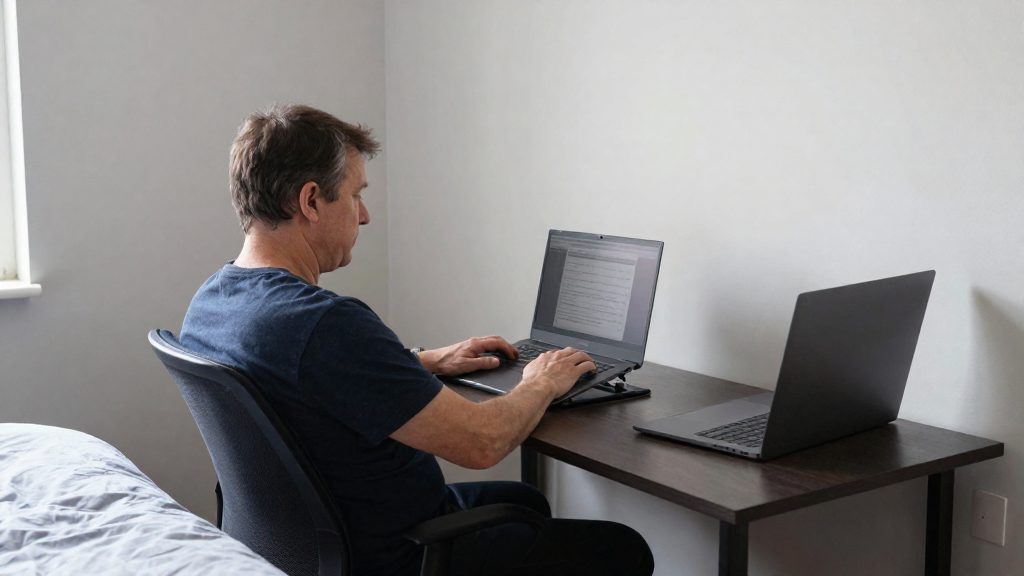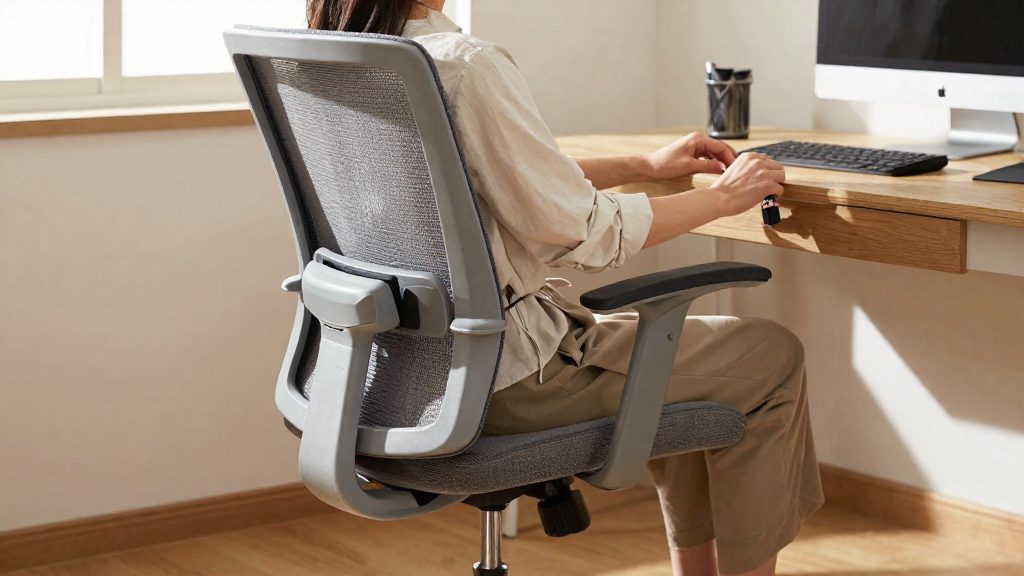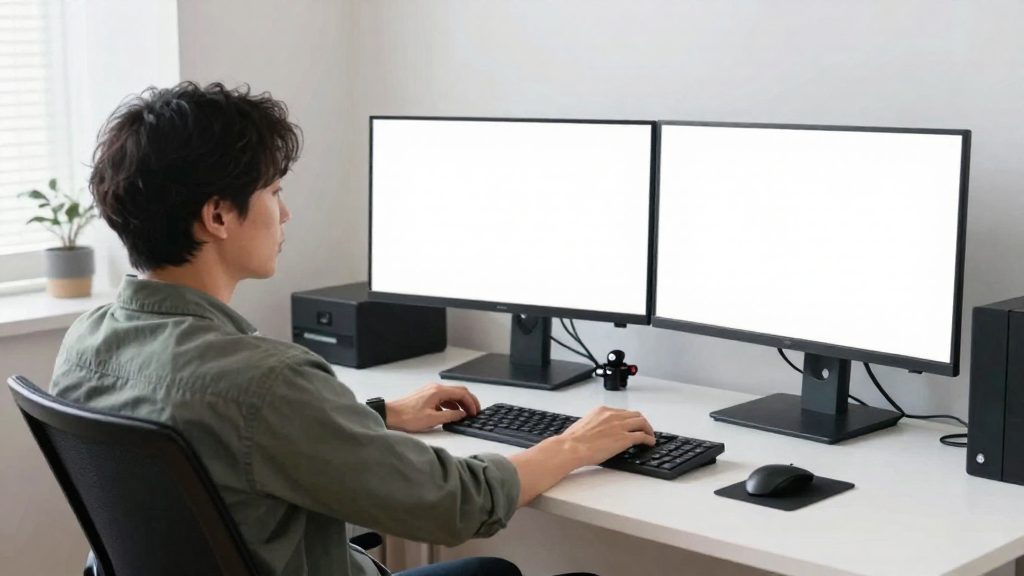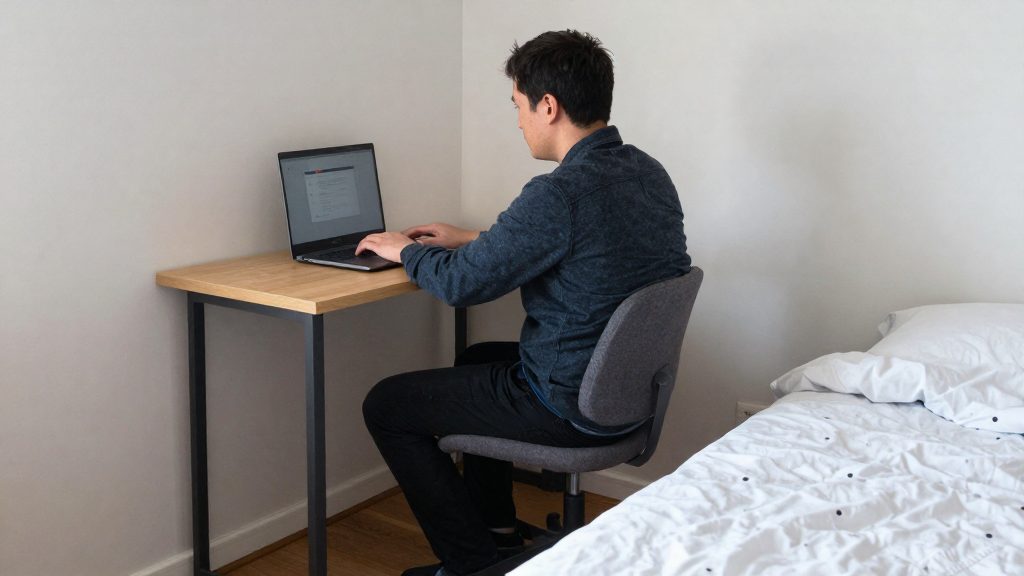
Wrist strain during daily computer work builds from repetitive motion, sustained bending, and pressure on the base of the palm. Desk setup is one of the few parts of that load you can control directly. Typing and mouse use repeatedly move the tendons that run through the wrist, and holding the hand bent for long periods keeps it away from a neutral position. Changing how your keyboard, mouse, and forearms are positioned reduces these loads without changing how much work you do.
Why keyboard and mouse setup matters for wrist pain
Typing and mouse use are repetitive tasks. Each keystroke and click moves the finger and wrist tendons, and across a full workday those small movements add up. Repetition alone does not describe the whole problem. The position of the wrist during each movement determines how much load the tendons and surrounding tissue absorb. When the wrist stays bent for long periods, the strain concentrates on the same structures every day.
Sustained wrist bending is a particular concern because it can increase pressure on the median nerve. Boston University Environmental Health & Safety notes that the median nerve and the transverse carpal ligament sit in the area below the palm. Pressing on that area, for example by resting the hand on a hard edge during mouse use, adds direct pressure to these structures.
A desk setup is a controllable risk factor. You cannot change how many messages you receive or how long your meetings run, but you can change the height of the keyboard, the position of the mouse, and the way your forearms and wrists are supported. Each of these adjustments changes how much time your wrists spend in strained positions. Treating the workstation as a set of adjustable variables, rather than a fixed arrangement, gives you a practical way to reduce wrist load over time.
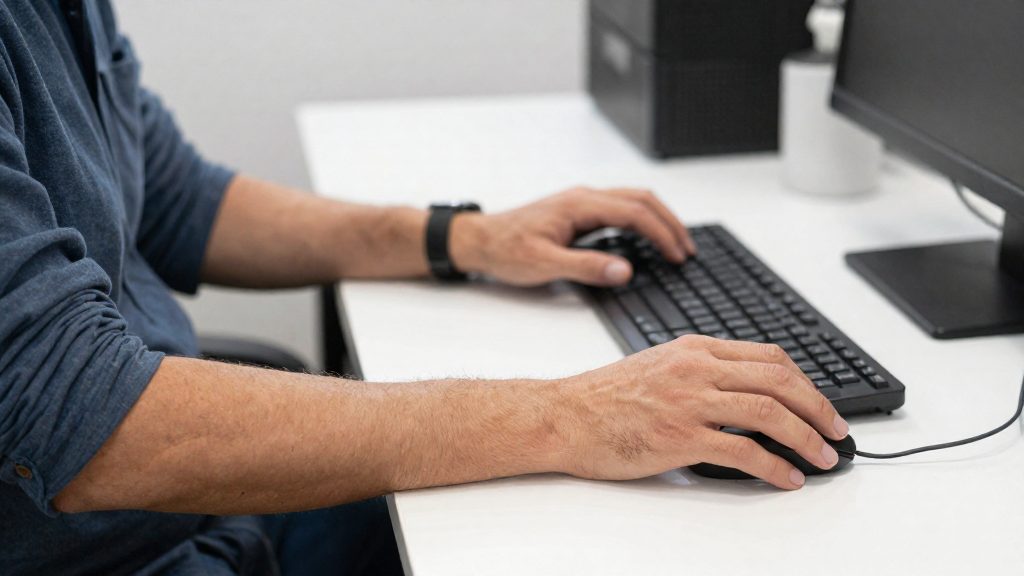
What is a neutral wrist position?
A neutral wrist position is one where the hand continues the straight line of the forearm, without bending up, down, or sideways while you type or use the mouse. Contour Design (2026) gives a measurable limit: keep wrist bend within 10 degrees in any direction. Bend beyond that threshold counts as deviation, and sustained deviation is the pattern to correct when judging a typing or mousing position.
The 10-degree limit
The limit applies to each of the four directions a wrist can bend, so each one needs its own check:
| Direction of bend | Visual cue during typing | How to check |
|---|---|---|
| Extension (up) | Back of the hand rises above the forearm line | View the wrist from the side |
| Flexion (down) | Fingers drop below the forearm line | View the wrist from the side |
| Ulnar deviation (toward little finger) | Hand tilts outward on the pinky side | View both hands from behind the chair |
| Radial deviation (toward thumb) | Hand tilts outward on the thumb side | View both hands from behind the chair |
Spotting deviation while you type
Check your posture during normal work rather than in a set test position:
- Side view: the back of the hand should sit roughly on the same line as the forearm.
- Rear view: both hands should point in the same direction as the forearms, not splay outward.
- Reaching keys: notice whether the wrist bends sharply when you reach for keys at the edges of the keyboard.
- Pauses: check whether the hand stays bent upward or downward between keystrokes or during longer breaks from typing.
How should you position your keyboard?
Keyboard height affects the elbow angle, so it is a good place to start. Boston University Environmental Health & Safety (2026) gives two height rules, depending on whether your desk has a keyboard tray.
| Setup | Keyboard height rule | Source |
|---|---|---|
| Desk without a tray | Just below elbow height | Boston University EH&S (2026) |
| Keyboard tray | 1.5 to 2 inches above the thighs | Boston University EH&S (2026) |
For a desk without a tray, follow these steps:
- Sit with your back supported and your feet flat on the floor.
- Let your upper arms hang naturally at your sides.
- Raise or lower the chair, or adjust the desk, until the keyboard sits just below your elbow height.
- Check that the middle of the space bar lines up with the middle of the monitor, so the keyboard sits directly in front of the screen.
For a tray, place the tray 1.5 to 2 inches above your thighs, then confirm that your forearms still rest at a comfortable angle when your hands reach the keys.
Contour Design (2026) recommends keeping the elbows at an angle of 75 to 135 degrees while typing. Check the angle with a photo taken from the side, then make small height changes until both elbows fall within the range.
Where should the mouse go?
Place the mouse just below elbow height, next to the keyboard, and angle it about 45 degrees to reduce wrist stress, according to Boston University Environmental Health & Safety (2026). The table below lists the placement guidance from the two sources. The table below lists the placement guidance from the two sources.
| Parameter | Guidance | Source |
|---|---|---|
| Mouse height | Just below elbow height | Boston University EHS, 2026 |
| Mouse position | Next to the keyboard | Boston University EHS, 2026 |
| Mouse angle | About 45 degrees, to reduce wrist stress | Boston University EHS, 2026 |
| Elbow angle | Between 75 and 135 degrees | Contour Design, 2026 |
For hand contact, the outside of the hand or the palm should rest on the surface while the mouse is in use. Boston University EHS (2026) specifies that the contact point should not be the area below the palm, where the median nerve and transverse carpal ligament are located.
To check the setup, keep the hand on the mouse for a few minutes of normal work and observe the wrist. If it bends sideways or upward beyond 10 degrees, or if the elbow falls outside the 75–135 degree range, move the mouse or the chair height until the joints stay within these limits.
Are ergonomic keyboards and mice worth it?
Ergonomic keyboards and mice are not a universal fix. The guidance available does not give price-to-benefit figures, so their value depends on which posture problem you need to solve. A flat keyboard and a distant mouse can push the wrist into outward bending and force a long reach. Specialized designs target those mechanics: a split or tented keyboard changes the keyboard geometry, a compact keyboard shortens the mouse reach, and a roller ball mouse changes how the hand moves. Choose a device by matching it to the problem you have observed, not by assuming any ergonomic product is an improvement.
| Design | Mechanical target | Condition in the guidance |
|---|---|---|
| Split or tented keyboard | Reduces outward wrist bending | — |
| Compact keyboard without number pad | Brings the mouse closer to the keyboard | Helpful when the mouse is more than 6 inches from the keyboard |
| Roller ball mouse or keyboard roller mouse | Alternative for significant wrist discomfort | Considered only when discomfort is significant |
Split or tented keyboards
A split or tented keyboard can reduce outward wrist bending, according to Contour Design (2026). That is the main reason to consider one.
Compact keyboards without a number pad
Removing the number pad shortens the distance between the keyboard and the mouse. This matters when the mouse sits more than 6 inches from the keyboard, because a long reach keeps the shoulder and wrist working away from neutral. The trade-off is that numeric entry becomes harder. If your daily work involves a lot of number entry, a compact layout may cost you more time than it saves.
Roller ball mice
The guidance recommends a roller ball or keyboard roller mouse only for significant wrist discomfort. It is not presented as a default upgrade for every user. Treat it as an option to consider when wrist discomfort is significant.

Do wrist rests help or hurt?
Contour Design advises using a wrist rest only during pauses, not while typing. The rest is for pauses, not for keystrokes.
Timing decides the effect
| Phase | Wrist rest use | Reason |
|---|---|---|
| Active typing | Keep the wrists lifted off the rest | Contour Design advises against using the rest while typing |
| Pauses (reading, thinking, not typing) | Rest the wrists on the rest | Guidance permits rest during pauses |
Placement relative to the keyboard front edge
Place the rest in front of the keyboard so it is within reach during pauses. The source does not give a measured distance, so adjust the position by feel rather than by a fixed number.
- Place the rest in front of the keyboard’s front edge.
- Type with the wrists floating above the surface.
- Move the wrists onto the rest only when you stop typing.
How often should you take breaks?
For typing-heavy work, the manufacturer guidance from Contour Design recommends microbreaks every 30 minutes during computer work. A microbreak is a short pause in computer work.
| Break type | When to take it | What to do |
|---|---|---|
| Microbreak | Every 30 minutes of computer work | Lift your hands off the keyboard and mouse, release the grip, and change your posture for a few moments |
Scheduling reminders for consistent timing
Relying on memory makes microbreaks irregular, especially during focused work. Set a recurring 30-minute reminder in your calendar, a desktop timer, or a dedicated break app. Keep the interval fixed so that the reminder becomes a predictable cue. If you find the reminder interrupts you at a poor moment, shift the break to the nearest natural pause in your task rather than skipping it.
When to see a professional
If wrist pain persists after you have adjusted your keyboard and mouse, the threshold for seeking professional care is 2 to 3 weeks of adjustments without relief. Contour Design’s guidance sets this timeframe for persistent pain. Give the changes at least that long before concluding that they are not working, and keep a simple record of when the pain occurs and which tasks trigger it, since this will help the professional you consult.
Some symptoms justify contacting a professional sooner. Numbness or tingling in the fingers can be a sign of nerve involvement, so it is safer to consult a professional than to wait and monitor it.
| Situation | Suggested action |
|---|---|
| Pain eases within 2 to 3 weeks of adjustments | Keep the adjusted setup and continue to monitor |
| Pain persists after 2 to 3 weeks of adjustments | See a professional |
| Numbness or tingling in the fingers | Contact a professional without waiting for the 2 to 3 week mark |
Your first contact can be a healthcare professional, who can assess the wrist and any nerve-related symptoms. Your first contact can be a healthcare professional, such as a physician.
To make the first appointment more productive, prepare the following information:
- The date when wrist pain started and how it has changed since
- The tasks that bring on symptoms, such as prolonged typing or mouse use
- Whether numbness or tingling occurs, which fingers are affected, and when it happens
- The adjustments you have already made to your keyboard, mouse, and chair, and how long you kept each one in place
Frequently asked questions
How high should my keyboard sit if I don’t have a keyboard tray?
Without a tray, Boston University EHS (2026) places the keyboard just below elbow height, with the middle of the space bar aligned to the middle of the monitor. If you use a tray, set it 1.5 to 2 inches above your thighs instead.
Should I rest my wrists on a wrist rest while I type?
No. Contour Design (2026) advises using a wrist rest only during pauses, so keep your wrists lifted while your fingers are on the keys.
When should I stop adjusting my setup and consult a professional?
Contour Design (2026) recommends seeking professional advice if pain persists after 2 to 3 weeks of adjustments. As general medical caution rather than a figure from these sources, numbness or tingling in the fingers is a reason to consult a professional sooner.