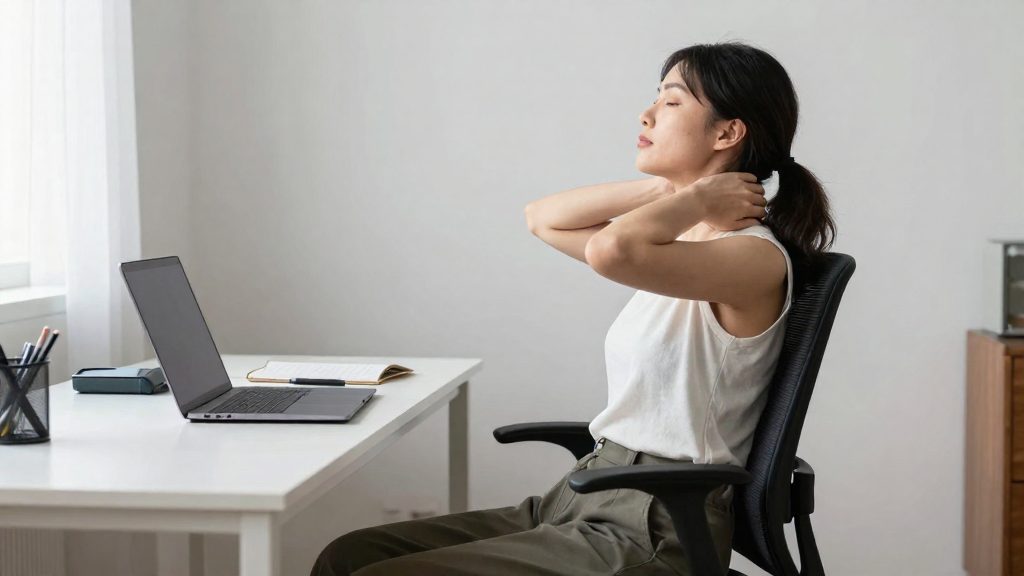
Video call days strain the neck mainly because you hold the same head position for long stretches, and call stress often adds muscle tension. Forward head posture increases the load on the neck muscles, and extended sitting through back-to-back meetings keeps the body in one position. Shoulder elevation and jaw clenching under pressure can add to the strain. Together, these three patterns explain why neck discomfort tends to build over a heavy call schedule.
Why do video call days strain your neck?
Forward head posture increases cervical load
When the head moves forward toward a screen, the muscles at the back of the neck must work harder to hold the head upright. Harvard Health Publishing advises keeping your ears over your shoulders and your head balanced over your spine. Aurora Health Care recommends keeping your head centered over your body. Both cues describe the same goal: stacking the head over the rest of the spine rather than letting it drift ahead.
Static sitting during back-to-back meetings
Consecutive meetings keep you seated in one position with little variation. Static sitting removes the small postural shifts that normally occur when you move, so the same neck and upper back muscles stay under sustained load. Harvard Health Publishing suggests keeping your feet flat, your knees at about 90 degrees, and using lumbar support such as a supportive chair or a small pillow. Harvard Health Publishing presents these settings as part of good seated posture.
Shoulder elevation and jaw clenching under call stress
Under pressure, many people lift their shoulders toward their ears and clench their jaw without noticing. Shoulder elevation keeps the upper trapezius and neck muscles contracted for longer than necessary. Aurora Health Care advises keeping your shoulders pulled back and away from your ears and lightly engaging your abdominal muscles. Checking these points during a call helps interrupt the tension pattern before it becomes persistent.
| Strain pattern | What it looks like | Posture cue from the fact sheet |
|---|---|---|
| Static sitting | Same seated position through consecutive meetings | Feet flat, knees about 90 degrees, lumbar support (Harvard Health Publishing) |

Raise the screen to eye level
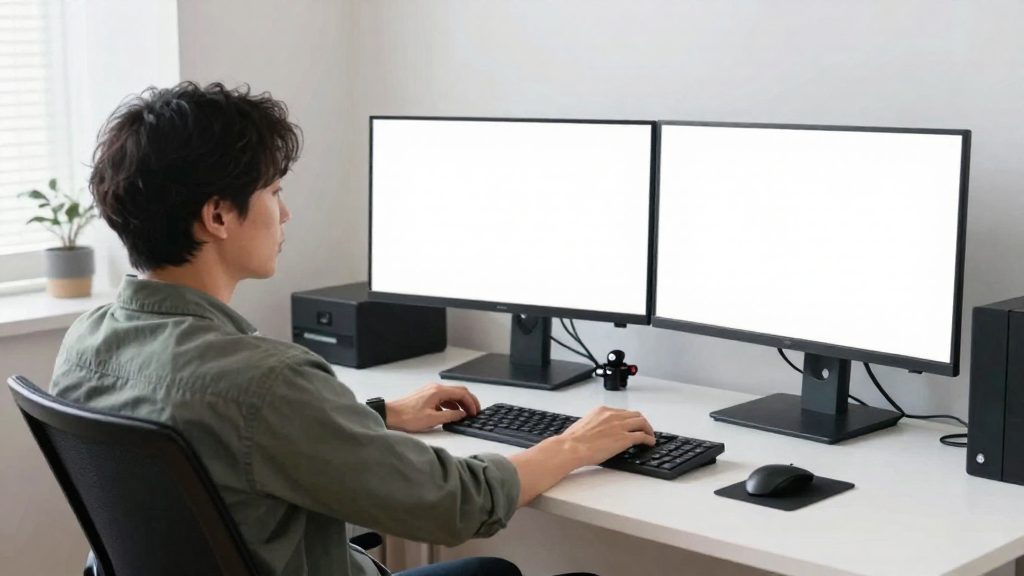
Position the screen so your eyes land in its top third. Harvard Health Publishing advises setting the monitor at eye level so you don’t have to look up or down, which keeps the neck from holding a tilted position through a long call.
Where your eyes should land
- Top third target: Aurora Health Care recommends positioning the screen so your eyes land in the top third of it.
- Eye level: Harvard Health Publishing recommends setting the monitor at eye level.
- Check during a call: If you find yourself looking down at the bottom of the window or tilting your chin up to see participants, adjust the height before changing anything else.
Raising a laptop
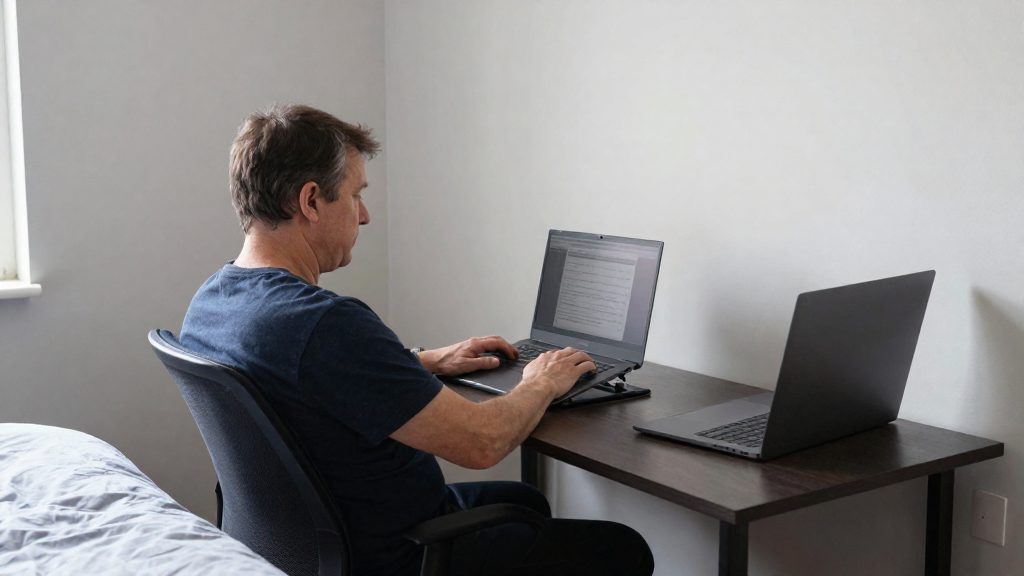
A laptop’s built-in screen sits too low when the laptop rests flat on a desk. Harvard Health Publishing notes that a laptop stand or laptop desk can raise the laptop to a better height and angle.
Once the screen is raised, the keyboard and trackpad sit lower than the screen, so a separate external keyboard lets you keep typing with your forearms in a comfortable position while the display stays at eye level. As general guidance, adjust the stand first, then position the keyboard.
Distance and text legibility
Place the screen at a distance where text is readable without leaning toward it. If you must move your head closer to read, increase the text size or move the screen closer rather than pushing your head forward. Forward head posture is the outcome you are trying to avoid.
Set up your desk and chair
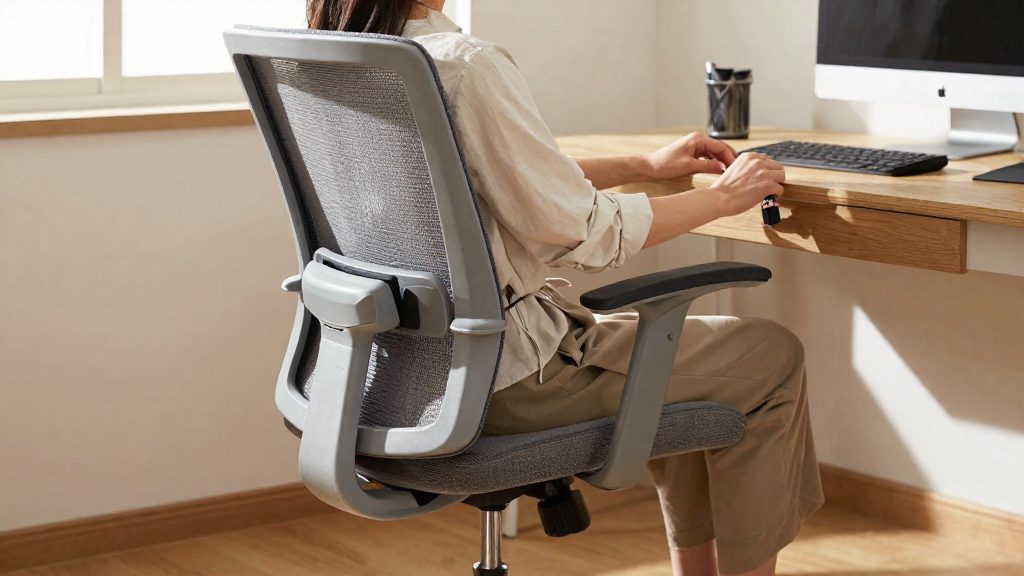
Seated alignment on call days depends on a few measurable targets: forearms level with the floor while typing, knees at about 90 degrees, and lumbar support for your lower back. Aurora Health Care and Harvard Health Publishing describe these positions for desk work, and they are a reasonable baseline for long days on video calls.
Adjust your seat before the desk. Sit back fully in the chair, then set its height so your feet rest flat on the floor and your thighs run level. Once your legs are set, check your forearms: they should sit level with the floor while you type. If your desk height does not allow this, the chair height is the adjustment to change first.
| Body part | Target position | Source |
|---|---|---|
| Forearms | Level with the floor while typing | Aurora Health Care (2026) |
| Feet | Flat on the floor | Aurora Health Care (2026) |
| Thighs | Level | Aurora Health Care (2026) |
| Knees | About 90 degrees | Harvard Health Publishing (2025) |
| Lower back | Supported by a chair with good support or a small pillow | Harvard Health Publishing (2025) |
Keep your shoulders pulled back and away from your ears during tense moments in a meeting, as Aurora Health Care advises.
If your feet cannot rest flat, or your knees sit well above or below 90 degrees, the chair height is the first setting to revisit. If your lower back lacks support, a small pillow placed behind it is one option listed by Harvard Health Publishing.
Use a headset, not your shoulder
Pinning the phone between your ear and shoulder frees your hands, but it puts one side of your neck and shoulder under a one-sided load for the full length of the call. Your head tilts toward the handset, and the muscles on that side keep working to hold it in place. Repeated across a day of meetings, this habit adds up, so it is worth replacing rather than adjusting.
Harvard Health Publishing advises using a headset, earbuds, headphones or speakerphone instead of holding the phone between your ear and shoulder. Each option removes the need to tilt your head.
The main alternatives differ in how they fit a desk routine:
- Headset (wired or wireless): a single device with a built-in microphone, suited to long calls.
- Earbuds: smaller and lighter, useful when you want to keep your ears free of a larger device.
- Headphones: a full-size option if you already own a pair with a microphone.
- Speakerphone: no device on your body at all. It works for calls in a room with other people, but everyone nearby hears the conversation.
A wireless headset gives the most freedom of movement. Because nothing is tethered to the computer or the desk, you can stand, shift your weight, or walk a few steps during a call. This matters on heavy meeting days, when a fixed seated position is the default.
After you switch, check your shoulders, and make sure you are not hunching toward the device or the screen. Changing the audio setup removes the tilt, but the upper body still needs to stay relaxed.

How often should you break during calls?
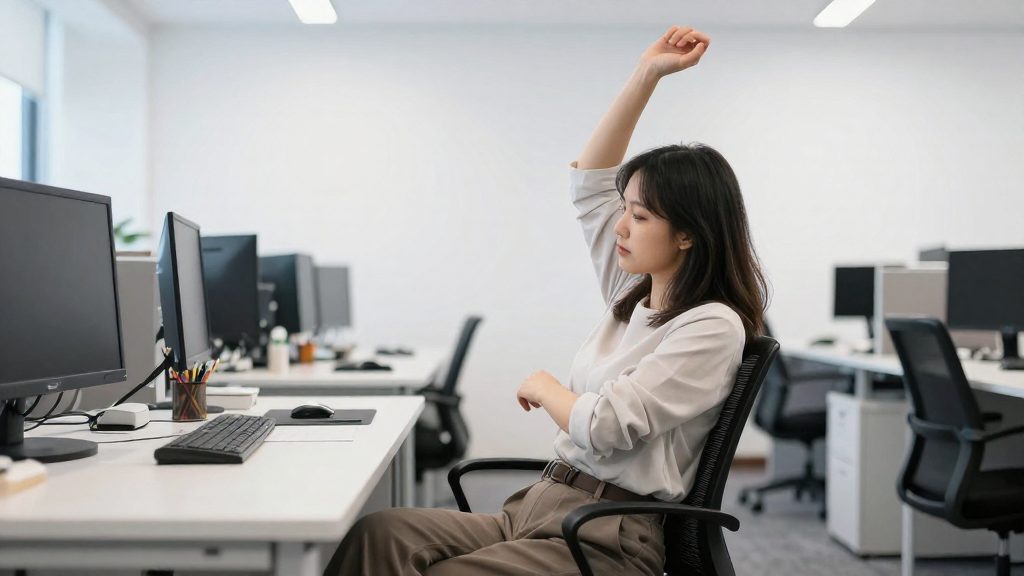
Harvard Health Publishing advises that you stand up, stretch or move around every 30 minutes to avoid stiffness. On heavy video call days, the risk comes from staying seated and fixed in one position, which keeps the neck and shoulders under a steady static load. Harvard’s 30-minute interval applies whether or not a meeting is scheduled: if you have been seated that long without moving, take a break.
Schedule buffers between back-to-back meetings
Back-to-back video meetings leave no natural pause, so the movement break is the first thing skipped. Block short gaps in your calendar between meetings and use them to stand and move. Keep these gaps free of tasks such as reading messages, so the break actually interrupts the seated position. Add the buffers before accepting new invitations, so the schedule is built around them.
Stand during audio-only calls
For audio-only calls, where your camera and screen are not needed, stand up for the duration of the call. A laptop stand or laptop desk can raise a laptop to a usable height if you want to keep the screen within reach while standing.
| Break type | Practice | Source basis |
|---|---|---|
| Movement break | Stand, stretch or move every 30 minutes | Harvard Health Publishing, 2025-02-19 |
| Calendar buffer | Keep short gaps between back-to-back video meetings for movement only | General guidance; no duration in the fact sheet |
| Audio-only call | Stand up for the call, with the device on a raised surface | General guidance |
Neck stretches to do between meetings
Harvard Health Publishing suggests gentle neck exercises that need no equipment and can be done at your desk between calls. Each movement is held briefly and repeated a set number of times, and none should cause pain. The four exercises below target the neck and upper shoulders.
| Exercise | Hold | Repetitions |
|---|---|---|
| Neck tilts | 10–15 seconds | 5 times per side |
| Chin tucks | 10 seconds | 5 times |
| Side-to-side rotations | 10 seconds | 5 times per side |
| Shoulder rolls | No hold | 5 forward and 5 backward |
Shoulder rolls are performed for 5 forward and 5 backward repetitions, without a hold.
To perform them correctly:
- Neck tilts: Lower one ear toward the shoulder on the same side. Keep the shoulder relaxed and do not lift it to meet the ear.
- Chin tucks: Draw your chin straight back, keeping your head level. The movement should lengthen the back of the neck rather than tilt the head down.
- Side-to-side rotations: Turn your head slowly to one side, then to the other. Keep your shoulders still and your gaze level.
- Shoulder rolls: Lift both shoulders, roll them forward and down, then repeat in the backward direction.
Before starting, check your baseline position. Starting from a neutral position lets each movement work the intended muscles rather than compensating for a forward head posture.
When should you see a clinician?
Self-management at home suits short-lived stiffness after a long day on video calls. Some symptoms call for assessment by a doctor, physiotherapist, or other qualified health professional instead. The signs below separate routine tension from problems that need a professional opinion.
Pain that persists or worsens. Neck pain that lasts several days, even after you have adjusted your screen height, chair, and posture, suggests the problem is not only posture-related. Pain that gets steadily worse over time also warrants a consultation, even if it is mild at first.
Numbness, tingling, or weakness spreading into the arms. Sensations that travel down one or both arms, or a hand that feels weak or clumsy when gripping a mouse or pen, can indicate that a nerve is involved. Stretching and desk changes do not address nerve symptoms, so these signs should be assessed rather than managed alone.
Headaches or neck pain after an injury or trauma. Pain that begins after a fall, a collision, a sudden jolt to the head or neck, or any other injury should be checked promptly, even when symptoms seem minor. An injury can cause damage that is not visible from the outside, and the cause of the pain should be confirmed before you return to a long screen session.
| Symptom | Recommended action |
|---|---|
| Neck pain lasting several days or getting worse | Book a consultation with a clinician |
| Numbness, tingling, or arm weakness | Get assessed; do not wait it out at your desk |
| Headache or neck pain after an injury or trauma | Get assessed promptly |
Frequently asked questions
How often should I move during back-to-back video calls?
Harvard Health Publishing advises you to stand up, stretch or move around every 30 minutes to prevent stiffness. If your calendar has no gaps, use the moment you mute your microphone to shift position and roll your shoulders.
Does a headset really matter for neck pain?
Yes. Harvard Health Publishing recommends a headset, earbuds, headphones or a speakerphone instead of cradling the phone between your ear and shoulder, because that position tilts the neck sideways for the length of the call.
Which neck exercises can I do between calls?
Harvard Health Publishing suggests chin tucks held for 10 seconds, repeated 5 times, plus neck tilts held 10 to 15 seconds for 5 repetitions per side. Shoulder rolls (5 forward and 5 backward) and side-to-side rotations also fit in a short break. Stop any movement that causes pain.