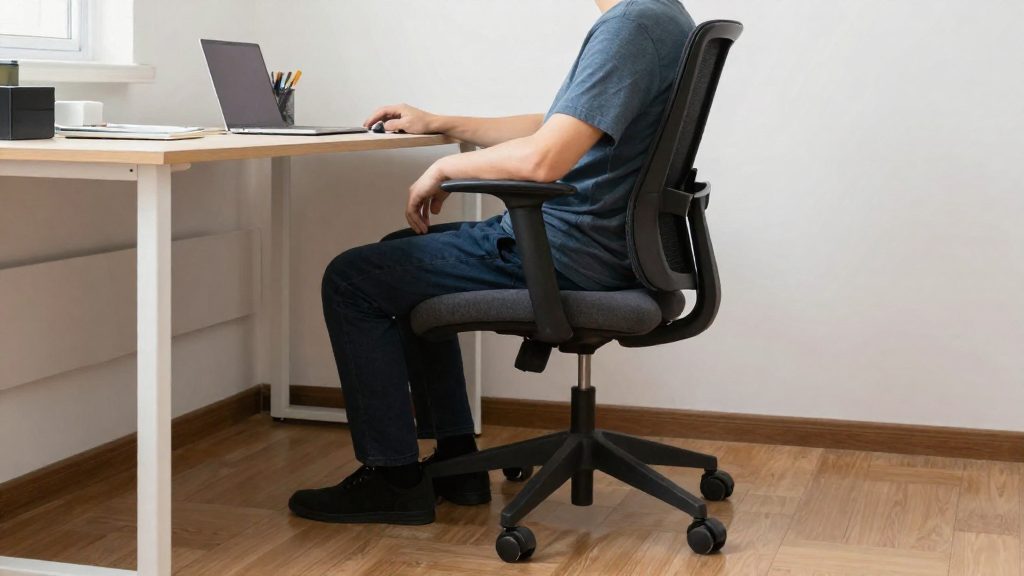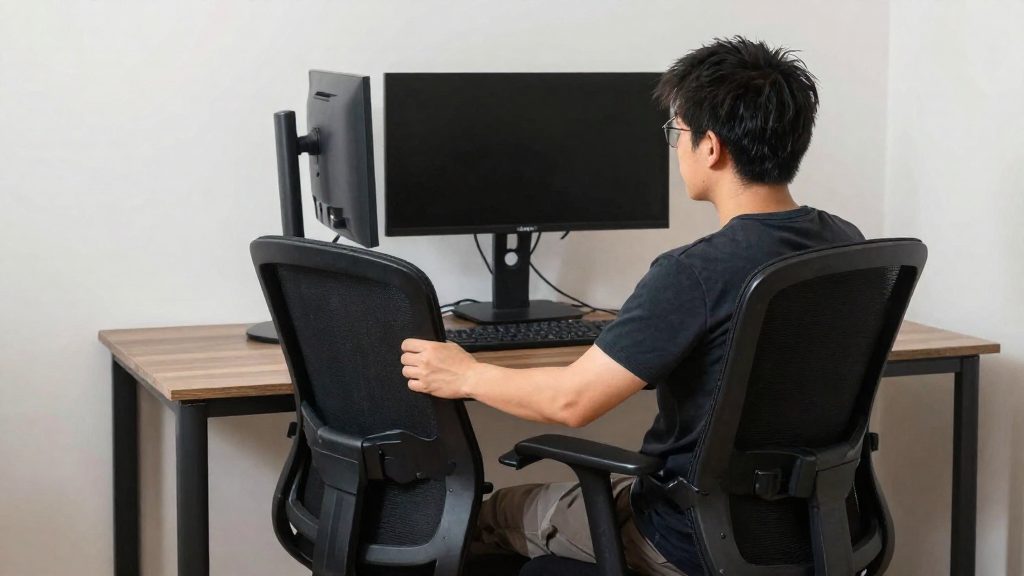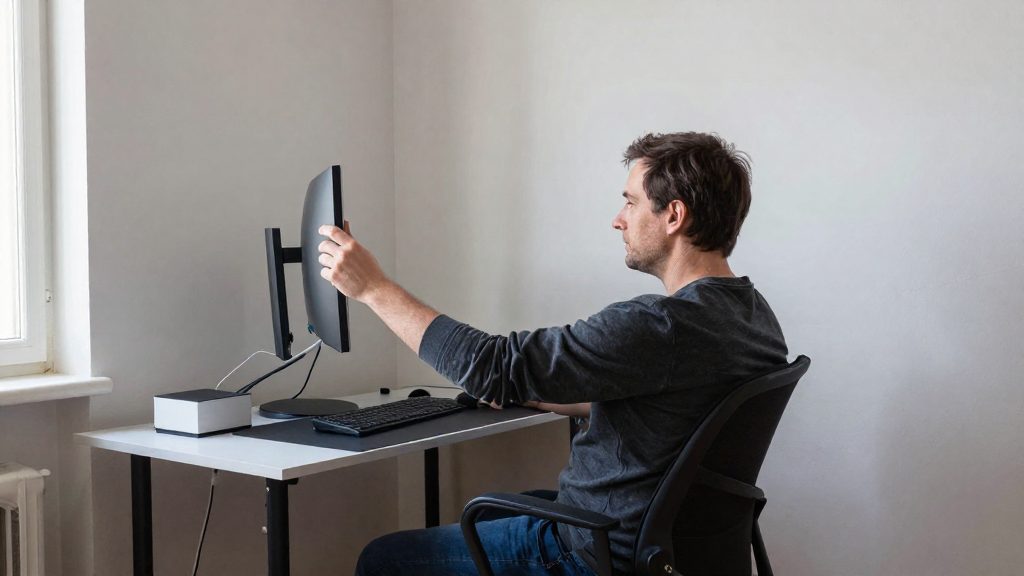
Set the top of your screen at or just below eye level, with the monitor about 15 degrees below your line of sight, according to the Canadian Centre for Occupational Health and Safety (CCOHS). Sit about an arm’s length from the screen. A monitor set too high causes more discomfort than one set slightly too low, so when in doubt, go lower.
What monitor height helps prevent neck pain?
The two main guidelines in the consulted sources agree on the principle but differ slightly in wording:
| Source | Vertical placement | Viewing distance |
|---|---|---|
| CCOHS | Top of screen at or below eye level; about 15 degrees below eye level, or slightly lower | Arm’s length; Figure 1 shows an ideal range of 40 to 74 cm |
| American Academy of Orthopaedic Surgeons, cited by Safety+Health (National Safety Council, 2011-01-12) | Screen at eye level, centred in front of you | About 20 to 26 inches (roughly 51 to 66 cm) |
Why a high monitor causes neck strain
CCOHS links a monitor that sits too high to a tilted-up chin or a bent head. Both postures are associated with neck and shoulder discomfort, and CCOHS states that they can lead to musculoskeletal disorders. A monitor placed low and close to eye level keeps the head in a more neutral position.
Adjustments for bifocals and wide screens
- Progressive or bifocal lenses: CCOHS notes that people who wear bifocals, trifocals or progressive lenses may find a slightly lower monitor more comfortable.
- Wide monitors: these require more neck rotation to scan, so CCOHS advises placing them farther away.
Multi-monitor layouts
CCOHS advises the following arrangements:
- If you use both screens equally, place them edge to edge in a semicircle.
- If you mainly use one screen, centre it in front of you and angle the second to one side.
- Keep all screens about an arm’s length away.
The 15° mark below eye level
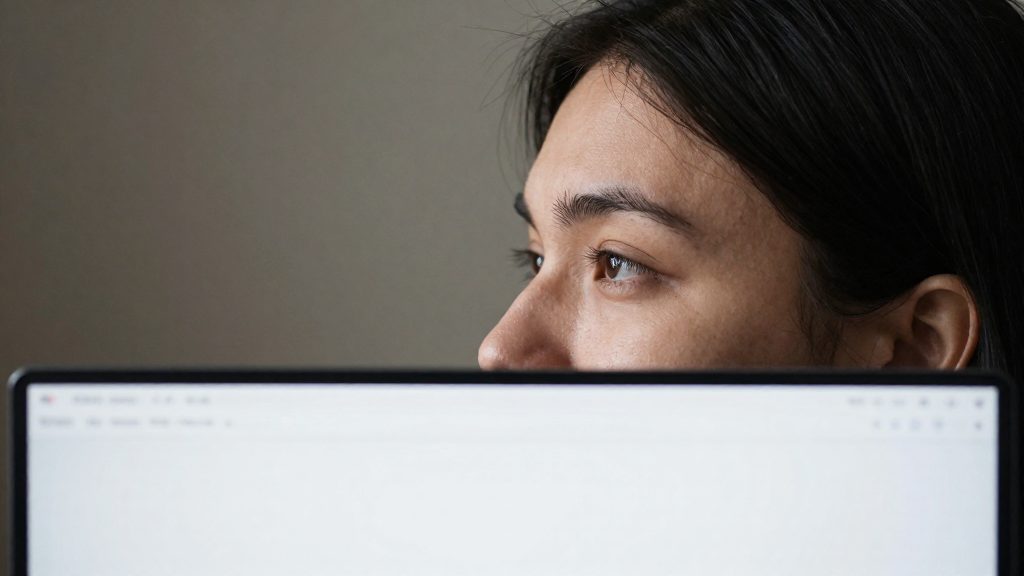
The Canadian Centre for Occupational Health and Safety (CCOHS) advises placing the monitor about 15 degrees below eye level, or slightly lower. The reference point is your natural gaze: sit upright, look straight ahead, and the top edge of the screen should sit at or below that line. Your eyes then drop slightly to the display instead of rising to it.
To set the monitor height:
- Sit with your back supported by the chair and your feet flat on the floor.
- Look straight ahead at a neutral point and note your eye level.
- Raise or lower the monitor so the top of the screen is at or just below that line.
- Check that you are not tilting your chin up or bending your head forward to read the top lines.
CCOHS links a monitor set too high, or a chin tilted up or a head bent down, to neck and shoulder discomfort, and states that this can lead to musculoskeletal disorders. It also notes that a monitor set slightly too low causes less discomfort than one set too high, so when in doubt, set it lower.
CCOHS states that people who wear bifocals, trifocals or progressive lenses may find a slightly lower monitor more comfortable. Wide monitors may need to be placed farther away, because they require more neck rotation to scan.
Sources differ on the remaining setup details, so the table below compares the figures given by each:
| Source | Vertical position | Viewing distance |
|---|---|---|
| CCOHS | About 15 degrees below eye level, or slightly lower; top of screen at or below eye level | Arm’s length; Figure 1 shows an ideal range of 40 to 74 cm |
| Safety+Health (National Safety Council), citing the American Academy of Orthopaedic Surgeons (2011-01-12) | Monitor centered in front of you, screen at eye level | About 20 to 26 inches |
How far should you place your screen?
Place the screen at about an arm’s length from your eyes. The Canadian Centre for Occupational Health and Safety (CCOHS) gives an arm’s length as a good estimate of viewing distance, and its Figure 1 shows an ideal range of 40 to 74 cm. Use these figures as a starting point, then adjust the distance until the screen is comfortable to read without moving your head forward.
Recommendations differ slightly by source:
| Source | Recommended distance | Notes |
|---|---|---|
| CCOHS (Canada) | About an arm’s length; ideal range of 40 to 74 cm (Figure 1) | Arm’s length is the general estimate |
| American Academy of Orthopaedic Surgeons, cited by Safety+Health (National Safety Council, 2011-01-12) | About 20 to 26 inches (roughly 51 to 66 cm) | Monitor centered in front of you |
The distance depends on your setup. For wide monitors, CCOHS notes that they require more neck rotation, so they should be placed farther away than standard screens to reduce the turning required to view the edges.
If you use several screens, the CCOHS layout depends on how often you use each one:
- Equal use: arrange the monitors edge to edge in a semicircle.
- One primary screen: center that monitor and angle the secondary screen toward one side.
- Distance: keep every screen at about an arm’s length.
Monitor too high or too low: which to choose?
When the monitor is set a little too low, the Canadian Centre for Occupational Health and Safety (CCOHS) says the result is less discomfort than when it is set too high. The CCOHS advises that the top edge of the screen should be at or below eye level. A screen above eye level forces a tilted-up chin or a bent head, which the CCOHS links to neck and shoulder discomfort and to musculoskeletal disorders. If you have to choose between a slightly high and a slightly low screen, choose the lower one.
| Setting | Recommendation | Source |
|---|---|---|
| Top of the screen | At or below eye level | CCOHS |
| Monitor position | About 15 degrees below eye level, or slightly lower | CCOHS |
| Screen height | At eye level, centred in front of you | American Academy of Orthopaedic Surgeons, as cited by Safety+Health (National Safety Council) (2011) |
| Viewing distance | About one arm’s length | CCOHS |
To set the height, sit upright and look straight ahead at a neutral point. Then adjust the monitor so the top edge sits at that level or just below it, with the monitor about 15 degrees below eye level, or slightly lower. If you wear bifocals, trifocals or progressive lenses, the CCOHS notes that a slightly lower monitor may be more comfortable. Wide monitors need more neck rotation to scan the full width, so the CCOHS advises placing them farther away. If text is hard to read at that distance, increase the font size instead of moving closer.
Progressive lenses and large screens: adjustments
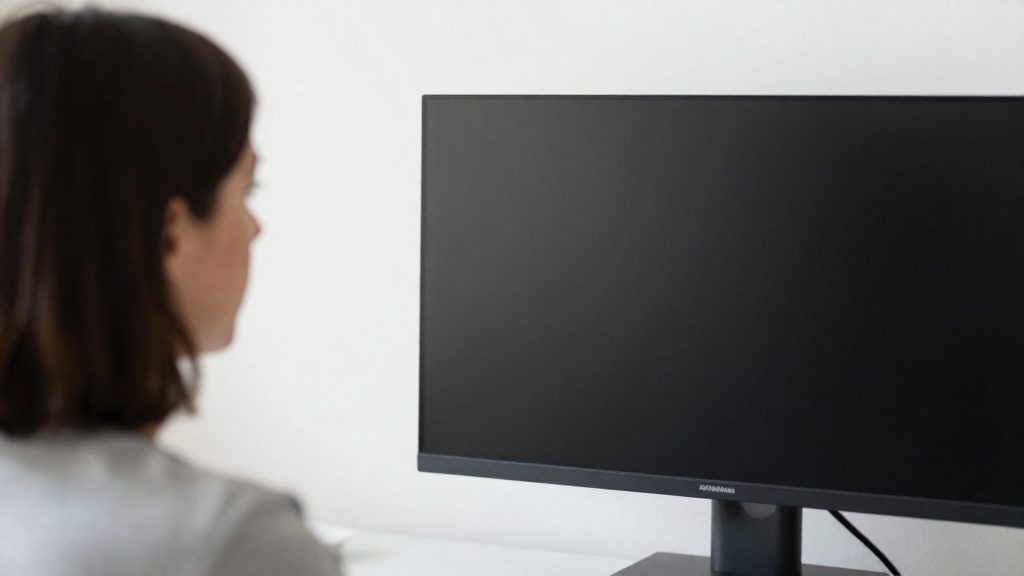
Wearers of bifocals, trifocals or progressive lenses often need a different monitor setup than other users. According to the Canadian Centre for Occupational Health and Safety (CCOHS), people who wear these lenses may find a slightly lower monitor more comfortable. Lowering the screen reduces the need to tilt the head back to look through the lens zone you use for the screen.
Start by checking the top of the screen. CCOHS says it should be at or below eye level, and it notes that a monitor set too high causes more discomfort than one set slightly too low. A common starting point is to place the monitor about 15 degrees below eye level, or slightly lower than that.
Viewing distance matters as much as height. CCOHS gives arm’s length as a good estimate, with an ideal range of 40 to 74 cm shown in its Figure 1. If text is hard to read, increase the font size instead of moving closer to the screen. The American Academy of Orthopaedic Surgeons, as reported by Safety+Health (National Safety Council, 2011), advises centering the monitor in front of you at about 20 to 26 inches, with the screen at eye level.
Wide monitors need extra attention. CCOHS says they may need to sit farther away because they require more neck rotation to scan from side to side.
| Setting | Recommendation |
|---|---|
| Top of screen | At or below eye level (CCOHS) |
| Vertical angle | About 15 degrees below eye level, or slightly lower (CCOHS) |
| Viewing distance | Arm’s length, ideal range 40 to 74 cm (CCOHS) |
| Viewing distance (AAOS) | About 20 to 26 inches (roughly 51 to 66 cm) (Safety+Health, 2011) |
| Two monitors, equal use | Edge to edge in a semicircle, each about an arm’s length away (CCOHS) |
| Two monitors, one primary | Center the primary monitor and angle the other to one side (CCOHS) |
How to set a laptop or dual-monitor height?
Start with the vertical position. The Canadian Centre for Occupational Health and Safety (CCOHS) advises placing the monitor about 15 degrees below eye level, or slightly lower, with the top of the screen at or below eye level. CCOHS also notes that a monitor set too high causes more discomfort than one set slightly too low, and it links a raised screen, or a tilted-up chin or bent head, to neck and shoulder discomfort.
| Source | Vertical position | Viewing distance |
|---|---|---|
| CCOHS | Top of screen at or below eye level; about 15 degrees below eye level | About one arm’s length; Figure 1 shows an ideal range of 40 to 74 cm |
| American Academy of Orthopaedic Surgeons, cited by Safety+Health (National Safety Council, 2011) | Screen at eye level, monitor centered | 20 to 26 inches (about 51 to 66 cm) |
Setting a laptop
The built-in screen of a laptop sits at the height of the base, which is usually too low for correct viewing. The usual method is to raise the device on a stand and connect a separate keyboard and mouse. This keeps the screen at the recommended height without bending the head down to the keys.
Setting a single external monitor
- Sit at the desk and look straight ahead without moving your head.
- Adjust the height so the top edge sits at or slightly below eye level.
- Center the monitor in front of you.
- Set the distance at about one arm’s length, as CCOHS suggests.
- If text is hard to read, enlarge the font rather than leaning toward the screen.
Setting dual monitors
The placement depends on how you use each screen. If you use both equally, CCOHS recommends placing them edge to edge in a semicircle. If you use one more, center it and angle the other to one side. All screens should be about an arm’s length away. Wide monitors may need to sit farther back, because they require more neck rotation to read the edges.
When to see a doctor if pain persists?
Neck pain that continues after a workstation review may need medical assessment. Before booking an appointment, check the monitor position, because the Canadian Centre for Occupational Health and Safety (CCOHS) links a monitor that is set too high, or a chin tilted upward, to neck and shoulder discomfort, and it says this can lead to musculoskeletal disorders. Work through the checks below and note which changes made a difference, but do not delay medical care if you have any of the warning signs listed further down, and stop any position that increases the pain.
Workstation checks to complete first
| Setting | Reference point | How to check |
|---|---|---|
| Top of the screen | At or below eye level (CCOHS) | Sit upright and look straight ahead; the top edge should not be above your eyes. |
| Screen tilt | About 15 degrees below eye level, or slightly lower (CCOHS) | Set the monitor about 15 degrees below eye level, or slightly lower, with the top edge at or below eye level. |
| Viewing distance | About an arm’s length; CCOHS Figure 1 shows an ideal range of 40 to 74 cm | Extend your arm and touch the screen area; increase font size instead of leaning in. |
| Horizontal position | Centered in front of you (American Academy of Orthopaedic Surgeons, cited by Safety+Health, National Safety Council, 2011-01-12) | Place the monitor in front of your body, not at the side. |
| Viewing distance (AAOS guidance) | About 20 to 26 inches (about 51 to 66 cm) | Use this as a cross-check against the arm’s length method. |
Signs that call for a medical appointment
The official sources consulted do not specify a time frame after which pain should be assessed. Seek prompt medical assessment, without waiting to finish the workstation checks, if any of the following applies:
- Pain persists or worsens despite the adjustments above.
- Pain spreads into the arms, hands, or shoulders.
- You notice numbness, tingling, or weakness in an arm or hand: seek medical care promptly, and urgent care (emergency services) if the weakness is sudden or severe, or if you lose bladder or bowel control.
- Pain disturbs your sleep or occurs at rest.
If you have bifocal, trifocal, or progressive lenses, CCOHS notes that a slightly lower monitor may feel more comfortable, so mention your eyewear when describing your symptoms.
Frequently asked questions
How high should the top of my monitor sit to avoid neck strain?
Keep the top edge of the screen at or just below your eye level, so your gaze drops slightly to the screen rather than rising to it. When you are unsure, set the monitor a little lower, because a screen placed too high usually causes more discomfort than one placed slightly too low.
I wear bifocals or progressive lenses. Does that change my monitor position?
Yes. Lower the monitor slightly if you wear progressive or bifocal lenses, since a high screen forces you to tilt your head back to reach the lens area suited to screen distance. Lowering it can reduce that head tilt and the neck strain that comes with it.
My monitor is wide. Should I place it differently?
A wide monitor needs more head rotation to scan from edge to edge, so position it farther from you than a standard screen. If text is hard to read at that distance, increase the font size instead of moving closer.