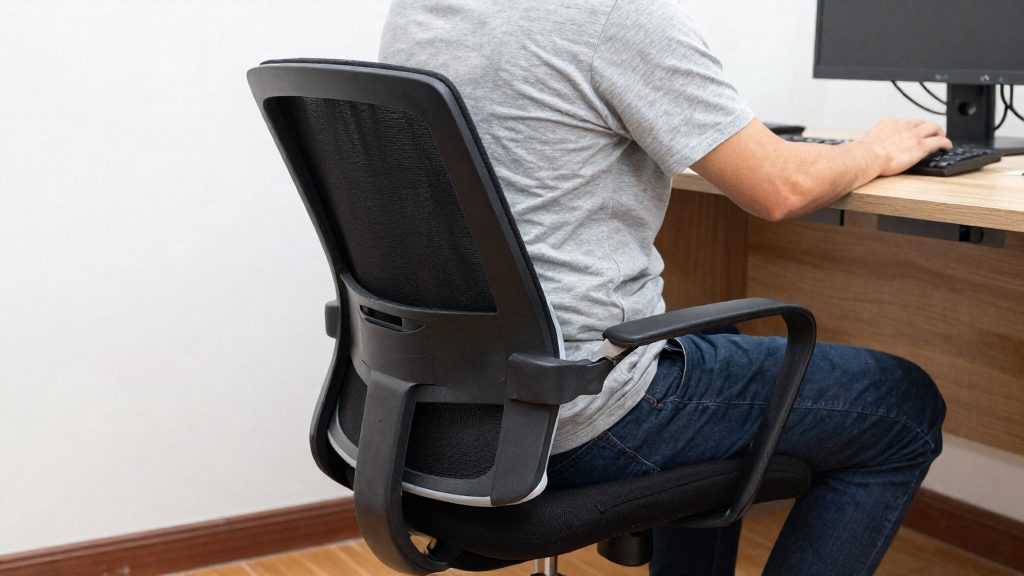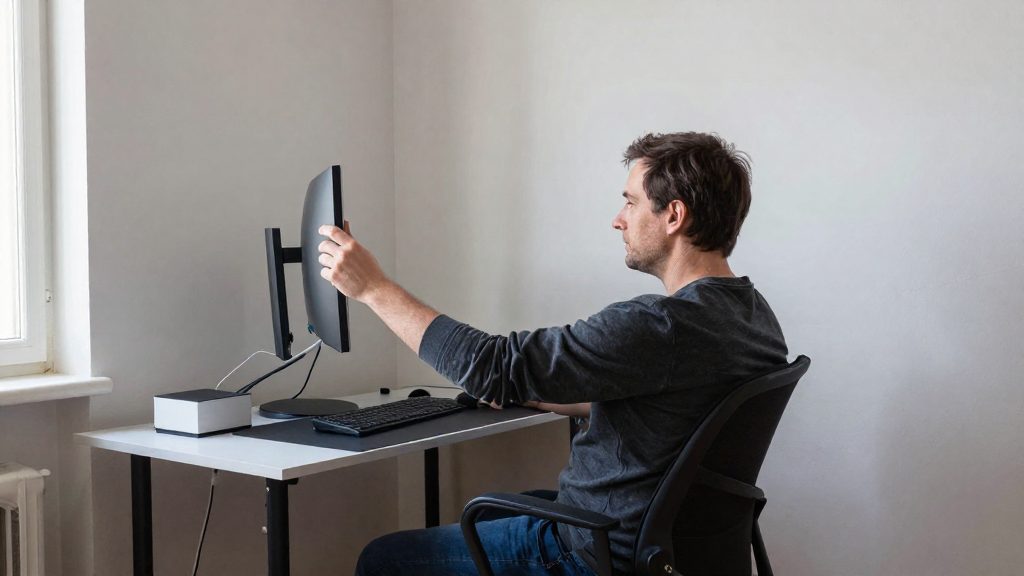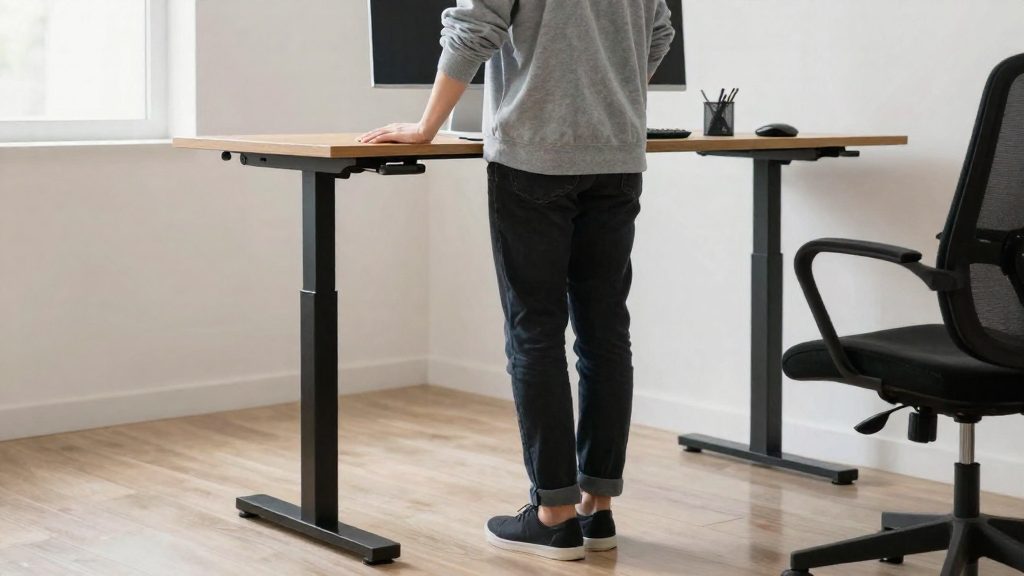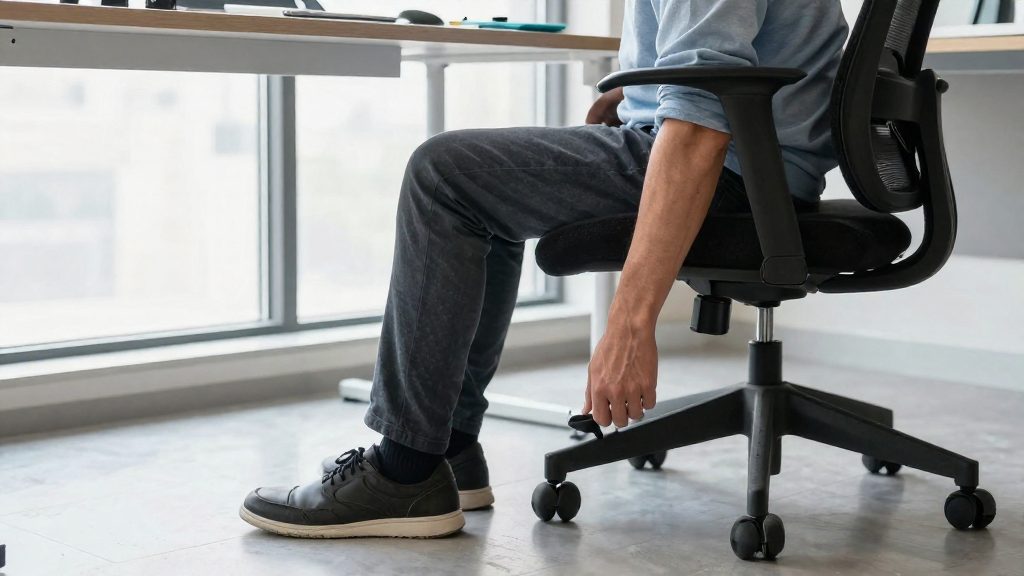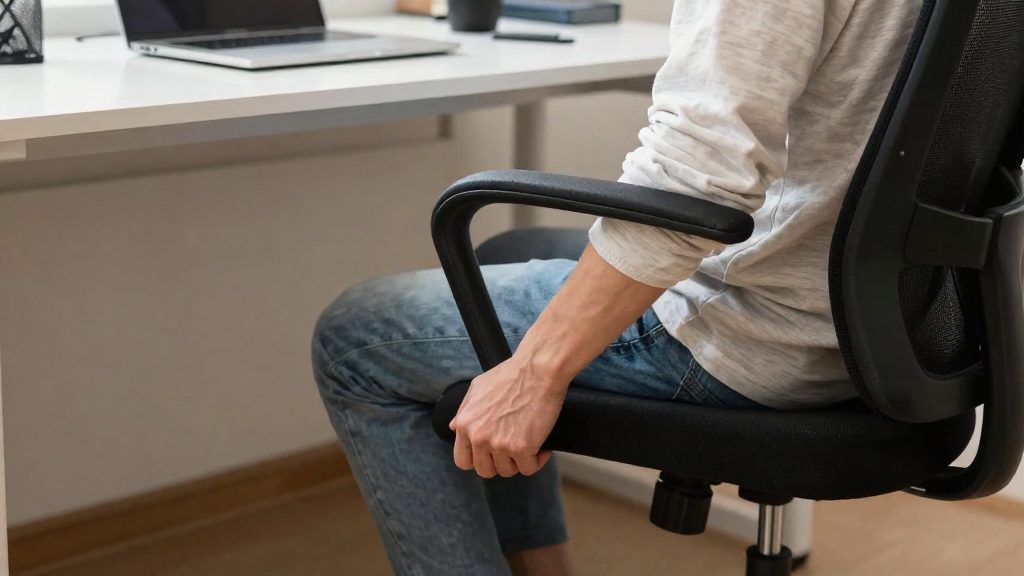
Office chair armrests support your forearms while you type, but they only help when they are set correctly. According to CCOHS (2026), you should let your arms hang freely with your elbows bent at about 90°, then adjust the armrests until they barely touch the underside of your elbows. If they still lift your elbows at their lowest setting, or stop you from sitting close to the keyboard, you should adjust or remove them.
Why Armrests Matter for Typing
Armrests change where your forearms sit relative to the keyboard, so their height and distance from the backrest both affect typing posture.
Armrest height is the first setting to check. Let your arms hang freely with your elbows at about 90°, then raise or lower the armrests until they just touch the underside of your elbows. An armrest set above that point lifts the elbow.
Desk height compatibility comes next. If your desk is at a fixed height and you have to raise your arms to reach it, the desk is too high for you. In that case, adjust the seat height (raise it) so your elbows sit roughly level with the work surface, instead of raising the armrests to compensate.
Armrests also must not prevent you from sitting close to the desk. CCOHS notes that armrests were traditionally discouraged for this reason. Armrests that extend 25 cm (10 in) or less from the backrest may be suitable. The armrests should provide even support across the forearm and be adjustable in both height and width (distance from the seat).
| Check | Target (per CCOHS, 2026) |
|---|---|
| Elbow angle with arms hanging freely | About 90° |
| Armrest height | Just touches the underside of the elbows |
| Armrest extension from backrest | 25 cm (10 in) or less |
| Desk height test | Elbows roughly level with the work surface, no arm raising |
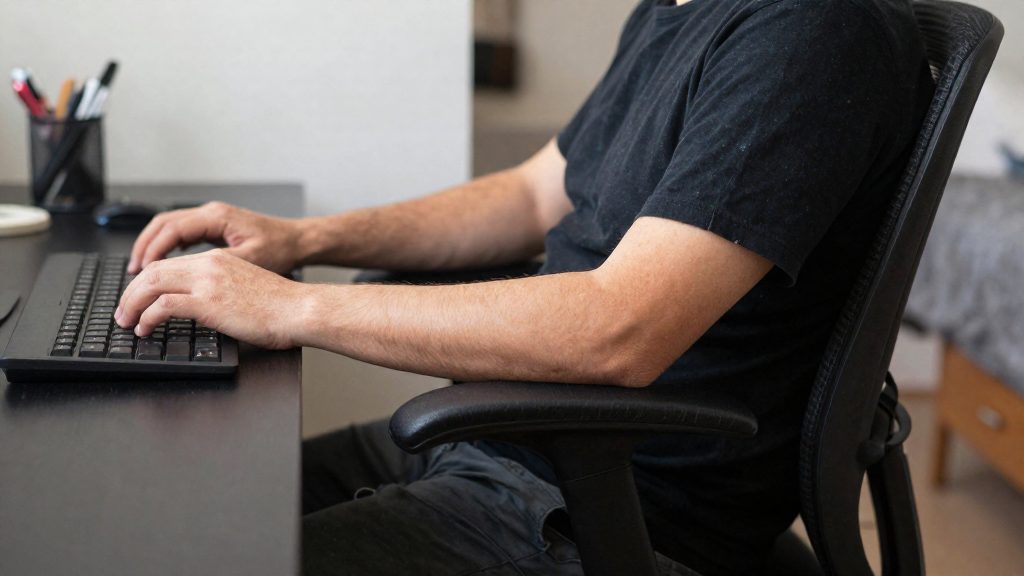
How to adjust the armrest height?
To set the height, let your arms hang freely from the shoulders with your elbows bent at about 90°. Then raise or lower the armrests until they just touch the underside of your elbows. According to CCOHS (2026), the armrests should give your arms an even surface to rest on, so check both forearms rather than adjusting only one side.
Follow these steps:
- Sit with your back against the backrest and let your arms hang loosely.
- Bend your elbows to about 90°.
- Raise or lower the armrest height until the pad barely contacts the underside of each elbow.
- Check the armrest width. CCOHS (2026) notes that armrests should be adjustable in width, meaning their distance from the chair, so they do not stop you from sitting close to the desk and keyboard.
The armrest setting depends on your desk as well. If the desk has a fixed height and you must lift your arms to reach it, the workstation is too high. In that case, adjust the seat height (raise it) until your elbows sit at roughly the level of the work surface. Armrests are not a fix for a desk that is too high, so adjust the chair first.
The table below summarises the situations CCOHS (2026) describes and the recommended response:
| Situation | Recommended action |
|---|---|
| Arms must rise to reach a fixed-height desk | Lower the seat until the elbows are roughly level with the work surface |
| Armrests lift the elbows even at their lowest setting | Remove the armrests |
| Armrests keep you from sitting close to the desk and keyboard | Adjust their width, or remove them |
| Armrests extend 25 cm (10 in) or less from the backrest | May be suitable, according to CCOHS (2026) |
Should you adjust armrest width and depth?
According to CCOHS (2026), armrests should give your arms even support and be adjustable in height and in width, meaning their distance from the seat. For typing, the horizontal setting matters because armrests that keep you from sitting close to the desk and keyboard defeat the purpose of setting up your workstation. Check this after you have set the height, since an armrest that is correct for height can still block your approach to the work surface.
To test the setting:
- Sit back fully in the chair, then pull yourself forward toward the keyboard as you would when typing.
- Watch whether the armrest pads catch on the desk edge or the keyboard tray, or force your shoulders to lift or your body to sit away from the desk.
- Move the armrests inward or outward until you can reach the keyboard close in while the pads still support your forearms.
- If no position allows close access, CCOHS advises removing the armrests.
CCOHS notes that armrests were traditionally discouraged because they can prevent you from getting close enough to the desk. Armrests that extend 25 cm (10 in) or less from the backrest may be suitable.
| Situation | Action |
|---|---|
| Armrests block you from sitting close to the desk and keyboard | Adjust their distance from the seat, or remove them |
| Armrests lift the elbows even at their lowest setting | Remove them |
| Armrests extend 25 cm (10 in) or less from the backrest | May be suitable |
What to do if the desk is too high?
A fixed-height desk is too high when you have to lift your arms to reach it. Keep your arms hanging freely and adjust the chair to fit the desk, not the other way around. Work through the steps below in order.
- Raise the seat. Adjust the chair height so your elbows sit roughly level with the work surface, with your arms hanging freely.
- Set the armrests. Adjust them so they only just touch the underside of your elbows, with elbows bent at about 90°.
- Test the lowest armrest setting. If the armrests still lift your elbows at their lowest position, remove them.
- Check the reach. If the armrests stop you from sitting close enough to the desk and keyboard, adjust or remove them.
Use the table below to decide which option applies to your setup.
| Situation | Recommended action (CCOHS, 2026) |
|---|---|
| Desk at fixed height, and you must raise your arms to reach it | Desk is too high: raise the seat so your elbows are roughly at desk level |
| Armrests lift your elbows even at their lowest setting | Remove the armrests |
| Armrests prevent you from sitting close to the desk and keyboard | Adjust the armrests or remove them |
| Armrests extend 25 cm (10 in) or less from the backrest | May be suitable |
The CCOHS (2026) states that armrests were traditionally discouraged because they can keep you too far from the desk. Armrests that extend 25 cm (10 in) or less from the backrest may therefore be a workable compromise, provided they still allow you to sit close to the work surface.
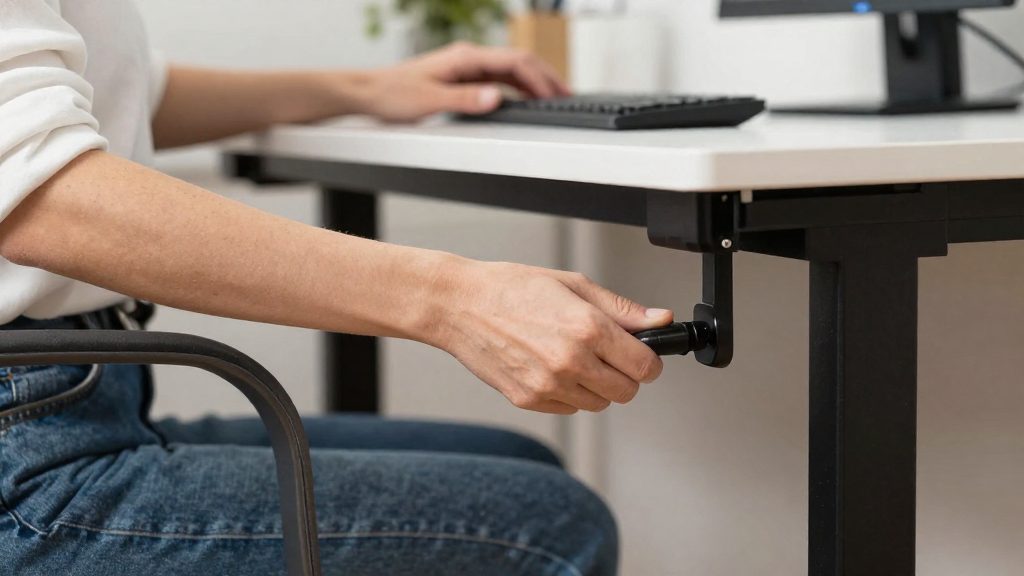
When to remove the armrests
Armrests should support your arms evenly. According to CCOHS (2026), they should be adjustable in both height and width (distance from the seat). If they stop you from sitting close enough to the desk and keyboard, you should adjust them or remove them. CCOHS also notes that armrests were traditionally discouraged for this reason: they can keep you from moving in close to the work surface.
Before removing them, check whether the real problem is the desk height. If the desk is at a fixed height and you have to raise your arms to reach it, the workstation is too high. In that case, adjust the seat height (raise it) until your elbows are roughly level with the work surface, then reassess the armrests.
Removal is the appropriate choice in these situations:
| Situation | Action | Source |
|---|---|---|
| Armrests lift your elbows even at their lowest setting | Remove them | CCOHS (2026) |
| Armrests stop you from sitting close to the desk and keyboard, and adjusting them does not solve this | Adjust or remove them | CCOHS (2026) |
| Armrests extend 25 cm (10 in) or less from the backrest | May be suitable to keep | CCOHS (2026) |
To check whether the armrests fit, sit with your arms hanging freely and your elbows bent at about 90°. Then slide your chair toward the desk. If the armrests catch on the desk edge or prevent full closeness to the keyboard, they are interfering with your typing position.
Armrests and keyboard: common mistakes
Armrests help only when they match your elbow height and let you sit close to the desk. Armrests help only when they match your elbow height and let you sit close to the desk. The table below lists common setup problems and the correction for each, based on the CCOHS guidance. The table below lists the most frequent errors and the correction for each.
| Common mistake | What it causes | Correction |
|---|---|---|
| Armrests set too high | Raised shoulders and elbows held away from the body | Lower the armrests until they just touch the underside of the elbows |
| Fixed-height desk with arms raised to reach it | Desk is too high for you | Raise the seat so the elbows sit roughly level with the work surface |
| Armrests still lift the elbows at their lowest setting | Continuous load on the shoulders while typing | Remove the armrests |
| Armrests block the seat from moving close to the desk | Keyboard sits too far away to reach comfortably | Adjust the armrest width or height, or remove them |
| Armrests keep you from sitting close to the desk | Limits how close you can sit to the desk | Adjust or remove them; armrests extending 25 cm (10 in) or less from the backrest may be suitable (CCOHS, 2026) |
The correct method starts with your arms hanging loosely and your elbows bent at about 90°. Raise the armrests only until they barely touch the elbows. Setting the height by eye can leave armrests too high, so use the elbow test.
Armrests should give an even, uniform support to both arms and be adjustable in height and width (distance from the seat). If they stop you from sitting close enough to the desk and keyboard, adjust or remove them.
Which Armrests to Choose for Remote Work?
Armrests on an office chair should give your arms even support, and their height and width should both be adjustable. According to CCOHS (2026), armrests were traditionally discouraged because they can keep you from sitting close enough to the desk. Whether they suit your setup depends on whether you can reach the keyboard without lifting your shoulders or elbows.
Setting the height
Let your arms hang freely with your elbows bent at about 90°. Raise or lower the armrests until they just touch the underside of your elbows. If you have to shrug or hold your arms up to reach them, they are set too high.
Checking the desk height
If your desk has a fixed height and you must raise your arms to reach the work surface, the desk is too high for you. Adjust the seat height so your elbows are roughly level with the desk, then recheck the armrest height.
Deciding whether to keep them
Use the following checks, based on CCOHS (2026):
| Check | Target | If not met |
|---|---|---|
| Armrest height | Lightly touching the underside of bent elbows | Readjust height |
| Armrest width | Lets you sit close to the desk and keyboard | Adjust width or remove |
| Projection from backrest | 25 cm (10 in) or less may be suitable | Consider shorter armrests |
| Lowest setting | Does not lift the elbows | Remove the armrests |
Keep the armrests only if they pass every check. If the correct height cannot be reached, or if they still raise your elbows at their lowest setting, remove them. In that case, remove the armrests, as CCOHS advises.
Frequently asked questions
How do I know if my armrests are too high for typing?
If your elbows lift when your arms hang relaxed, the armrests are set above the target height, and the elbow angle is the quickest check. Lower them until they just touch the underside of your elbows. If they still lift your elbows at the lowest setting, CCOHS (2026) advises removing them.
My desk is fixed at a height that makes me raise my arms. Should I raise the armrests?
No. Raise the seat height instead, so your elbows sit roughly level with the work surface. Raising the armrests to compensate for a desk that is too high puts your shoulders under strain and does not fix the mismatch.
Can I keep armrests that stick out far from the backrest?
Armrests that extend 25 cm (10 in) or less from the backrest may be suitable, according to CCOHS (2026). If they extend further and keep you from sitting close to the desk and keyboard, the official sources consulted do not specify a set alternative, so adjust or remove them. Check that your chair offers width adjustment as well as height adjustment before relying on the armrests while typing.