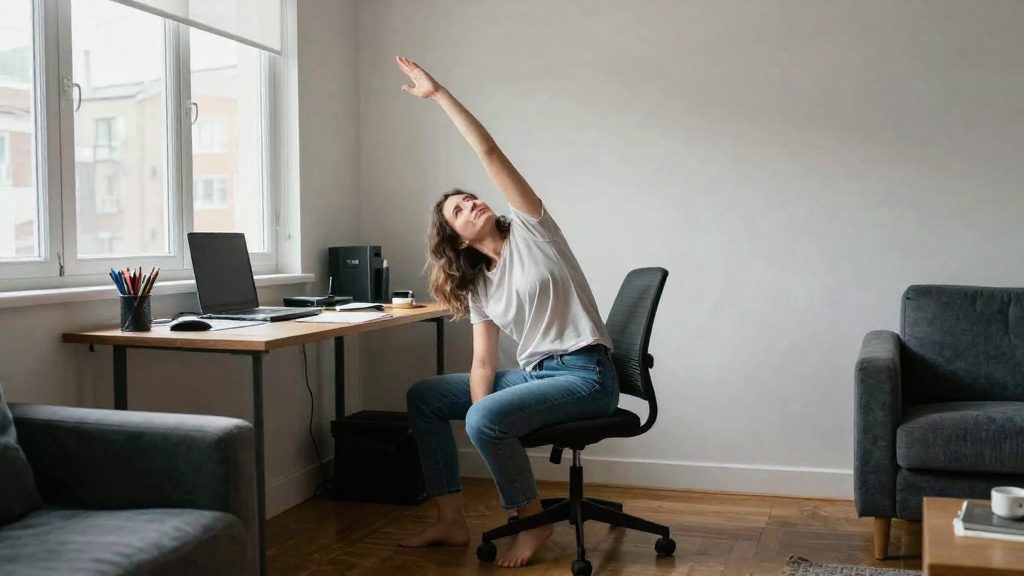
Zero-cost wellness at home means activities you can do during the workday without paying a subscription, buying equipment, or travelling. You can test any movement or pause against three criteria: it costs nothing, it needs nothing beyond your existing workspace, and it happens where you already are. This separates it from paid programs such as gym memberships or personal coaching, which typically involve a recurring fee, a fixed location, or scheduled appointments.
What counts as a free wellness activity at home?
Apply these criteria to any activity you are considering:
| Criterion | Qualifies as zero-cost | Does not qualify |
|---|---|---|
| Subscription | No app, account, or membership needed | Paid app, class pass, or coaching plan |
| Equipment | Your chair, desk, floor, or a wall | Equipment bought specifically for the activity |
| Travel | Done at your desk or elsewhere in your home | Commuting to a gym, studio, or clinic |
A gym session or coaching call is organised around a booked time slot. A free activity is self-directed and fits into a gap in your existing schedule. The distinction lies in structure and cost, so you do not need to schedule a separate session to benefit from it.
The University of South Florida’s College of Public Health (2024) recommends short breaks about every hour to stretch, walk, and change posture. This is the most accessible zero-cost option: stand up, walk to another room, or shift your position. The 20-20-20 rule adds an eye-focused pause: every 20 minutes, look at something about 20 feet away for at least 20 seconds. Both require no equipment and can be done without leaving your workspace.
Other pauses of the same kind include standing during a phone call or walking to refill a water glass. If you already own a standing desk or converter, alternating between sitting and standing is also free to use, but the fiche does not establish that acquiring one is free.
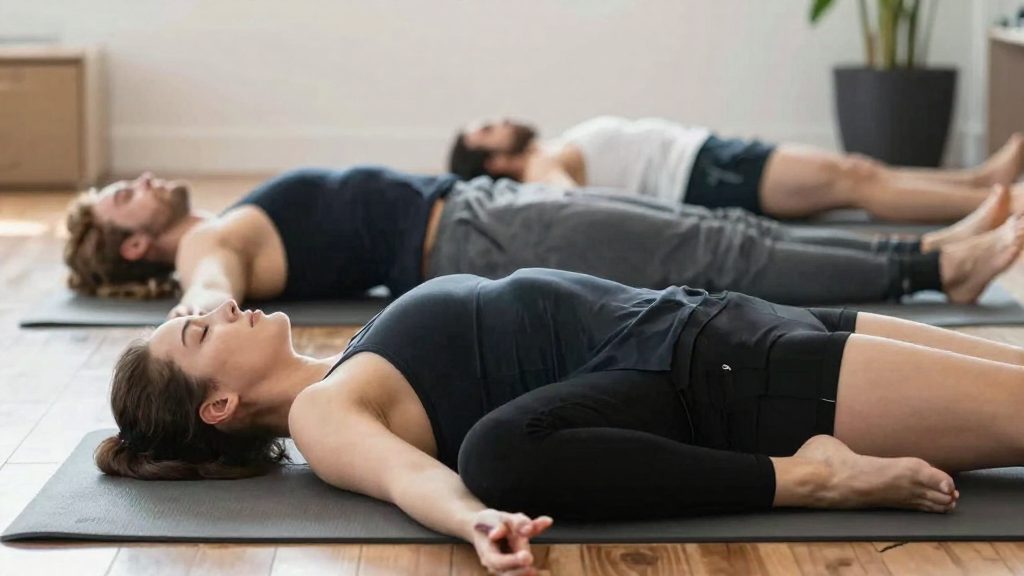
Set up your home workstation without spending money
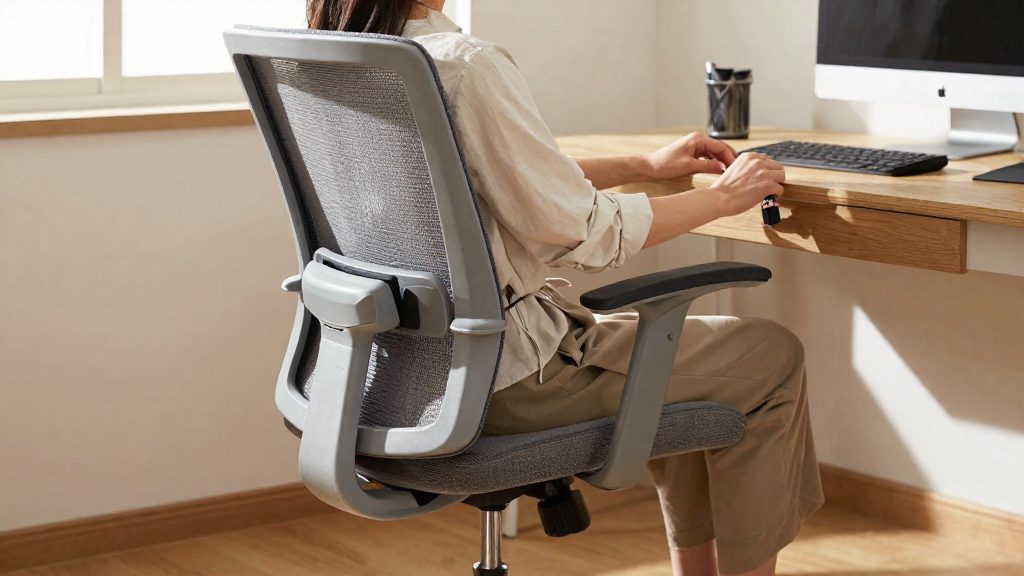
A neutral seated posture can be built with furniture you already own. The University of South Florida’s College of Public Health (2024) recommends an adjustable chair, a monitor at eye level, neutral wrists while typing, a neutral spine with feet flat and knees at about 90 degrees, and elbows close to the body. Each of these targets depends on how existing items are arranged, not on buying equipment.
Chair height and knee angle
Start with the seat. Adjust its height until your feet rest flat on the floor and your knees sit at about 90 degrees. If the seat cannot go low enough for your feet to reach a flat position, or if your desk is too high for your forearms to rest comfortably, a sturdy box or a stack of books under your feet can compensate. Make the adjustment before changing anything else, because the seat height affects where the keyboard and screen should sit.
Monitor height using books as risers
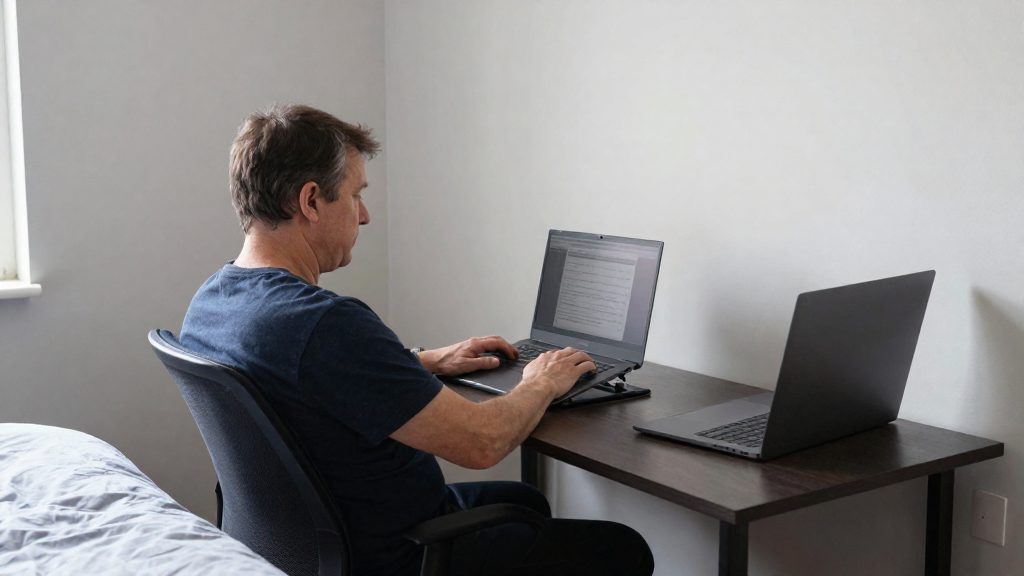
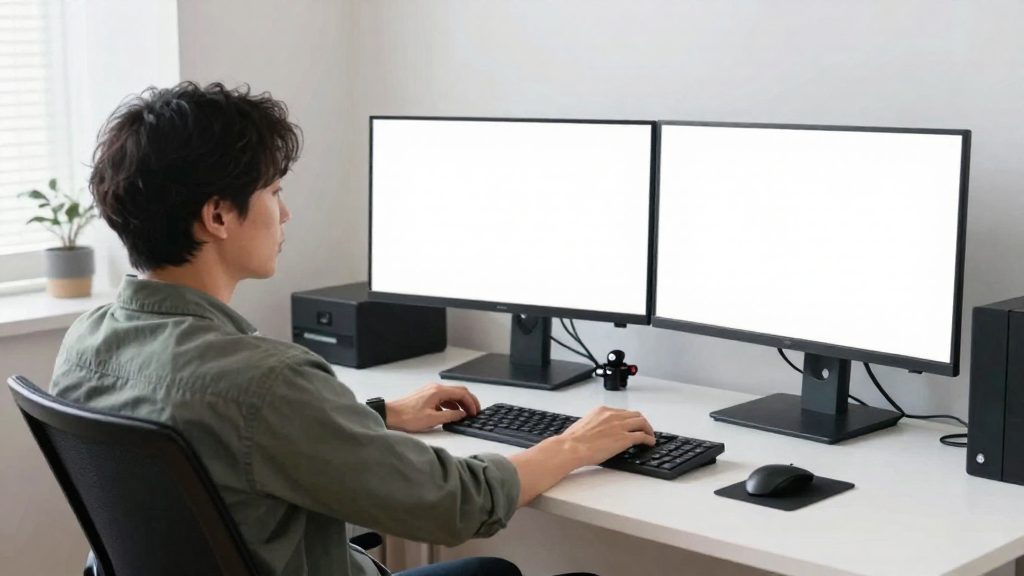
Place the top edge of the screen at eye level, so your head stays upright rather than tilting down. If you work on a laptop, which is usually low on a standard desk, stack books under it until the screen reaches that height. Then use a separate keyboard and mouse, if available, so the screen can stay at eye level while your hands stay low.
Wrists and elbows while typing
Keep your neutral wrists flat rather than bent up, down, or to the side. Keep your elbows close to the body instead of stretched outward. If your elbows drift away from your torso, move the keyboard closer to the edge of the desk. If your wrists bend upward, lower the seat slightly or check whether the keyboard sits too high.
| Checkpoint | Target position | Free adjustment |
|---|---|---|
| Knees | About 90 degrees | Raise or lower the seat; place a box under your feet if needed |
| Feet and spine | Feet flat, neutral spine | Adjust seat height before moving the desk items |
| Screen top | Eye level | Stack books under a monitor or laptop |
| Wrists and elbows | Neutral wrists, elbows close to the body | Move the keyboard closer; lower the seat if needed |
Which stretches can you do at your desk?
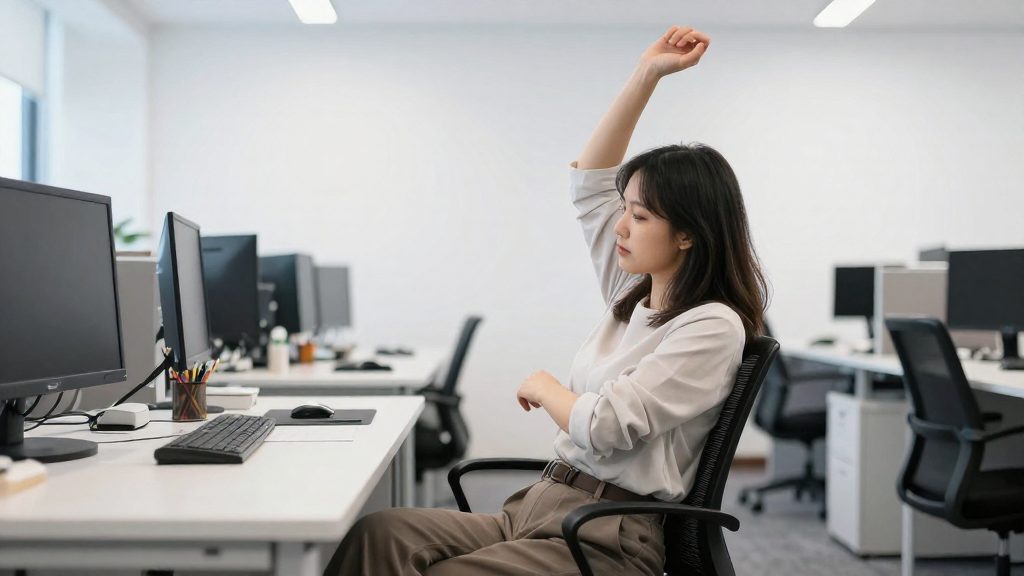
The University of South Florida’s College of Public Health recommends simple neck, shoulder, wrist and back stretches during the workday. The movements below need no equipment and can be done while you stay seated, so they fit into a work session without leaving your chair. Move slowly, keep each stretch within a comfortable range, and avoid bouncing or forcing the movement.
| Stretch | Target area | How to perform it |
|---|---|---|
| Chin tuck | Neck, base of the skull | Sit tall and draw your chin straight back, as if making a double chin. Keep your eyes level. Do not tilt your head down. |
| Shoulder roll | Shoulders, upper back | Lift both shoulders toward your ears, then roll them back and down in a slow, controlled circle. |
| Seated back extension | Lower and mid back | Sit at the front of the chair, place your hands on the lower back or the top of the backrest, and gently lean back while lifting your chest. Keep your neck in line with your spine. |
| Seated spinal rotation | Mid back, sides of the torso | Sit tall with your hips facing forward. Hold the backrest or an armrest, and turn your upper body slowly toward one side. Return to center and repeat on the other side. |
| Wrist extensor and flexor stretches | Forearm, wrist | Extend one arm forward with the palm facing down, then gently bend the wrist downward with the other hand. Reverse the position, palm up, to stretch the other side of the forearm. |
Chin tucks work the neck muscles that support the head, which are loaded when the head juts forward toward a screen. Seated back extension and spinal rotation move the back in directions that sitting for long periods does not. Wrist and forearm stretches address the muscles that work during repetitive typing and mouse use.
How often should you take movement breaks?
The University of South Florida’s College of Public Health recommends a short break about every hour to stretch, walk and change posture. USF advises taking such breaks about every hour to stretch, walk and change posture.
Hourly short breaks
A break of this length is meant to change your body’s load, not to stop work for long. The USF guidance covers:
- Standing up and walking for a few minutes, away from the desk
- Simple stretches for the neck, shoulders, wrists and back, which address the areas most affected by prolonged computer use
- Changing posture even when you stay at the workstation, for example by shifting your weight or reclining slightly in the chair
Set a reminder if you find it hard to keep track of time, and treat the break as part of the work schedule rather than something you take only when you feel tired.
Alternating sitting and standing
USF advises alternating sitting and standing if a standing desk or a converter is available. A converter is an add-on that raises an existing desk surface so you can work standing. Use the change of position as your break: stand for a period, then sit again, rather than remaining upright for a whole session. Keep your monitor at eye level and your wrists neutral in both positions, since the recommended setup applies to standing work as well.
Signs that you need an extra break
Take a break sooner than the hourly interval if you notice:
- Stiffness in the neck, shoulders or lower back that persists after you shift position
- Tingling or numbness in the hands or fingers
- Stiffness or discomfort that persists after you shift position
-
- Eye fatigue, which the 20-20-20 section below addresses
Protect your eyes with the 20-20-20 rule
The 20-20-20 rule is a simple routine for reducing eye strain during screen work. The University of South Florida’s public health school recommends it: every 20 minutes, look at something about 20 feet away for at least 20 seconds. The rule gives your eyes a regular pause from close-range screen work.
How to apply the rule
| Element | Target | How to apply it |
|---|---|---|
| Interval | Every 20 minutes | Set a recurring timer or calendar reminder |
| Focus distance | About 20 feet | Choose a fixed object at least that far away, such as something seen through a window or at the far end of a room |
| Duration | At least 20 seconds | Count silently or watch the second hand of a clock |
Keep your head still and let your gaze move to the distant object. Avoid lifting your phone or reading printed material during the pause, since both keep the eyes at close range.
Recognising digital eye strain
Digital eye strain is discomfort linked to prolonged screen use. Common symptoms include:
- Dryness of the eyes
- Blurred vision, particularly when you shift focus from the screen to other objects
- Headache, often felt around the eyes or forehead
If these symptoms persist despite regular breaks, consult an eye care professional rather than relying on the rule alone.
Free apps and videos: check what is actually free before you rely on them
Free apps and video channels can cover the exercise and mindfulness part of a home-working routine without equipment or a paid class. Three widely used options are Nike Training Club, Insight Timer and the Yoga With Adriene YouTube channel. They use different formats: a workout app, a meditation library and a video channel. The source material for this article does not list their features or pricing tiers, so verify the free-versus-paid status of each one yourself before building a routine around it.
| Resource | Format | Suited to | What to verify |
|---|---|---|---|
| Nike Training Club | Mobile and web workout app | Following a set workout without planning exercises | Which workouts open without a subscription |
| Insight Timer | Mobile app with a guided meditation library | Short mindfulness pauses during the workday | Which meditations and features are free |
| Yoga With Adriene | YouTube channel with stretching videos | Full-length or short stretching sessions at home | Video length and the level each video is labelled for |
Nike Training Club
Use this app when you want a workout chosen for you. Open the library, pick a session that fits the time you have, and check whether it is available without a subscription before you start. Clear enough floor space for the movements shown.
Insight Timer
Use this app for short, guided meditations between tasks. Before starting, sit with your feet flat on the floor and your spine neutral, the same seated posture USF recommends for desk work. Then choose a session and set the length. Shorter sessions are easier to fit into a workday, and the library lists its own session lengths, so check them before you begin.
Yoga With Adriene
Use this channel for stretching videos you can follow on a laptop or television. Pick a video by its title and stated level, and confirm its length on the video page. Practise on a mat or other firm surface, and keep the screen at a distance that does not force you to lean forward.
What can employers offer at no cost?
Employers can support movement and wellbeing for remote staff without a new budget line by reusing what already exists: recurring video meetings, shared calendars and internal chat channels. Three actions fit this model: a walking challenge, a group stretch session held inside a video meeting, and flexible scheduling that lets staff fit movement into their day. None requires buying equipment, and a team lead or HR contact can launch each one in a single planning discussion.
| Action | Who runs it | Where it happens |
|---|---|---|
| Walking challenge | Team lead or HR | Internal chat channel, using the step counter on a phone or smartwatch |
| Group stretch session | Rotating team member | Existing video meeting |
| Flexible scheduling | Manager | Shared calendar |
Internal walking challenges
A walking challenge turns daily steps into a shared team goal. Participants count steps with the built-in tracker on their phone or smartwatch, so no new software is needed. Set one start date and one end date, use a single metric, and post a weekly team total in the internal channel. Keep individual figures private. Sharing only team totals avoids ranking staff against each other and keeps the challenge comfortable for colleagues with different routines or physical limits.
Group stretch sessions in video meetings
Opening or closing a regular team call with a short stretch session adds movement without extending the meeting. The University of South Florida, College of Public Health recommends simple neck, shoulder, wrist and back stretches, which can be performed while seated. Assign one person to lead each session and rotate the role so the habit is shared across the team. Say in the invitation that participants may stay seated.
Flexible scheduling for walks and movement breaks
Flexible scheduling allows staff to take walks and movement breaks outside fixed meeting slots. Managers can encourage this by:
- Permitting calendar blocks labelled as walks or away time, visible to the team
- Avoiding back-to-back meetings where possible, so that gaps exist in the day
- Allowing staff to move part of a lunch period to a walk when their workload permits
This approach costs nothing because it changes how time is scheduled rather than what is purchased.
Frequently asked questions
Do I need to buy anything to take short movement breaks during the workday?
No. USF’s College of Public Health advises breaks about every hour to stretch, walk, or change posture, and these can be done with your existing chair, desk, or floor. Standing up to walk to another room counts as a zero-cost break because it requires no equipment or subscription.
How can I tell whether an app or video is free before I rely on it?
The sources behind this guidance do not confirm the price of any named app or video, so you need to check the provider’s pricing page yourself. Routines that need no account, such as hourly stretches and the 20-20-20 rule, avoid this question entirely.
What starting position should I use before doing seated stretches at my desk?
Begin seated with your feet flat on the floor, your knees at about 90 degrees, and your spine neutral, which is the seated posture USF recommends for computer work. Keep your elbows close to your body and your wrists neutral while you stretch, then return to this position before resuming work.