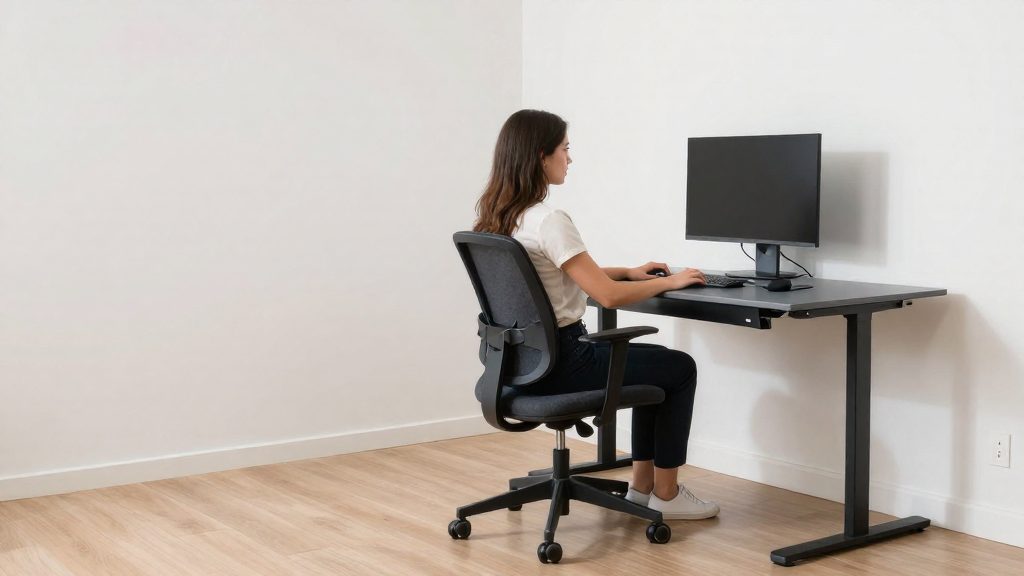
Home office ergonomics matters because the physical demands of office work, such as prolonged sitting, repetitive input and awkward postures, do not disappear when you work from home. The main goal is to prevent injury from repetitive tasks and poor posture.
Why home office ergonomics matters
Applying campus principles at home
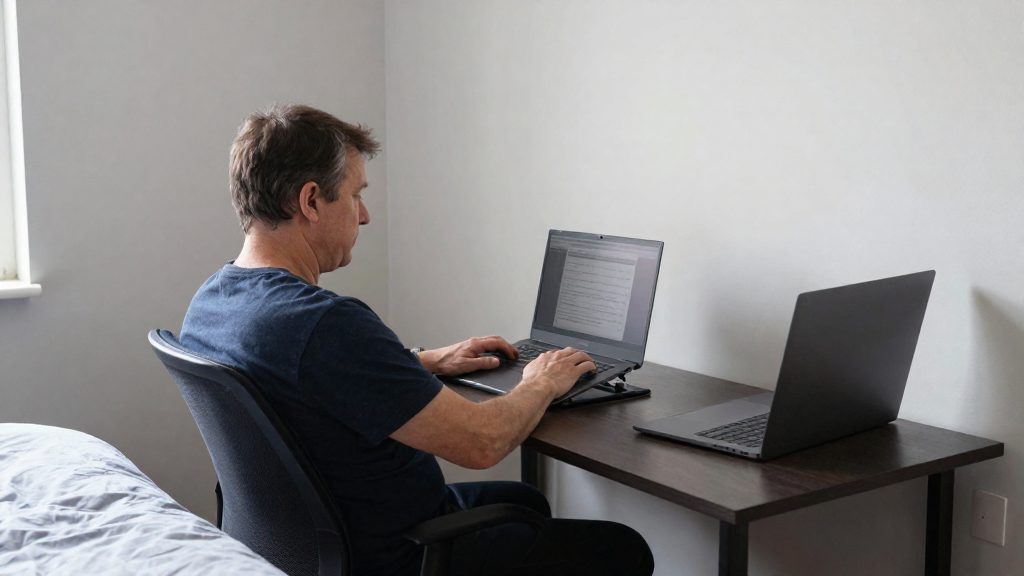
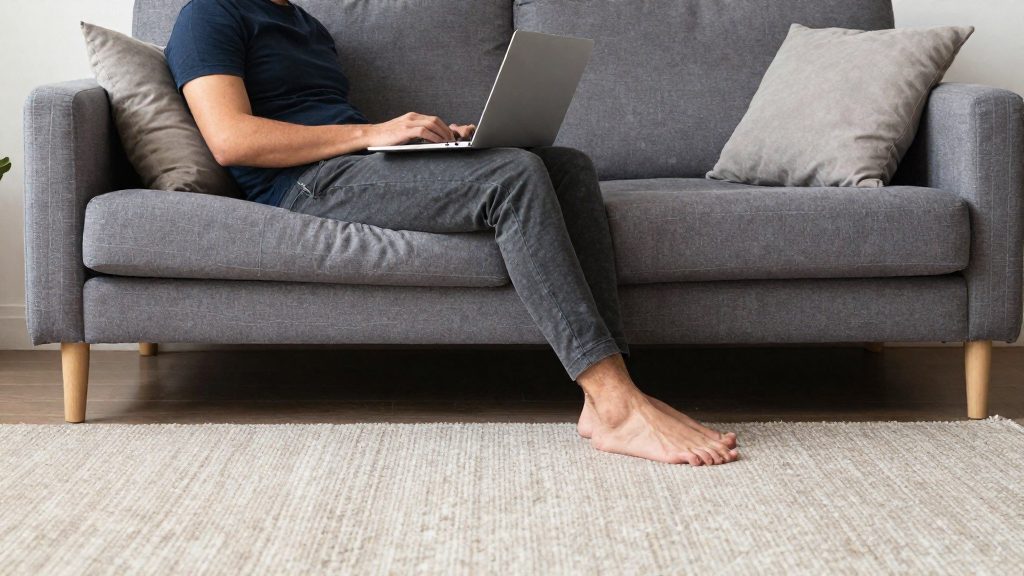
Campus workstations are usually planned in advance. Home desks are often improvised from kitchen tables, sofas or bedroom dressers. The University of New Hampshire guidance (2026) addresses this gap by asking remote workers to set up their work area as close to their office environment as possible and to reproduce the same ergonomic principles used on campus.
To apply this in practice:
- Identify the functions your office workstation provides, such as a supportive chair, a monitor at eye level and a keyboard at a comfortable height.
- Reproduce each function with the equipment you have, even if it is not identical.
- Keep the work area consistent so that your posture and reach do not change from day to day.
Injury risks from repetitive tasks and awkward postures
The University of New Hampshire (2026) advises workers to avoid awkward postures when bending, lifting and carrying, because repetitive tasks like these can cause injury. At home, these tasks often happen without notice, for example when you repeatedly move a laptop between rooms or reach down for supplies.
| Task | Risk pattern | Typical home example |
|---|---|---|
| Bending | Awkward posture, especially when repeated | Retrieving files from a low shelf or floor |
| Lifting | Awkward posture under load | Moving a printer or a box of supplies |
| Carrying | Repetitive load handling | Taking a laptop, bag or equipment between rooms several times a day |
Using the OSHA eTool as a self-check
OSHA publishes an online computer workstation checklist, known as an eTool. The University of New Hampshire (2026) points workers to it to confirm that a workstation is not putting them at risk. Use it as a structured review:
- Open the current version of the checklist on the OSHA website.
- Go through each item and compare it with your actual workstation, not with what you intend to set up.
- Note every item that does not match your setup.
- Make the changes, then repeat the review after any change to your desk, chair or equipment.
A self-check identifies gaps in your setup, but it does not diagnose an injury. If discomfort or pain continues despite changes to your workstation, consult a healthcare professional.
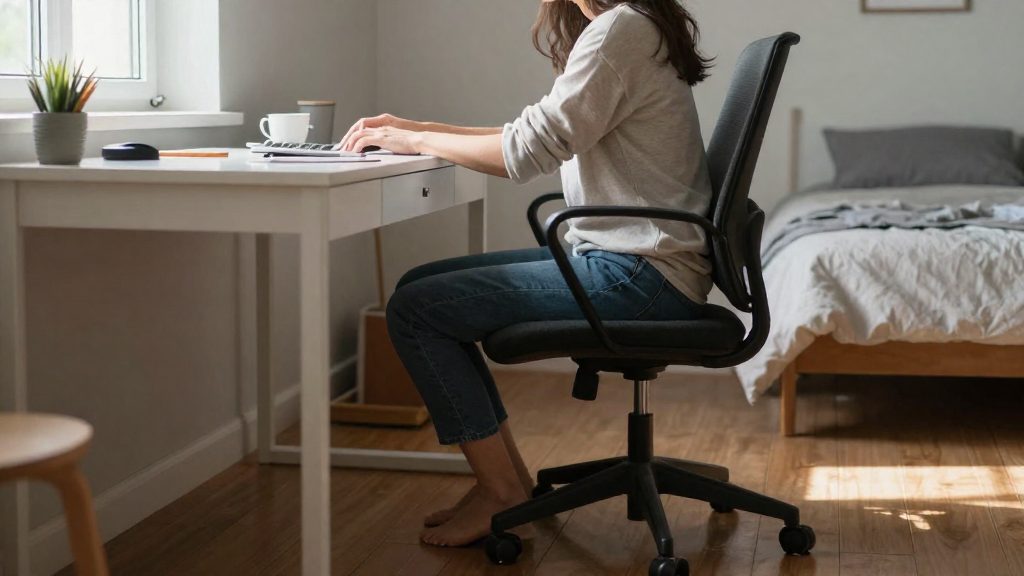
Where should you set up your home workspace? Space, cables and traffic
Choose a room and a dedicated zone that you can organize the same way every day, rather than a corner shared with other daily activities.
When selecting the space, check these points:
- Noise: Pick a quiet area, away from activity that competes with your concentration.
- Floor space: Leave enough room to sit, stand and move your chair without hitting furniture or walls. If you use a sit-stand workstation, confirm that it can be raised and lowered without contacting nearby objects.
- Clearance: Keep a clear path behind and beside the desk so you can get in and out of your seat and reach items without twisting.
- Cable routing: Run power and data cables along walls or under the desk, outside walking paths, so they do not catch feet or pull on equipment. Secure cable routing before you fix the final desk position.
- Household traffic: Place the desk away from doors, kitchens and common walkways, so that people or pets passing through cause fewer interruptions.
The layout also affects how often you bend, lift and carry. Store printers, files and supplies within easy reach at a height you can access without stretching or twisting.
How should you adjust your chair and desk?
Adjust the chair first, then the desk, because the right desk height depends on where your seat ends up. The aim is a neutral seated position in which your feet, hips, back and forearms are supported and your head is not pushed forward toward the screen.
Seat height and thigh-knee alignment
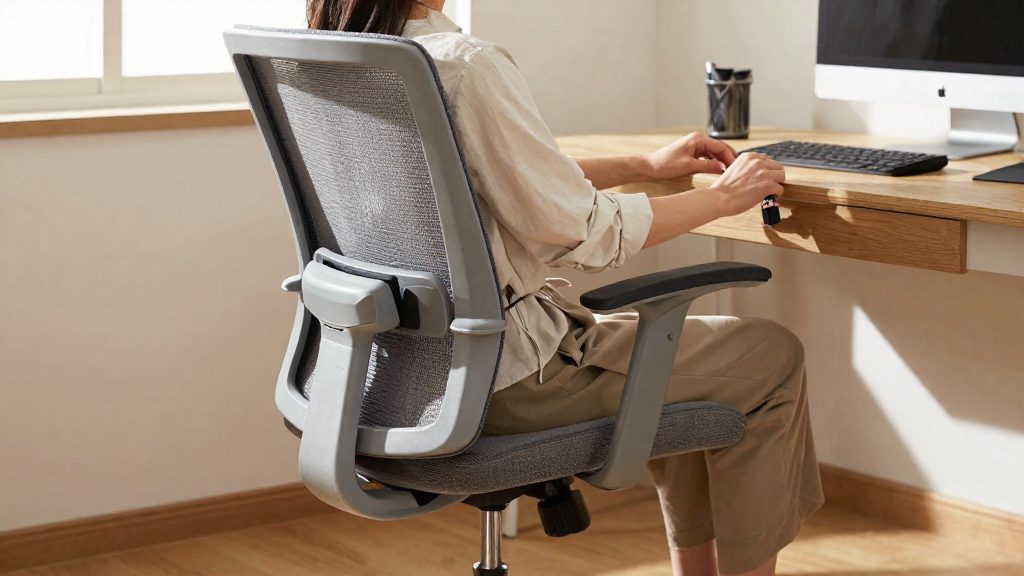
Set the seat height so your feet rest flat on the floor. If they do not reach the floor, use a footrest. Your thighs should sit roughly parallel to the floor, with your knees level with or slightly below your hips. Check that the front edge of the seat does not press into the back of your knees, as this can be uncomfortable.
Lumbar support and backrest adjustment
Set the backrest so the lumbar support fills the inward curve of your lower back, and sit with your hips against the back of the seat. Then adjust the backrest tilt so your upper body can rest against it without slumping forward. If your chair has no lumbar adjustment, a small cushion placed behind your lower back can serve the same purpose. Reposition it until your lower back feels supported without forcing an arched posture.
Desk height and elbow angle
With your shoulders relaxed and your arms hanging naturally, set the desk so your elbow angle is open and relaxed, with your forearms supported rather than lifted. If your shoulders rise to reach the desk, the desk is too high. If you must lean forward, it is too low. Keyboard and mouse placement is covered in the next section; here, use the desk height only to set your arm position.
| Step | Setting | Check |
|---|---|---|
| 1. Seat height | Feet flat or on a footrest, thighs roughly parallel to the floor | No pressure behind the knees |
| 2. Backrest | Lumbar support fills the lower-back curve | Upper back rests without slumping |
| 3. Desk height | Elbows relaxed, forearms supported | Shoulders not raised |
Monitor, keyboard and mouse placement
The goal is to keep your head, neck, shoulders and wrists in positions where they do not have to bend, twist or reach for long periods.
Monitor height and distance
- Position the top edge of the screen at or slightly below eye level, so your gaze falls naturally on the upper part of the display.
- Place the screen far enough away that text is readable without leaning forward. If you need to lean in, the screen is too close or too small for the task.
- Keep your neck in a relaxed, upright position. If you consistently tilt your head to see the screen, raise or lower the display.
Keyboard distance, tilt and wrist position
- Set the keyboard directly in front of you, close enough that your shoulders stay relaxed and you do not reach forward to type.
- Keep your wrists straight rather than bent up, down or sideways while typing. Avoid resting the wrists on hard edges during typing.
- Use the keyboard’s tilt feet only if they keep your wrists neutral. Many users type more comfortably with the keyboard flat.
Mouse placement
- Place the mouse at the same level as the keyboard and next to it, so that you move the hand, not the whole arm.
Dual monitors and document holders
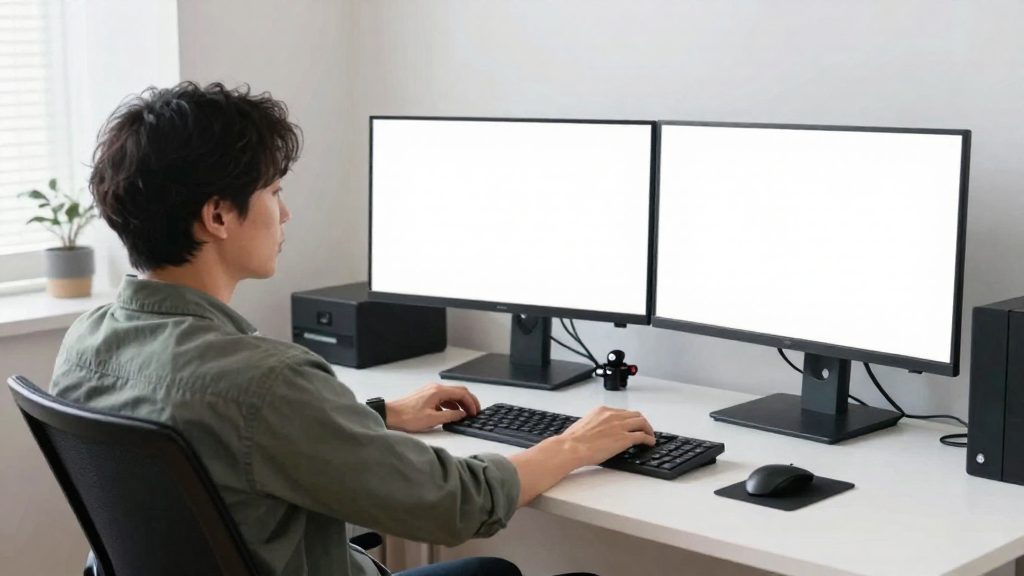
- Place the monitor you use most directly in front of you and the second monitor beside it, so you turn your head rather than your entire torso.
- Position a document holder at about the same distance and height as the screen to reduce repeated head movements between the page and the display.
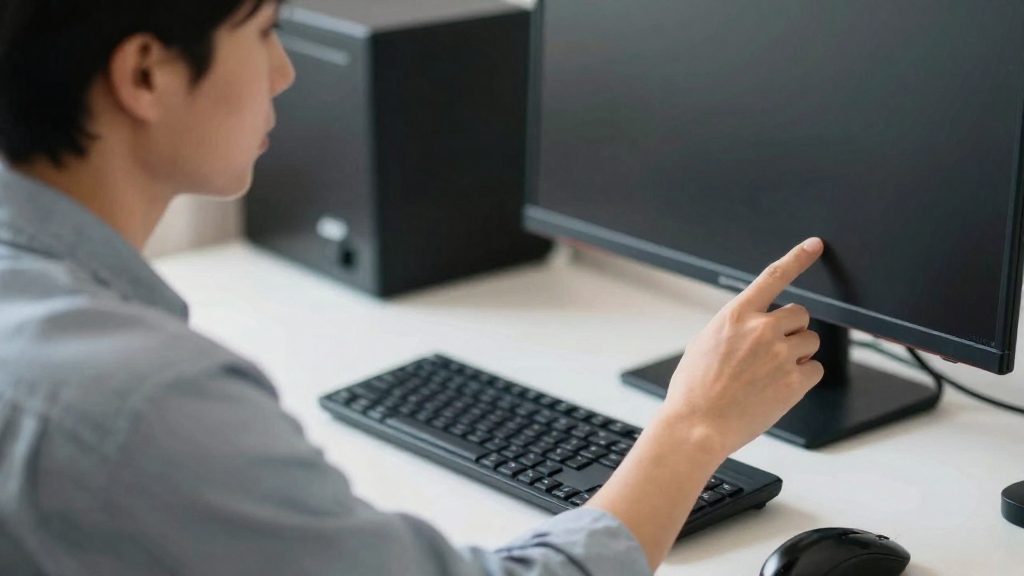
Lighting and glare at home
Glare is one of the most common lighting problems in a home office, and it usually comes from how the room is laid out rather than from the light itself. The goal is to keep bright sources such as windows and lamps out of your direct line of sight and off the screen surface, while providing enough even light to read comfortably.
Window placement and blinds
Position the desk so the screen sits at a right angle to the window. A window directly behind the screen reflects off the display and makes text harder to read, while a window directly in front shines into your eyes. Use blinds or curtains to control sunlight, and adjust them as daylight changes during the day instead of leaving them in one position.
Ambient light and task lamps
Ambient light should be fairly even across the room, so the screen is not much brighter or darker than its surroundings. Add a task lamp to light the keyboard and any paper documents. Place it beside the work area rather than behind the monitor, and angle it away from the screen so it does not reflect in the glass.
Screen brightness and contrast
Set the screen contrast and brightness so the display is comfortable to read in the room where you work. A screen much brighter than the room, or much dimmer, forces your eyes to keep adjusting. Use the display settings built into your monitor or operating system, since menu names and options vary by device.
| Check | How to test |
|---|---|
| Reflections on the screen | Look at the screen with the room lights on, then turn them off and compare |
| Window in line of sight | Sit at your normal working position and note whether you face the window |
| Lamp reflection | Move your head slightly and check whether the lamp shows on the glass |
| Screen vs. room brightness | Compare the screen’s white areas with the wall behind it |
| Text legibility | Open a document and check that small text is clear without leaning in |
How often should you take breaks and stretch?
Regular movement breaks during continuous desk work can help interrupt static sitting. No single break interval suits everyone, so set your timing by how your body feels. Take a micro-break when you notice stiffness, a fixed posture, or reduced focus. Where possible, tie breaks to natural pauses in your work, such as after sending a message, finishing a call, or closing a document.
Keep each movement slow and controlled, without bouncing or forcing a stretch. Stop if you feel sharp pain. The goal is to interrupt static sitting, not to add strain.
Neck, shoulder and hip stretches
| Area | Movement | Purpose |
|---|---|---|
| Neck | Tilt your head slowly toward one shoulder, then the other | Eases tension from a head held forward at the screen |
| Shoulders | Roll your shoulders backward, then forward | Relieves tension from typing and a rounded upper back |
| Hips | Stand, shift your weight, and gently reach one leg back to open the front of the hip | Counters prolonged hip flexion while seated |
Eye rest away from the screen
Looking away from the screen gives your eyes a break from sustained close-up focus. Choose a point in the room farther away than your monitor, rest your gaze there for a moment, then blink deliberately a few times. Combine this with a neck or shoulder movement so one pause covers both eye rest and movement.
Sit-stand options and moving more
A sit-stand workstation lets you alternate between sitting and standing during the workday. According to the University of New Hampshire’s guidance on home office setup, this alternation provides movement breaks and can reduce discomfort and fatigue from staying in one position. The main decisions are how to alternate positions across the day, which type of sit-stand solution fits your space, and how to add movement during calls and meetings.
Alternating sit and stand positions
The benefit comes from changing posture, so the pattern matters more than the total time spent standing. A practical approach:
- Start the day seated, then stand for a short block of time and return to sitting.
- Switch positions when your task changes, for example before a review call or after finishing a long document.
- Return to sitting if you notice fatigue in your legs or lower back while standing.
- Track your switches for the first week to see which pattern you actually maintain.
Converter versus full electric sit-stand desks
Two solution types are common in home offices:
| Option | How it works | Best suited for |
|---|---|---|
| Converter (desktop riser) | Sits on top of an existing desk and raises the monitor and keyboard to standing height | Keeping your current desk and adding standing capacity |
| Full electric sit-stand desk | A motorised frame raises the entire desktop | Replacing the surface and moving the whole workstation together |
A converter suits a stable desk that has enough depth for the riser and your screen, so check the depth before buying. A full electric sit-stand desk suits you if you want the keyboard, mouse and monitor to move as one unit. In both cases, check that you can reach the keyboard and mouse in each position without leaning forward or raising your shoulders.
Movement during phone calls and video meetings
Calls are a practical place to add movement without scheduling a separate break:
- Stand for audio-only calls where you do not need to read a shared screen.
- Use a headset with enough cable length or wireless range to walk a short distance.
- For video meetings, set the camera framing before you stand, then keep it stable so the picture does not shift.
Checking the setup after changes
Installing a converter or electric desk changes the height of your screen and keyboard, which can alter your posture. Readjust your monitor and arm position after each change.
Frequently asked questions
Can I arrange a home office without matching an office setup exactly?
Yes. The University of New Hampshire guidance (2026) asks you to reproduce the functions of your office workstation, such as seat support, monitor height and keyboard position, with whatever equipment you have, even if it is not identical.
How can I check whether my home workstation puts me at risk?
Use the OSHA computer workstation checklist (eTool), which the University of New Hampshire (2026) points workers to for checking a workstation’s risks. It is an online tool, so you can run through it at your desk without special equipment.
Does a sit-stand workstation help if I work at home?
Yes. A sit-stand workstation lets you alternate between sitting and standing, which provides movement breaks and can reduce discomfort and fatigue from staying in one position (University of New Hampshire, 2026).