What are musculoskeletal disorders in office work?
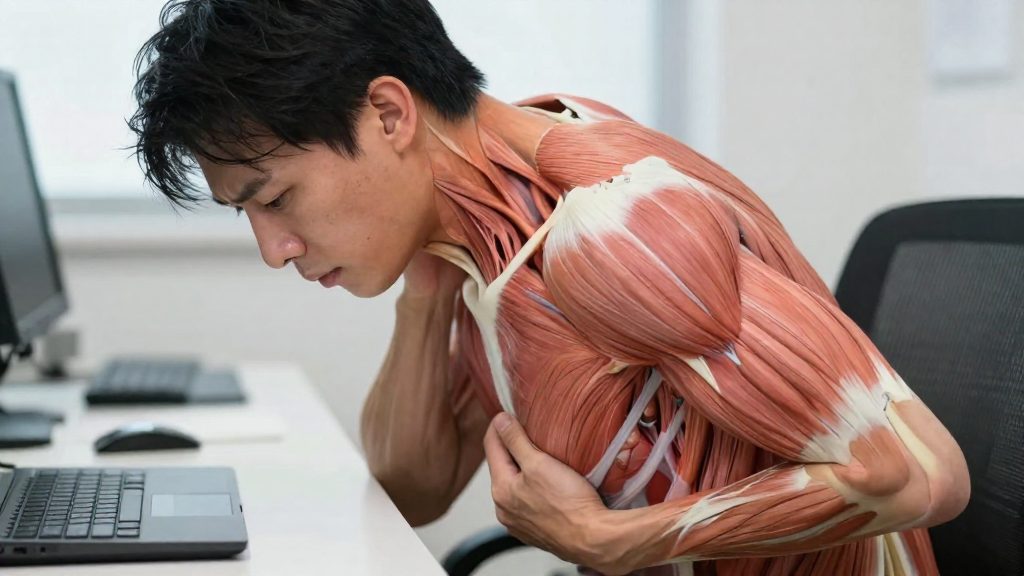
Tissues affected
Each tissue in the list below has a distinct role, so an MSD can affect any of them:
| Tissue | Role in the body |
|---|---|
| Muscles | Produce movement and support posture |
| Nerves | Carry signals between the brain and the rest of the body |
| Tendons | Connect muscle to bone |
| Ligaments | Connect bone to bone and stabilize joints |
| Joints | Allow bones to move against each other |
| Cartilage | Covers the ends of bones inside joints |
| Spinal discs | Cushion the vertebrae of the spine |
Physical causes
Work-related MSDs are linked to these physical causes:
- Sudden force: a single forceful movement or lift.
- Sustained force: pressure or effort held over an extended period.
- Vibration: repeated mechanical shaking transmitted to the body.
- Repetitive motion: the same movement performed many times.
- Awkward postures: positions that move joints away from their neutral range.
These causes often combine. A held posture with repeated typing, for example, involves both sustained and repetitive loading.
Early symptoms
The first signs of an MSD are usually:
- Pain in the affected area
- Stiffness, especially after sitting for a long time
- Numbness or tingling, which can point to nerve involvement
- Reduced strength, such as weaker grip
Main risk factors at a desk
According to the CDC’s National Institute for Occupational Safety and Health (NIOSH), the main risk factors that can cause or worsen MSDs are awkward postures, higher intensity, frequency or duration of activities, and psychosocial stressors. Desk work rarely involves only one of these. Most problems come from several factors combining over the workday.
Physical factors
Physical risk factors relate to how your body is positioned and how much it is asked to repeat or hold a movement.
| Factor | Typical desk example | Why it matters |
|---|---|---|
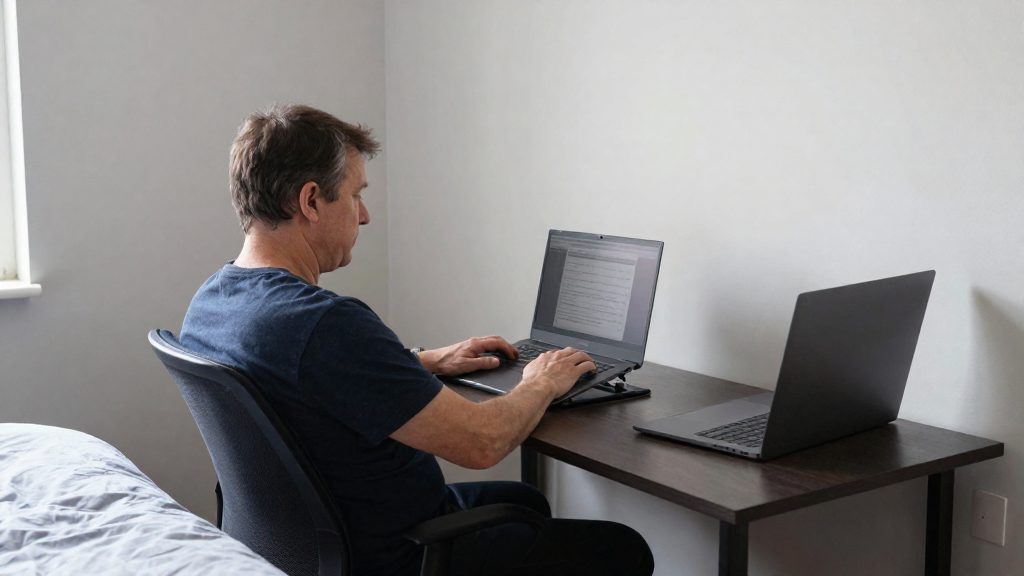
| Awkward postures sustained during typing and screen work | Head pushed forward of the torso, shoulders raised, wrists bent while typing | Holding a non-neutral position keeps muscles and joints under load without relief |
| Intensity of repetitive tasks | Fast, forceful keystrokes or heavy mouse clicking | Higher effort per movement increases the load on tendons and muscles |
| Frequency of repetitive tasks | Many short, repeated actions such as data entry or clicking through the same menus | More repetitions per hour add up across the day |
| Duration of repetitive tasks | Hours of continuous typing or screen work without changing task | Long periods without variation keep the same tissues working |
The posture itself is only part of the risk. A position that feels comfortable at first can still become a problem when it is held for hours. The number of repetitions and how hard each one is performed both count.
Psychosocial factors
In an office setting, three psychosocial conditions are especially relevant:
- Workload pressure: more tasks than the available time allows.
- Tight deadlines: short time frames that compress the work.
- Low control over tasks: little say over the order, pace or method of work.
These stressors affect the body indirectly. Under pressure, some people may work faster and change position less often, which can link psychosocial strain to the physical factors above. Low control adds to the problem because it reduces the chance to adjust pace or change task when the body signals fatigue.
Identifying the factors in your own workday
To start the first step, you can record the following over a few typical workdays:
- The tasks that involve the most typing, clicking or repeated movements, and their approximate duration.
- The postures you hold during those tasks, especially the position of your head, shoulders and wrists.
- The periods when your workload or deadlines peak, and whether you can change the order or pace of your tasks during those periods.
This record shows which physical and psychosocial factors apply to your situation, so that corrective measures target the right causes.
Chair and posture checklist
Seated posture sets the baseline for the rest of your workstation. The goal is a seated position your lower body can hold without strain. The reference values below come from Western Kentucky University EH&S (2026).
| Body point | Target position | What to check |
|---|---|---|
| Knees | Bent at about 90° | With your back against the backrest, your knees are bent at about 90° |
| Thighs | Parallel to the floor | Your thighs are level, not sloping up or down toward the knees |
| Hips | At 90° or slightly more | Hips sit at or slightly above knee level and do not roll backward |
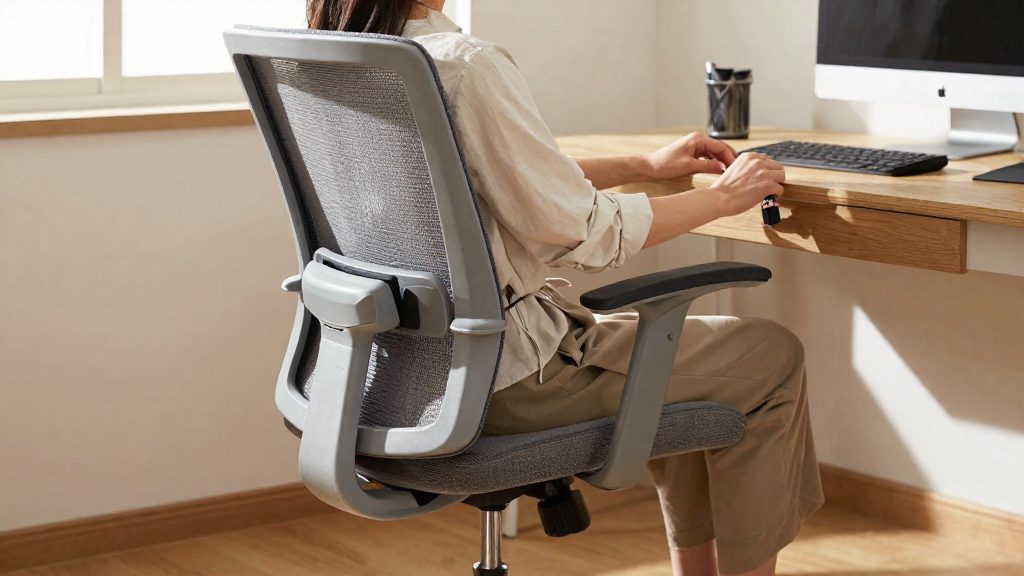
| Lower back | Adequate support from the chair | The backrest supports the natural inward curve of your lower back |
Checklist, step by step
- Set the seat height first. Adjust the seat until your thighs are parallel to the floor and your knees are bent at about 90°. Use the seat height control, not a footrest, as the first adjustment.
- Check the knee angle. With your back against the backrest, your knees should bend at about 90°. If your knees sit above the hip line, the seat is too low. If your thighs slope downward toward the knees, the seat is too high.
- Confirm the hip angle. The hip angle should be 90° or slightly more. Keep the hip angle at 90° or slightly more.
- Place your feet. Rest both feet flat on the floor or on a footrest if the floor does not reach them at the target knee angle. Your feet should not hang or be tucked under the chair.
- Set the lumbar support. Adjust the backrest so it fills the curve of your lower back. The chair should support the lower back rather than leave it unsupported, especially during long periods of sitting.
- Recheck after adjusting. Sit back fully and confirm that the knee, thigh and hip angles still match the targets, and that your lower back remains in contact with the backrest.
How should you set up your monitor, keyboard and mouse?
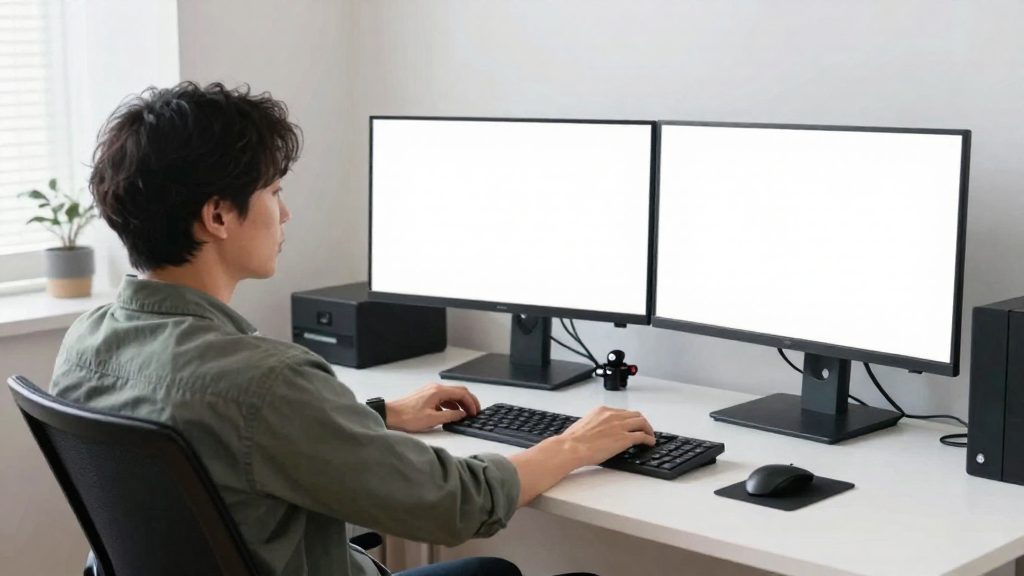
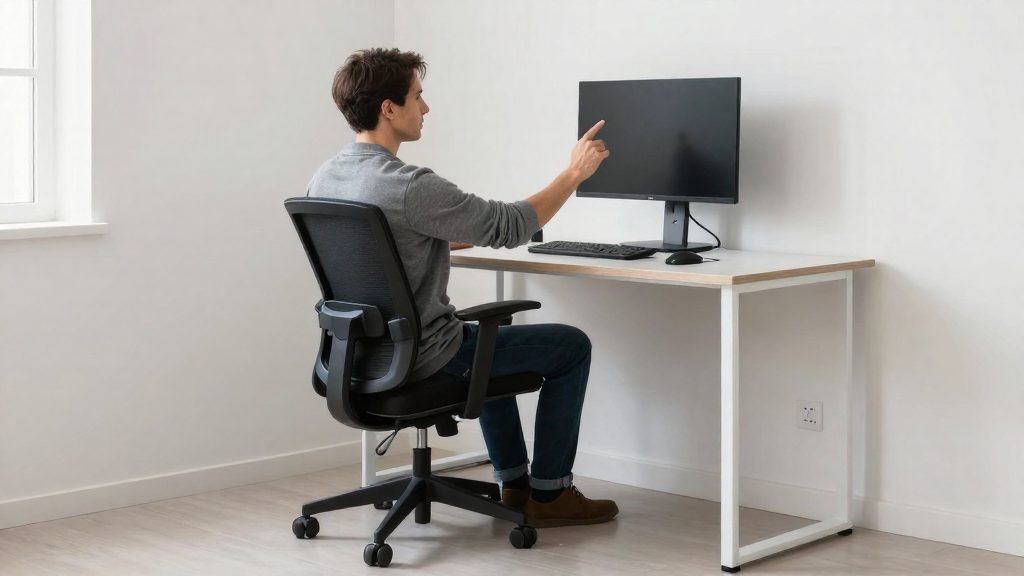
Position your screen so that its top edge sits at or slightly below eye level, at a viewing distance of 16 to 28 inches (40 to 71 cm). Position your keyboard and mouse so that your hands sit at or slightly below elbow height, with elbows bent at 90° and wrists kept straight. These three settings work together. A screen placed too high makes you tilt your head back, and a screen placed too far away makes you lean forward to read. Input devices placed too high or too far away lift your shoulders or stretch your arms.
| Component | Target position | How to check it |
|---|---|---|
| Monitor top edge | At or slightly below eye level | Look straight ahead; your gaze should land on the upper part of the screen or just below it |
| Viewing distance | 16 to 28 inches (40 to 71 cm) | Measure from your eyes to the screen with a tape measure |
| Keyboard and mouse height | At or slightly below elbow height | Relax your arms at your sides, then check that the work surface is at or just under your elbow level |
| Elbow angle | 90° | Check the angle at the elbow joint while typing |
| Wrist position | Straight, in line with the forearm | Look for no upward or downward bend at the wrist |
To set up your workstation:
- Place the monitor first. Sit at your usual working position, then adjust the screen height so the top edge is at or just below eye level. Adjust the distance so it falls within the 16 to 28 inch range.
- Position the keyboard. Slide it toward you until your elbows bend at 90° with your forearms roughly level. If you need to reach forward to type, move the keyboard closer.
- Place the mouse beside the keyboard. Set it at the same height and within the same reach zone, so you do not have to extend your arm sideways to use it.
- Check your wrists while working. Type and click for a few minutes, then look for any bend at the wrist. If your wrists angle upward or downward, adjust the keyboard or mouse height until they are straight again.
Breaks and stretches
Limit continuous computer work to no more than 30 minutes at a time, and hold each stretch for about 10 seconds, according to Western Kentucky University EH&S (2026). Breaking up continuous computer work interrupts the static load that builds when the same muscles stay contracted in one position. Western Kentucky University EH&S advises keeping continuous computer work to no more than 30 minutes at a time.
Break timing
| Element | Guideline | Source |
|---|---|---|
| Maximum continuous computer work | 30 minutes at a time | Western Kentucky University EH&S, 2026 |
| Stretch hold | About 10 seconds each | Western Kentucky University EH&S, 2026 |
Use a timer or calendar reminder set to 30 minutes, and stand up or move away from the desk when it sounds, even if you feel fine.
Micro-break stretches
Perform these movements during the break, one at a time, without bouncing. Breathe normally throughout.
- Neck: Sit or stand upright, then slowly tilt your head toward one shoulder until you feel a gentle stretch. Hold for about 10 seconds, then repeat on the other side.
- Shoulders: Raise both shoulders toward your ears, hold briefly, then let them drop and roll them backward. Finish with a 10-second hold with your arms relaxed at your sides.
- Wrists and forearms: Extend one arm in front of you with the palm facing up. Gently pull the fingers back toward your body with the other hand and hold for about 10 seconds. Repeat with the palm facing down, then switch arms.
- Back: Stand, place your hands on your hips, and lean back gently, keeping your knees soft. Hold for about 10 seconds, then return to a neutral standing position.
Do you need a home office ergonomics check?
A home office ergonomics check is useful when your workstation may expose you to risk factors for musculoskeletal disorders (MSDs). A check helps you identify which risk factors apply to your setup instead of guessing.
Self-check versus professional assessment
A self-check is a structured review of your own workstation against posture principles. A professional assessment is a review carried out by a qualified ergonomics specialist. NIOSH describes ergonomics prevention as designing tasks and the work environment to fit workers’ capabilities, and both approaches can be measured against that goal.
| Aspect | Self-check | Professional assessment |
|---|---|---|
| Who performs it | You, using a checklist and your own observations | A qualified ergonomics specialist |
| What it covers | Posture, seating, and screen and input device placement compared with reference positions | Postures, tasks and the work environment, analyzed against the worker’s capabilities |
| Main limit | Relies on your own observation and may miss factors you do not notice | Depends on the assessor’s availability and on the information you provide |
When to run the check
Run a check in two situations:
- After equipment changes. A new chair, monitor, keyboard or desk alters the postures you adopt, so the setup should be reviewed again.
- When discomfort persists. If discomfort continues after you have made adjustments, a review can help determine whether postures, task intensity or task duration are involved.
Running the check only once, at setup, does not account for later changes to your equipment or your work routine.
Documenting workstation measurements before and after changes
Record a baseline before you change anything, then repeat the same record after each change so the two can be compared. Include:
- the date and the specific change made
- the chair, desk and screen setup as found
- posture observations during typical tasks, including how long you work at the computer without interruption
- the position of the keyboard and mouse relative to your elbow height
Building a prevention routine
A checklist works best when you run it as a repeating cycle rather than a one-time setup. The CDC’s National Institute for Occupational Safety and Health (NIOSH) defines an ergonomics program as a systematic process for finding, analyzing and controlling risk factors. Applied to your desk, that means repeating the same three steps on a fixed schedule and recording what you change.
Step 1: Find the risk factors
Look for the following risk factors:
- Awkward postures, such as reaching, twisting or leaning toward a screen
- Intensity, frequency and duration of tasks, for example long typing blocks or repeated mouse clicks
- Psychosocial stressors, such as deadline pressure or workload, which can worsen physical strain
Step 2: Analyze what you found
For each item you noticed, record the task, the posture and when the discomfort appears. Patterns matter more than single events. If discomfort consistently follows a particular task, that task is the one to analyze first.
Step 3: Control the risk
Change one variable at a time, such as the height of a document holder or the arrangement of frequently used items, then repeat the find-analyze cycle to confirm the change helped.
Keep a self-check log
Use a simple log with four fields: date, setup or task changed, symptoms noted, and the result at the next check. The log shows which adjustments worked and prevents you from repeating changes that did not.
| Field | What to record | Why it matters |
|---|---|---|
| Date | Day of the check | Shows the interval between changes |
| Change | The adjustment made | Links symptoms to specific fixes |
| Symptoms | Location and intensity | Tracks whether discomfort is recurring |
| Result | Status at the next check | Confirms or rejects the change |
Link checks to existing habits or reminders
A routine survives when it is tied to something you already do. Options include:
- A calendar reminder set for the same time each week
- A check at the start of the workday, before the first meeting
- A check after a planned task block, such as a long writing session
Frequently asked questions
What body parts does a musculoskeletal disorder affect?
A musculoskeletal disorder (MSD) can involve muscles, nerves, tendons, ligaments, joints, cartilage or spinal discs. Per CDC/NIOSH, the usual triggers are sudden or sustained force, vibration, repetitive motion and awkward postures.
How can I tell if my chair is too low or too high?
If your knees sit above your hip line, the seat is too low. If your thighs slope down toward your knees, the seat is too high. The target is knees bent at about 90°, thighs parallel to the floor, and hips at 90° or slightly more, per Western Kentucky University EH&S.
How long can I work at the computer before I should stop?
Western Kentucky University EH&S advises no more than 30 minutes of continuous computer work at a time. Between periods, it suggests holding stretches for about 10 seconds.