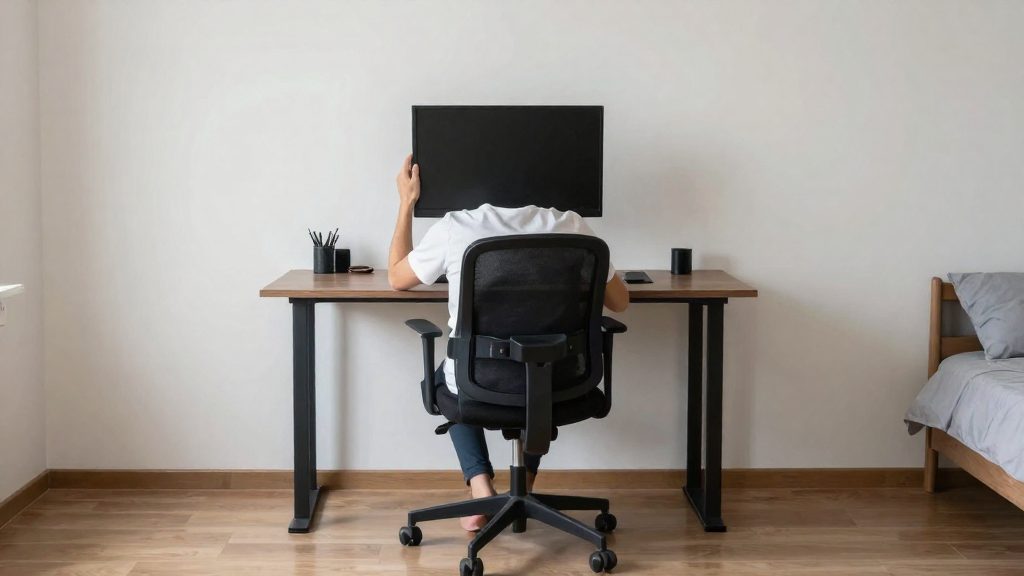
OSHA’s guidance on home offices is recommendation-based rather than a set of rules written for home workspaces. According to the fact sheet material, OSHA’s rules mainly address traditional workplaces, so how they apply to remote work may vary. For home workstation setup, OSHA recommends attention to chair and desk ergonomics, regular breaks and stretching to help prevent musculoskeletal disorders (MSDs).
What does OSHA say about home offices, and what comes from other sources?
Rules written for traditional workplaces
A home office was not the setting these rules were primarily written for, so their fit is uneven. Some rules may map well onto a home workspace, while others may not map at all. You should not assume that a single general rule applies to every remote arrangement in the same way.
How applicability varies for remote work
The practical consequence is that the application of a given general rule depends on the specific rule and the specific work arrangement, and the fact material does not provide a rule-by-rule breakdown.
Home office status under general frameworks
The fact material does not place home offices in a specific category within OSHA’s general workplace framework. Their treatment therefore depends on how the general rules are read in a remote context. Because the material does not give a dedicated classification, you should not treat home workspaces as either fully covered or fully excluded by default.
Guidance framed as recommendations
According to the Texas source, OSHA recommends that employers give employees information on proper home workstation setup. The topics it names are the following:
| Aspect | What the fact material says |
|---|---|
| General rules | Mainly address traditional workplaces |
| Application to remote work | May vary |
| Home workstation guidance | Recommended topics: chair and desk ergonomics, regular breaks and stretching |
| Health concern addressed | Musculoskeletal disorders prevention |
This framing explains why the recommendations focus on posture, movement and breaks rather than on specific compliance requirements for the home itself.

Does OSHA inspect a home workstation?
OSHA will not inspect employees’ home offices, will not hold employers liable for them, and does not expect employers to inspect them. According to the Texas Department of Insurance, Division of Workers’ Compensation, this means home workstations are not subject to OSHA inspection.
OSHA inspection practice is the first point to understand. Because inspectors do not visit home offices, a compliance check at home is not a standard part of OSHA’s process. The fact sheet’s caveat matters here: OSHA’s rules mainly address traditional workplaces, so how they apply to remote work may vary. The sources say that OSHA’s rules mainly address traditional workplaces, so how they apply to remote work may vary.
On employer liability, the same framework applies. According to the Texas source, OSHA will not hold employers liable for home offices and does not expect employers to inspect them. This covers OSHA only. The sources do not address state law or workers’ compensation. OSHA recommends that employers give employees setup information, and this is not an inspection duty.
For injuries that happen at home, the sources supplied do not address workers’ compensation or the claims process, so check with your employer and your state workers’ compensation agency. The following steps are general suggestions:
- Report the injury to your employer as soon as possible, in writing if you can.
- Record the date, time, location in your home, and the task you were performing.
- Keep any documentation of your workstation setup that your employer provided or approved.
- Ask your employer or your state workers’ compensation agency how claims for home-based work are processed.
Employer duties for remote workers
For remote work, OSHA recommends that employers give employees information on proper home workstation setup, including chair and desk ergonomics and regular breaks and stretching to help prevent musculoskeletal disorders (MSDs). The practices below are recommended, not obligations set by OSHA.
Written setup information
OSHA recommends that employers give employees information on proper home workstation setup. A written guide is one practical way to do that, so employees can review and apply the instructions at home. Washington L&I’s home office fact sheet, as reported by Safety+Health magazine in 2020, is a state agency source, not OSHA guidance. It sets out five focus areas that a guide can be organized around:
- Relaxed shoulders
- Supported lower back
- Level head
- Straight wrists
- Supported feet
These points work as a checklist that employees can run through at any home desk.
Musculoskeletal prevention in training
The information employers give employees should cover the topics OSHA identifies for MSD prevention:
| Training topic | Source |
|---|---|
| Chair and desk ergonomics | OSHA recommendation |
| Regular breaks and stretching | OSHA recommendation |
Equipment recommendations
For employees who work on a laptop, Washington L&I recommends using a separate keyboard, mouse and monitor when possible. The same source advises headsets or speakerphones for calls and a workspace with plenty of leg room and no tripping hazards.
| Equipment or condition | Guidance |
|---|---|
| Separate keyboard | Recommended for laptop users when possible |
| Separate mouse | Recommended for laptop users when possible |
| Separate monitor | Recommended for laptop users when possible |
| Headset or speakerphone | Advised for calls |
| Clear floor space | Plenty of leg room and no tripping hazards |
How should I set up my desk and chair?
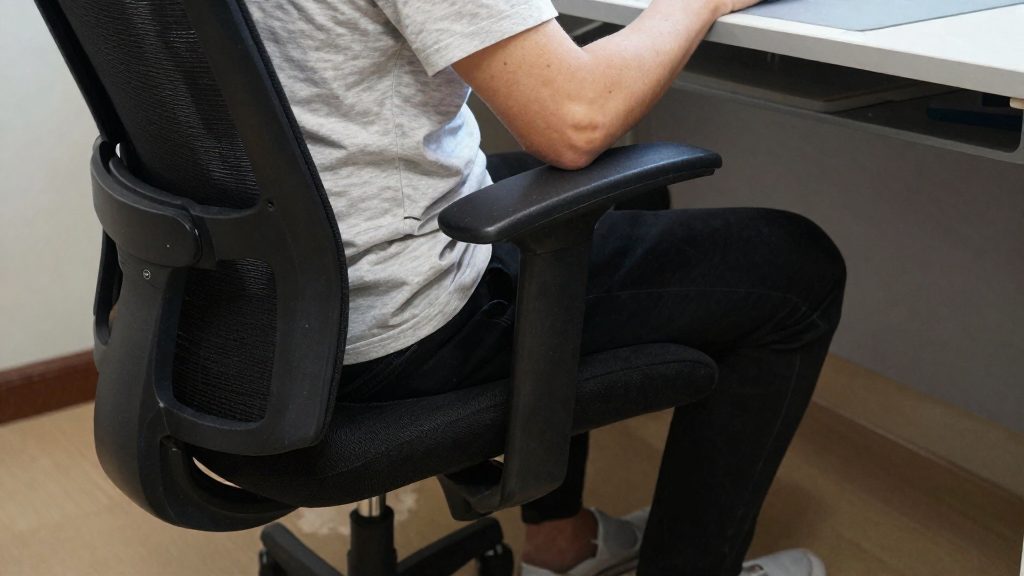
Adjust the chair and desk first so that your lower back and feet carry your weight. The steps below cover those two supports, plus the clearance under the desk. Monitor and keyboard placement are covered in separate sections.
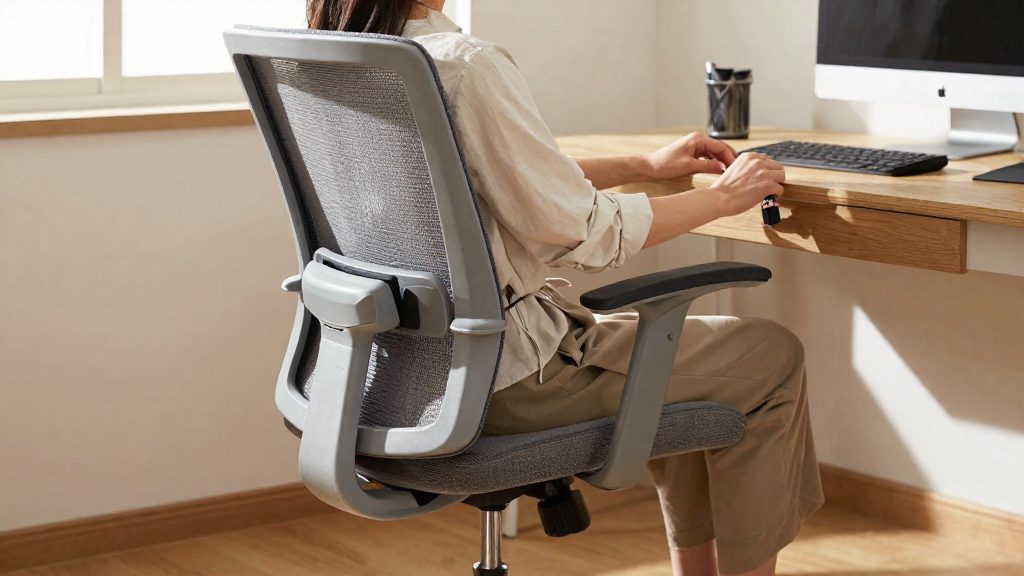
Seat height and foot support come first. Aim for the ‘supported feet’ focus area from Washington L&I: adjust the seat height so that your feet are supported, using a footrest if needed.
Lumbar support should fill the natural curve of your lower back. If your chair has a lumbar adjustment, raise or lower it until the backrest holds that curve without pushing you forward off the seat. If the chair has no adjustment, a small cushion or rolled towel placed behind the lower back can serve the same purpose.
Knee clearance depends on the space under the desk. Check that your knees and legs can move freely. Remove cables, boxes and loose items from the area under the desk.
| Check | What to verify |
|---|---|
| Feet | Flat on the floor or on a footrest |
| Lower back | Backrest fills the lower back curve |
| Knees and legs | Room to move, no obstacles underneath the desk |
If your employer has a setup guide, apply it together with these checks.
Monitor, keyboard and mouse placement
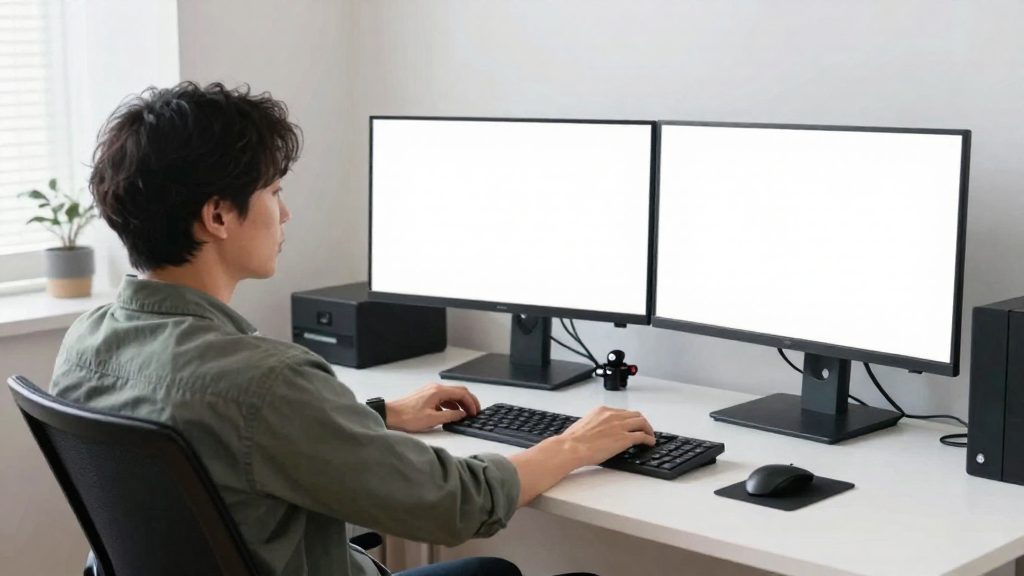
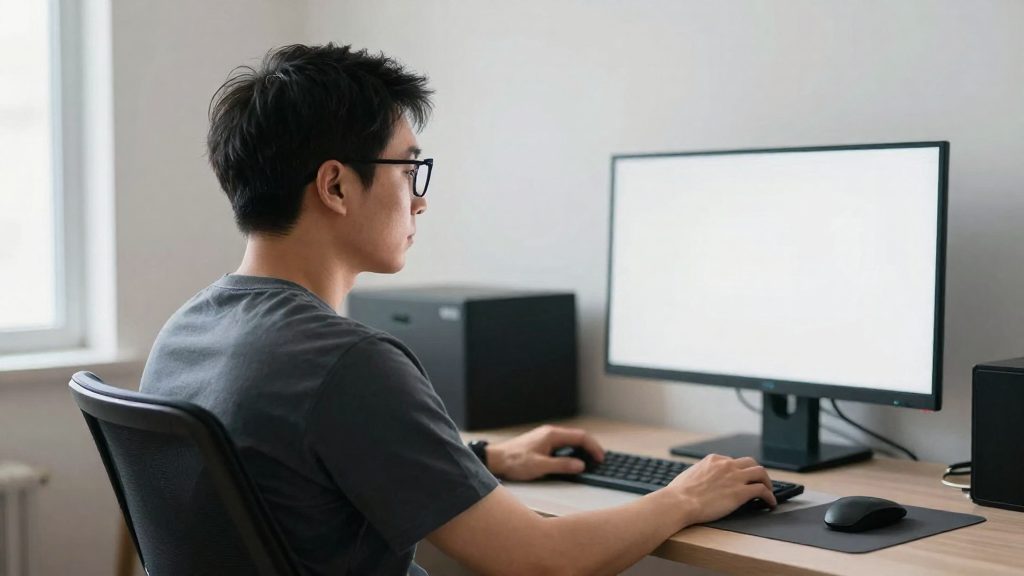
Monitor, keyboard and mouse placement determines whether your arms, wrists and neck can stay relaxed during long work sessions. The guidance from Washington L&I, reported by Safety+Health magazine (National Safety Council) in 2020, is to center your body on the middle of the monitor, set the top of the screen at eye level, and position the keyboard, monitor and mouse so that the arms, wrists and neck stay relaxed. These three elements work together, so set them up as one arrangement rather than adjusting each one in isolation.
Monitor alignment
Place the monitor directly in front of you, so that the middle of the screen lines up with the center of your body. Then raise or lower the screen until its top edge sits at eye level. A screen positioned well below eye level can encourage the head and neck to tilt forward, which runs against the ‘level head’ focus area.
Keyboard and mouse alignment
Position the keyboard centered in front of you, and place the mouse beside it at the same height, within easy reach. The objective is to keep your wrists straight while typing and clicking, rather than bent sideways or raised off the desk. If the mouse sits farther from your body than the keyboard, the arm has to stretch, and the shoulder works harder to compensate. Move the mouse closer until your elbow can stay relaxed.
Laptop tips for remote work
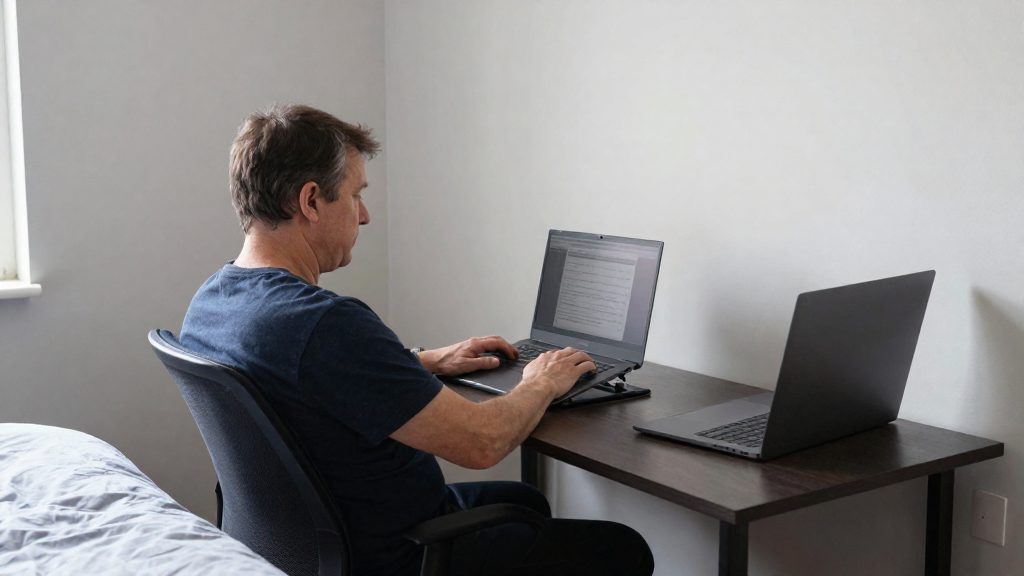
A laptop combines screen, keyboard and pointing device in one unit, so the screen height and the typing position cannot be set independently. Separate devices let you position each item around your body, instead of positioning your body around the screen. The goal is to keep your arms, wrists and neck relaxed while you type and click.
Start with the input devices. Connect an external keyboard and mouse so your hands no longer have to reach toward the laptop base. Place the keyboard and mouse close together, at the same working height, so your forearms can rest with the wrists in a straight line. Then add an external monitor if your setup allows it, which lets the laptop stay closed or at a secondary position.
For calls, cradling a phone between your shoulder and ear forces the neck to tilt and the shoulder to rise. A headset keeps your head upright and leaves your hands free to type or take notes.
Avoid working from sofas, beds and other unsupported surfaces. These seats rarely provide a fixed desk height or lumbar support, which makes it harder to keep your lower back and feet supported. If a temporary location cannot be avoided, choose a firm chair and place a footrest or a stable surface under your feet.
How often should I move or stretch?
According to Washington L&I’s home office fact sheet, as reported by Safety+Health magazine, you should change positions at least every hour. The same fact sheet sums up the principle in one line: “your next position is your best position.” Staying in any single posture for a long period keeps the same muscles and joints under load, so the aim is to vary that load rather than to find one ideal sitting position.
Alternating positions between hourly changes
- Switch between sitting and standing at each change if your setup allows it. A sit-stand desk makes this easiest.
- If you cannot stand, change posture in other ways: lean back, shift your weight, or move to a different seat for a few minutes.
- Keep the items you use most within reach so that you change position without reaching or twisting.
Stretching during breaks
Use each break to stretch the areas that static work affects most: shoulders, neck, wrists, lower back, and legs. Simple movements include shoulder rolls, gentle neck tilts, wrist and forearm extensions, standing calf stretches, and seated trunk twists. Move slowly, stop at any pain, and avoid forcing a stretch.
Frequently asked questions
Does OSHA inspect my home office?
No. According to the Texas Department of Insurance, Division of Workers’ Compensation, OSHA will not inspect home offices, will not hold employers liable for them, and does not expect employers to inspect them. These points cover OSHA only, and the sources do not say how workers’ compensation or state law applies.
What should I check first when setting up my desk?
Center your body on the middle of the monitor, with the top of the screen at eye level. This monitor guidance comes from Washington L&I, as reported by Safety+Health magazine, not from OSHA.
How often should I take breaks from sitting at home?
Washington L&I advises changing position at least every hour. OSHA’s recommendations also list regular breaks and stretching as a way to help prevent musculoskeletal disorders (MSDs).