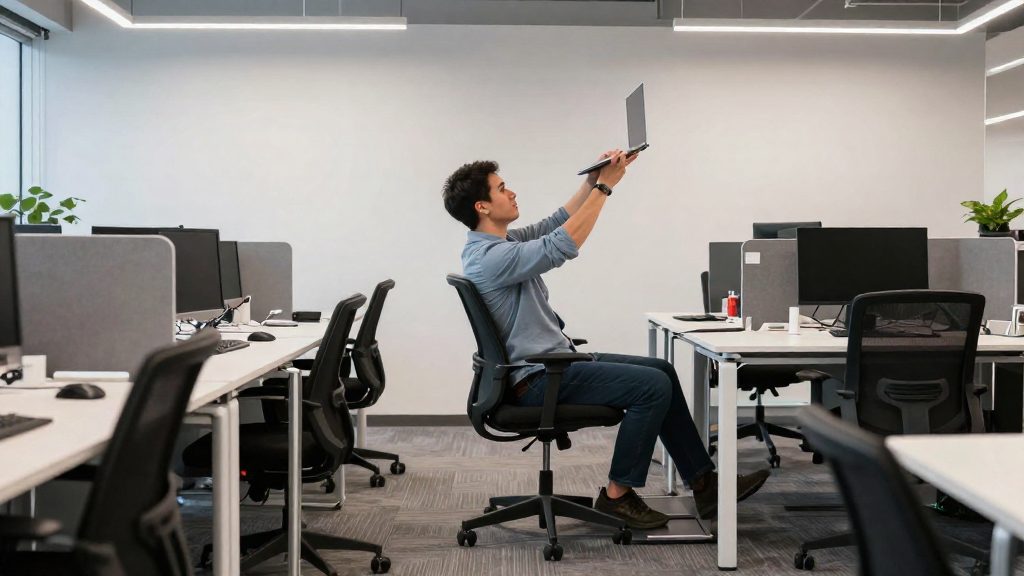
Shared hot desks cause strain mainly because the workstation is rarely set up for the person using it that day. Fixed furniture is not sized for any particular user, people switch desks often, and nothing saves their settings for the next visit. The most effective fixes take little time: set the chair in a fixed order, raise the top of the screen to about eye level, keep the wrists straight at the keyboard, clear the floor under the desk, and carry a small kit of personal items that you can set up at any desk.
Why hot desks cause ergonomic problems
Hot desks combine three conditions that work against good posture. Each one affects the body in a different way.
| Condition | Resulting strain | Ergonomic risk factor |
|---|---|---|
| Fixed furniture sized for no particular user | Forced postures to fit the equipment | Awkward or unnatural postures |
| Daily switching between unfamiliar workstations | Repeated readjustment and inconsistent setup | Frequency and duration of activities |
| No stored personal settings, so each session starts from zero | Belongings left on the floor, which leads to reaching and bending | Equipment that does not fit the user’s capabilities |
When a chair, desk and screen are set for someone else, you adapt your posture to the equipment instead of the other way round. Repeated changes to unfamiliar equipment add to the total load, because the frequency and duration of tasks count as risk factors alongside posture.
Repetitive motion adds another layer. Musculoskeletal disorders affect muscles, nerves, tendons, ligaments, joints, cartilage or spinal discs. They are caused by force, vibration, repetitive motion or awkward postures. Frequent switching between keyboard and mouse on an unfamiliar setup is one form of repetitive motion.
How do you adjust a shared chair before you start work?
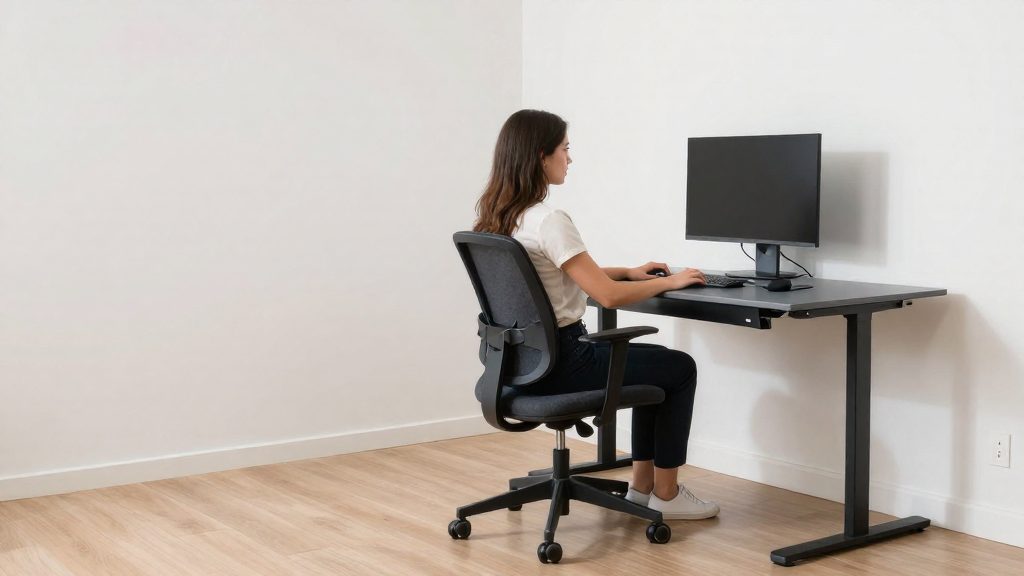
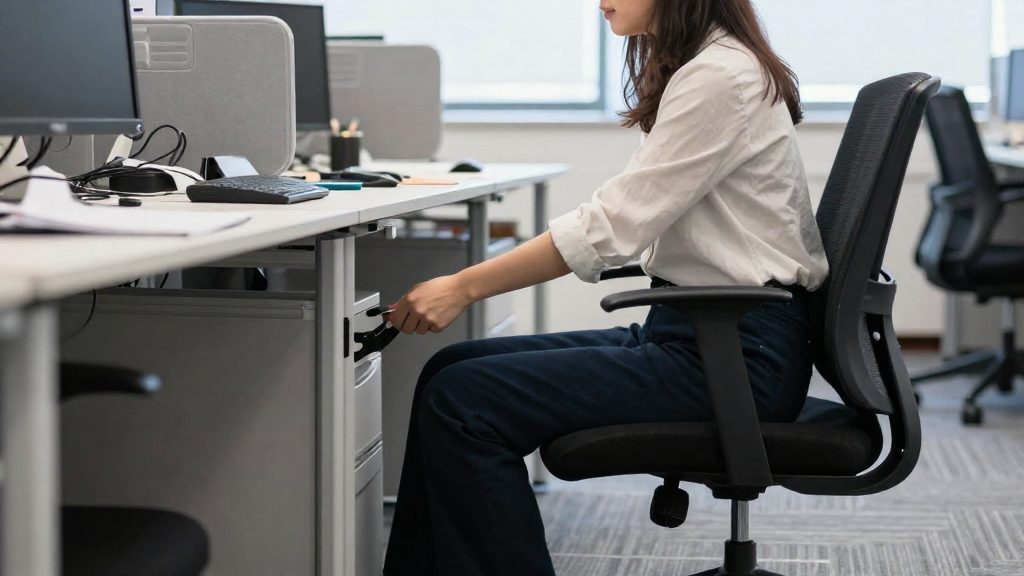
Adjust the chair from the base upward: seat height first, then seat depth, then backrest and lumbar support, and armrests last. Each setting changes the reference point for the next one, so changing the order means adjusting again. Before you start, reset any setting left by the previous user, because a shared chair rarely arrives in your position.
-
Seat height. Sit fully back in the chair and adjust the height so that your feet rest flat on the floor and your thighs sit roughly parallel to it. If your feet cannot reach the floor, lower the seat before changing anything else. Do not perch on the front edge to compensate, because that removes contact between your lower back and the backrest.
-
Seat depth. If the seat slides, move it forward or back until a small gap remains between the front edge of the seat and the back of your knees. The front edge should support your thighs without pressing into the back of your knees. If the seat does not slide, check whether the chair suits your height before you accept the position.
-
Backrest and lumbar support. Recline the backrest and set the tilt tension so that the chair moves with you without pushing you forward. Then adjust the lumbar support so that it fills the curve of your lower back when you sit fully back. Your lower back should rest against the support, not hover above it.
-
Armrest height. Set the armrests last, because seat height determines where your shoulders sit. Raise or lower each armrest so that your forearms rest lightly on it while your shoulders stay relaxed and not raised.
Where should the screen sit?
Placing the top edge of the screen at or just below eye level keeps the neck close to neutral. A screen set too low or too high pushes the neck into an awkward posture. On a shared desk, the monitor is often left at the previous user’s settings, so check it before you begin.
- Top edge at or just below eye level. When you look straight ahead, your eyes should land on the top line of the screen or slightly below it. If you must tilt your head sharply downward to read the lower part of the display, the screen is too low. If you tilt your head back to see the top line, it is too high. A slightly lowered gaze is more comfortable than a raised one.
- Distance that keeps you upright. Sit at a distance where you can read the text without leaning forward. A screen that is too close encourages the head to drift toward the display over the course of the day.
- Dual-screen alignment. If the desk has two monitors, place the primary monitor directly in front of you. Set the second monitor beside it with its top edge at the same height, so that both screens form one visual line. Turn your head, not your neck, to look between them, and angle the secondary screen toward you so that you do not twist.
Adjust the screen height after setting the seat, because seat height changes where your eyes sit.
Keyboard and mouse: keep the wrists neutral
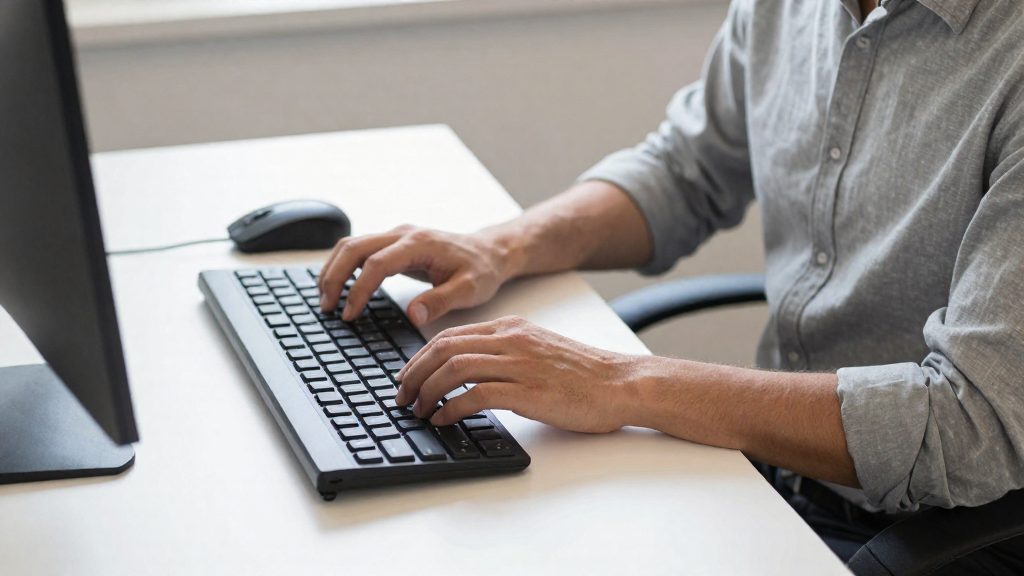
Typing and pointing for long periods with bent wrists or raised shoulders are common examples of awkward postures. At a shared desk, where the chair, screen and keyboard may have been set by someone else, the goal is a neutral arm position before you start work.
| Element | Target position | Common error |
|---|---|---|
| Wrists | Straight, continuing the line of the forearm | Bent up, bent down or angled sideways |
| Elbows | Close to the body, bent at a comfortable angle | Pulled away from the body or raised |
| Shoulders | Relaxed | Lifted to reach the keyboard or mouse |
| Keyboard | Flat, directly in front of you | Placed on an uneven surface or off to one side |
The height of the keyboard tray determines the elbow angle, so adjust the tray before you type. If the tray is too high, the shoulders rise. If it is too low, the wrists bend up to reach the keys. If the tray cannot be set to a suitable height, report the problem to the office manager instead of raising your shoulders to compensate.
Each move between keyboard and mouse changes the position of the wrist and arm. Learning the shortcuts you use most, such as copy, paste, undo, tab switching and window management, lets you keep your hands on the keyboard for longer stretches. Keyboard-shortcut training is one way employers can reduce this switching.
What belongs in a portable hot-desk kit?
A portable kit lets you rebuild your own working position on a shared desk. The five items below cover the main gaps that hot desks leave: screen height, hand position, call handling, reference material and foot support. Because the desk you find may differ in height and layout, choose each item by how well it fits the desk you are using.
| Item | Main function | Problem it addresses |
|---|---|---|
| Laptop stand, with separate keyboard and mouse | Raises the screen so that the laptop is not used flat on the desk | Screen too low, forcing the head forward |
| Ergonomic mouse | Gives a mouse design suited to the hand and wrist | Wrist strain during extended pointing |
| Headset | Keeps the phone off the shoulder and neck during calls | Head tilted to hold a phone |
| Document holder | Keeps reference material at a usable position | Repeated turning of the head toward a flat surface |
| Portable footrest | Supports the feet when the desk is higher than the user’s legs can reach | Feet unsupported at a high desk |
- Laptop stand. Pair it with an external keyboard and mouse, so the screen sits higher while the hands stay at desk level.
- Ergonomic mouse. Pack it first if you use a mouse for long periods. Treat it and the headset as personal items that follow you between desks.
- Footrest. Choose one that is stable and light enough to carry. Test it on the desk before you rely on it, because heights vary from desk to desk.
How do you manage glare and lighting at a shared desk?
At an unassigned desk, you usually cannot change the room, so check the workstation before you sit down. Light and reflections shape your posture. A screen that mirrors a window or ceiling fixture pushes you to lean, tilt your head or squint.
- Window position. Place the screen so that windows sit to the side of it. A window directly behind you reflects on the screen, while a window directly behind the screen puts a bright background in your view and forces you to look toward daylight.
- Reflection test. Turn the monitor on and display a white page. Move the screen until the reflected light falls outside your line of sight.
- Glare screen. If the desk cannot be turned, use a glare screen, one of the accessories suited to shared desks, and adjust or close the blinds to block direct sun.
- Task lighting. Use the room’s overhead light as the base. If documents or the screen are hard to read, add a task light on the desk and point it at the work surface, not at the screen.
- Glossy surfaces. Avoid placing a shiny laptop lid or glossy desk surface under a ceiling fixture, because the reflection moves onto the screen.
If the light is too dim, or glare cannot be corrected at the desk, ask facilities whether another desk is available. The workstation should suit you, and your body should not be the thing that adapts to poor lighting.
How do you keep the floor clear?
Storage is the other half of the setup. Lockers or storage units let hot-desk users keep belongings off the floor. Bags and boxes left beside or under the desk reduce the space for your legs and feet and make it harder to position the chair and footrest.
Store personal items in a locker or unit before you sit down. Clear the area around your feet, and keep on the desk only what you need for the session. When you leave, collect your items in one movement rather than bending down several times to retrieve them.
Which breaks fit between desk changes?
On a hot desk, the change of workstation creates a natural pause that you can use to move. The routines below need no equipment.
| Moment | Movement | Purpose |
|---|---|---|
| Arriving at a new desk, before sitting | Stand, walk a few steps and roll the shoulders gently | Reset posture before adjusting the workstation |
| Long seated session, at a task boundary | Stand and shift weight from one foot to the other | Interrupt a static posture |
| Leaving the desk | Gentle neck and shoulder stretch, then gather belongings | Release tension before the next task |
Seated neck, shoulder and hand stretches
These can be done in the chair without a mat or props:
- Neck side tilt. Tilt your head toward one shoulder while keeping the opposite shoulder down. Hold gently, then switch sides without bouncing.
- Chin tuck. Draw your head straight back, as if making a double chin. Keep the movement horizontal rather than tilting the head down.
- Shoulder rolls. Move both shoulders in slow backward circles, letting the shoulder blades travel down and back.
- Chest opening. Clasp your hands behind your back, then gently draw the shoulder blades together and lift the chest slightly.
- Hand opening. Spread the fingers wide, hold briefly, then make a loose fist. Repeat slowly.
Testing a standing desk
Some shared spaces offer standing desks. If you try one, use it for short periods between seated tasks rather than for the whole session:
- Confirm that the workspace allows you to try a standing desk before you commit to it.
- Start with short standing periods placed between seated tasks.
- Set the work surface so that you do not reach up or down to type or read, and keep your weight balanced over both feet.
- Avoid locking your knees. Shift your weight slightly, or move one foot forward and back.
- Return to sitting when fatigue or discomfort increases, and note which tasks suited standing.
Repeat the trial over several working sessions before you decide how much standing time fits your routine.
Should employers provide posted guides and shared equipment?
Yes. Employers should post illustrated guides at each shared desk and maintain a defined set of shared equipment, because hot desks are used by people of different body sizes. A desk adjusted for one person rarely fits the next user without help. Posted guidance, an equipment inventory and a simple way to report problems let each user fit the workstation to their own body.
- Illustrated guides at each desk. The guide should cover seat height, depth, angle, backrest and armrests. Keep a copy at each workstation rather than in a shared binder, because users need it when they sit down. Update the illustrations whenever the chair model changes.
- Equipment inventory. Record each item, its location and the desks it serves. Include footrests, keyboard trays, laptop stands, document holders, glare screens, headsets and ergonomic mice.
- Scheduled checks. Inspect the inventory on a fixed schedule so that missing or worn items are replaced before users notice them.
- Reporting channel. Provide one named route, such as a form or a shared inbox, for reporting discomfort and faulty equipment. An unadjustable chair or a missing footrest can force awkward postures, so these reports are a matter of health as well as comfort. For each report, record the desk, the item, the date and the action taken, and close it only after the fix or replacement is confirmed.
Summary
Shared hot desks become comfortable when you rebuild the workstation around your body each time you sit down. Adjust the chair in order, set the top of the screen at or just below eye level, keep the wrists straight at the keyboard, control glare, and clear the floor. Carry a small kit of personal items for the parts of the setup that the desk cannot provide. Employers support this routine when they post guides, maintain shared equipment and make reporting easy.
Frequently asked questions
How high should the screen sit at a shared desk?
Set the top edge of the screen at or just below eye level. If you have to tilt your head sharply downward to read the bottom of the display, the screen is too low. A laptop stand can raise a laptop screen, but it cannot fix a monitor that is already mounted at a low height.
What should you bring to a hot desk?
Bring a portable kit of items that work on any desk, such as a laptop stand, an ergonomic mouse, a headset, a document holder and a footrest. A headset keeps the phone off your shoulder and neck during calls, and a document holder places reference material at a readable height. The vendor source behind these suggestions is a flex-workspace software company, not a formal ergonomic standard.
Is an unadjustable chair only a comfort problem?
No. An unadjustable chair or a missing footrest can lead to awkward postures, which are a listed ergonomic risk factor. The intensity, frequency and duration of your activities also count toward the load, so long sessions on poorly fitting equipment add to the strain.