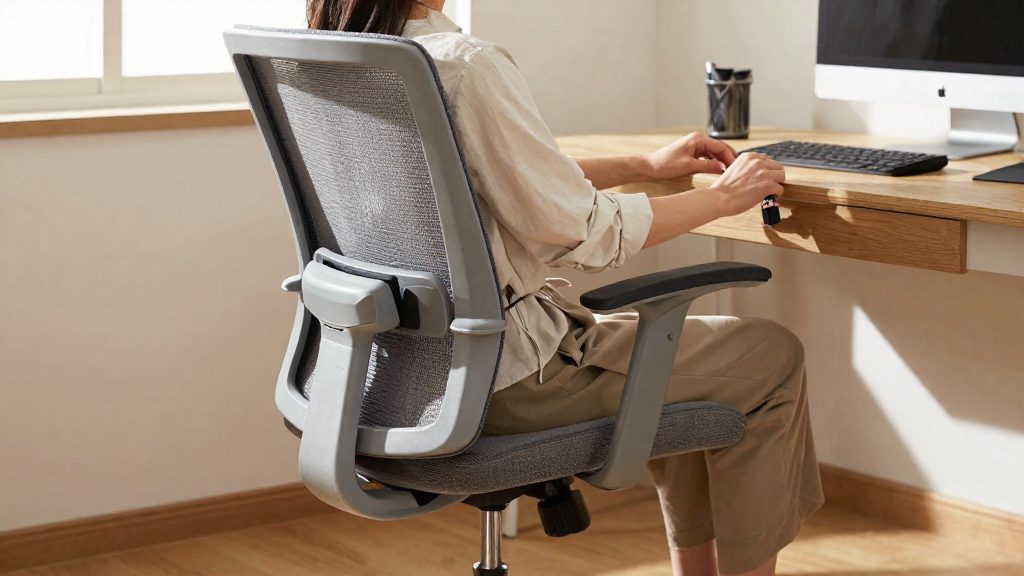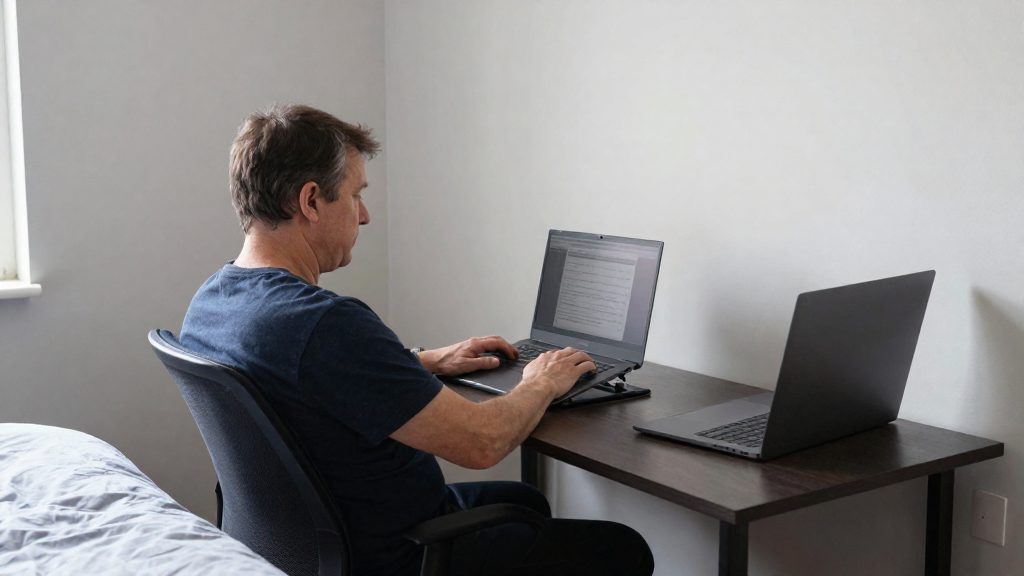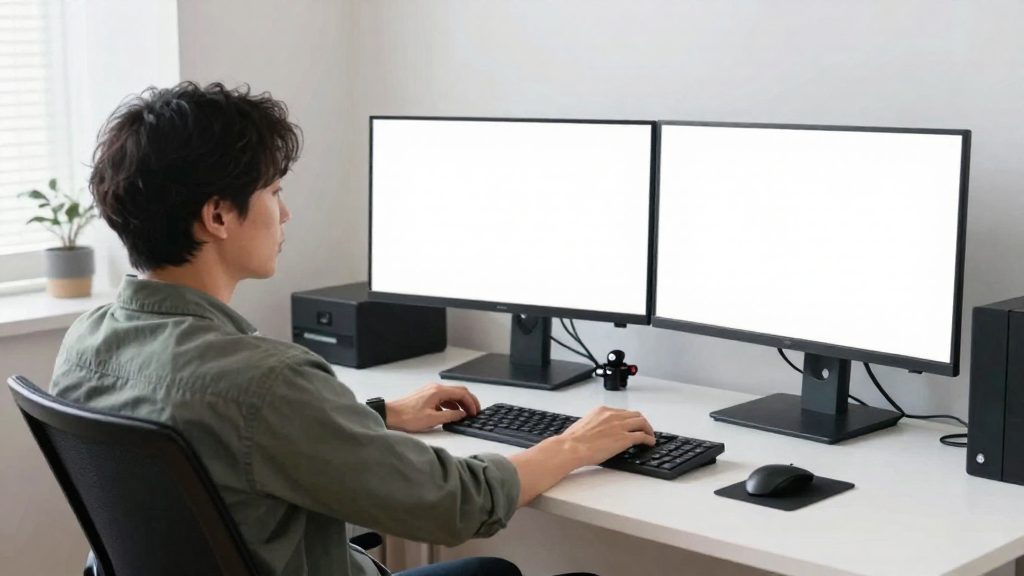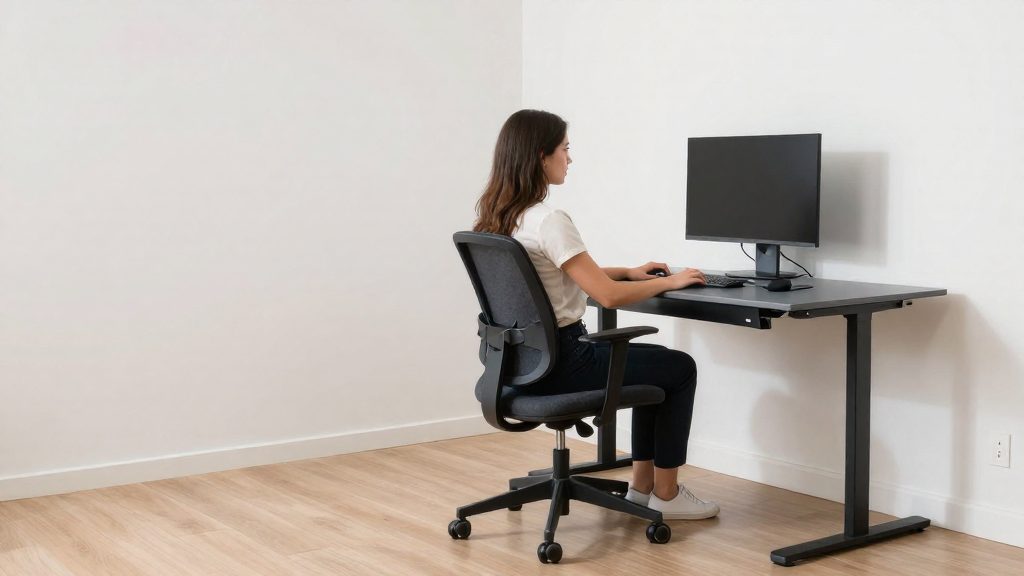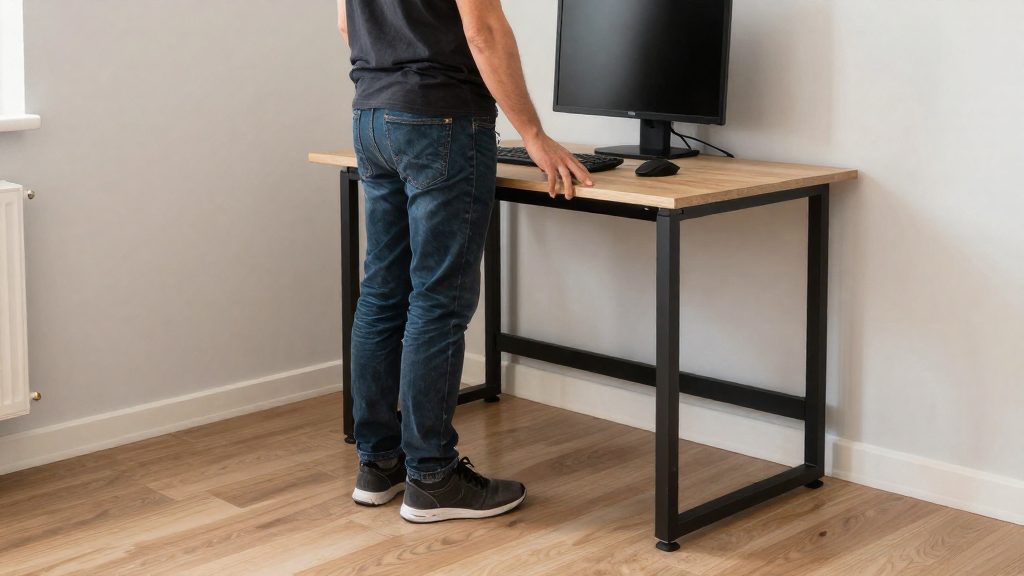
A standing desk converter suits a small home office when you already own a sturdy desk you want to keep and your budget is limited. According to FlexiSpot (2024), a converter costs less than a full height-adjustable desk and lets you keep your existing desk. It works best when the desk surface has room for the converter, your monitors and keyboard, and the combined load stays within the converter’s rated capacity.
Is a standing desk converter right for a small home office?
Who benefits most
A converter fits people who sit at a fixed desk for long periods and want to alternate positions without replacing their furniture. NIOSH states that musculoskeletal disorders can be caused by sustained force, repetitive motion or awkward postures. Changing position regularly means less time spent in one static posture, which is the usual reason to add a converter, although the sources do not show that it prevents musculoskeletal disorders.
A converter is less suitable if your desk already adjusts in height, since you would gain little by adding a second adjustment mechanism. It is also a weaker choice if you need a workstation that stays stable under heavy equipment, because the converter’s stability depends on the desk beneath it.
Compatibility with your desk
The converter sits on top of your existing desk, so your current surface stays in place.
No standard weight capacity applies to every model, so check the rated capacity in the converter’s specifications. Add the weight of your monitors, computer, keyboard, arms and accessories, then compare the total with that rating. Also check that your desk surface can support the combined load.
Cost compared with a full height-adjustable desk
| Factor | Standing desk converter | Full height-adjustable desk |
|---|---|---|
| Purchase cost | Lower (FlexiSpot, 2024) | Higher (FlexiSpot, 2024) |
| Existing desk | Kept in place | Replaced by the new unit |
The cost gap is the main reason to choose a converter, but no price figures are given here, so compare current prices for the models you consider. Factor in the cost of any additional accessories, such as monitor arms, that the converter may require.
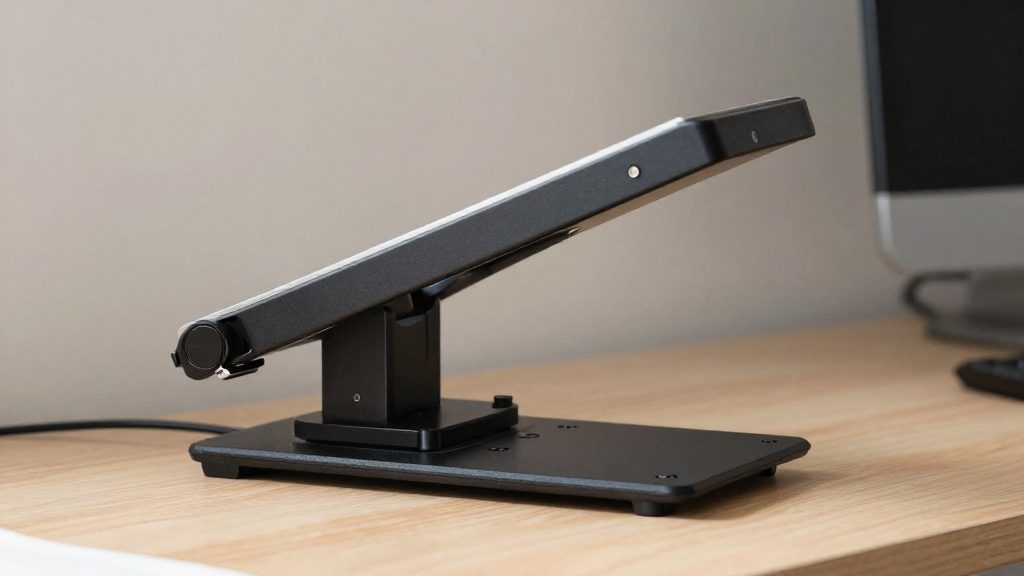
Converter vs. full standing desk: footprint, legroom and desktop space
A standing desk converter sits on top of a desk you already own, so it adds no second base to the room. A full height-adjustable desk replaces your current desk and brings its own frame, so its footprint covers the whole piece of furniture. The converter therefore leaves the floor footprint unchanged, while a full desk’s footprint depends on the size of the new frame.
Depth is the main constraint in small rooms. A converter’s platform must fit on the existing desktop, so the desk has to be deep enough to hold the riser along with the keyboard and monitor. FlexiSpot points to its shallow-footprint Desk Riser M7 for tight spaces. Compare the stated depth of any model against your desk’s depth before buying, rather than assuming a converter will always fit.
| Factor | Converter | Full standing desk |
|---|---|---|
| Existing desk | Kept | Replaced |
| Relative cost | Lower (FlexiSpot) | Higher (FlexiSpot) |
| Floor footprint | Unchanged from current desk | Full new frame |
| Usable desktop at standing height | Reduced by the riser platform | Full tabletop at every height |
Storage and legroom follow the same logic. Drawers, a pedestal or a keyboard tray under your existing desk stay in place with a converter, and a converter sits on top of the desktop, so it should not change the space under the desk, though you should confirm this against the model’s design. A full desk’s frame, crossbars or leg positions can narrow the area under the tabletop, so check the frame design before you assume your current legroom will be kept.
Shelf space works in the opposite direction. A converter lifts the work surface, but the items on the original desk must move onto the riser or elsewhere, which reduces what you can keep on the base surface. A full desk keeps its whole tabletop available at each height, whereas a converter reduces the usable base surface.
How to measure your desk before buying
Measuring your desk before buying a standing desk converter shows whether the unit will fit on the surface and leave room for your screen, keyboard and cables. FlexiSpot recommends measuring first so the converter fits your monitors, computer and keyboard (FlexiSpot, 2024). Use a tape measure, record each dimension in inches (or millimeters if the product listing uses them), and keep the figures with the product listing so you can compare them directly.
Start with the usable work surface, not the overall size of the top. Measure the desk depth from the front edge to the wall or back edge, then measure the width along the front edge. Note any drawers, cable grommets, raised lips or keyboard trays that reduce the flat area the converter can occupy. A converter sits on top of the desk, so an uneven or obstructed surface reduces the space available even when the total dimensions look sufficient.
Next, measure the monitor base depth. Measure the footprint of each monitor base from front to back, then check that the base fits on the converter’s platform with space left behind the screen. Monitor stands with wide feet take up more room than slim ones, so measure the base itself, not the screen.
Then measure the keyboard tray clearance. Measure the depth your keyboard and mouse need on the platform, and leave a gap between the keyboard and the front edge so the wrists are not pushed off the edge. If you use a keyboard tray, measure its depth and confirm that it fits within the platform.
Finally, measure the wall outlet and cable routing. Record the distance from the nearest outlet to the rear edge of the desk and the path that the monitor, laptop and charger cables will take to reach the converter. Allow enough slack for the platform to rise and lower without pulling cables taut.
| Measurement | Where to measure | What to record |
|---|---|---|
| Desk depth | Front edge to back edge | Full depth of the top |
| Desk width | Along the front edge | Full width, and any obstructed sections |
| Usable surface | Flat area without drawers or grommets | Clear depth and width |
| Monitor base depth | Base footprint, front to back | Depth of each base |
| Keyboard tray clearance | Platform, from keyboard to front edge | Space needed for keyboard and mouse |
| Outlet and cable path | Outlet to rear edge, and to platform | Distance and slack needed |
How to set up monitor, keyboard and elbows
Standing at a converter changes the load on your body, but the target posture is still neutral: head upright, wrists straight and elbows relaxed. The aim is to avoid holding any joint at the end of its range for long periods. The steps below set each element relative to your body, starting with the monitor top edge, then the keyboard and the neutral wrist alignment, and finally the elbow angle while typing.
Monitor top edge and viewing distance
Stand upright with your shoulders relaxed and look straight ahead. Adjust the monitor so the top edge of the screen sits at or slightly below eye level. Your gaze should fall gently onto the upper third of the screen, so the neck stays in a natural position rather than tilting back.
Next, set the viewing distance. Position the screen about one arm’s length away, close enough to read small text without leaning forward. If you use two monitors, place the main one directly in front of you and the second one beside it, so you turn your head only slightly.
Keyboard height and wrist alignment
Place the keyboard on the converter’s work surface so your forearms are roughly parallel to the floor when your hands rest on the keys. Keep the wrists straight, in line with the forearms, without bending them up, down or sideways. Position the mouse at the same height and close to the keyboard, so you do not reach to one side for long periods.
If the keyboard sits too high, the wrists tend to bend upward. If it sits too low, you lower your head to see the keys. Both positions disturb the wrist and neck alignment.
Elbow angle while typing
While typing, let your upper arms hang relaxed beside your torso. Your elbows should form an open angle, neither locked straight nor pulled sharply inward. Shoulders that rise toward the ears indicate that the keyboard is too low, while elbows that lift away from the body suggest it is too high.
| Element | Reference point | Sign of misalignment |
|---|---|---|
| Monitor top edge | Eye level, upper third of screen | Neck flexed or tilted back |
| Viewing distance | About one arm’s length | Forward lean to read text |
| Wrists | Straight, in line with forearm | Bent up, down or sideways |
| Elbows | Relaxed, open angle | Raised shoulders or locked arms |

How long should you stand each day?
The reference material for this article does not give a validated daily standing duration, so this section does not recommend a specific number of minutes. Instead, it describes a gradual method and the signs that indicate you have stood too long. Standing still for long periods is still a sustained posture, so the total time you hold any one position matters more than the position itself. Standing is not automatically safer than sitting.
The practical approach is sit-stand alternation: you stand for a block of time, then return to sitting, and repeat through the day. A standing desk converter makes this easy. You change the surface height rather than the furniture, so each switch takes little effort and you can adjust your pattern as you learn what your body tolerates.
Gradual ramp-up for the first two weeks
If you are new to standing at work, build up in stages rather than standing for most of the day from the start.
- Begin with short standing blocks spread across the day, each followed by sitting.
- Lengthen a block only after the previous one caused no discomfort.
- Keep sitting periods between standing blocks throughout the first two weeks.
- If discomfort appears, return to the shorter block length that felt comfortable and hold there for a few days before trying again.
| Phase | What you do | Progress rule |
|---|---|---|
| First days | Short standing blocks, separated by sitting | Keep each block short enough to finish comfortably |
| Early week 1 onward | Lengthen blocks in small steps | Increase only after a comfortable session |
| Week 2 | Maintain the alternating pattern | Keep the routine stable before increasing further |
Warning signs of excessive standing time
Stop adding standing time and sit down if you notice any of the following:
- Persistent aching in the lower back, hips, knees or feet
- Swelling in the lower legs or ankles by the end of the day
- Leg heaviness or fatigue that does not ease after you sit down
- Constant weight shifting, or locking your knees to stay upright
- Discomfort that makes it hard to focus on your work
Stretches and micro-breaks for a desk worker
Short, frequent movement interrupts the load of holding one position for a long time. A micro-break routine is a practical way to vary your load without leaving your workstation. The guidance below is qualitative, so adjust the timing to your own work rhythm.
Micro-break frequency and duration
Set a recurring reminder so breaks happen even when your workload is high. Keep each break short: a few slow movements are enough to change your position and loosen tight areas. Standing up is one of the simplest breaks, and a standing desk converter makes it easy to switch posture.
Seated stretches for neck, shoulders and hips
Perform these in your chair, without forcing any movement:
| Target | Movement | Key cue |
|---|---|---|
| Neck | Tilt the head toward one shoulder, then the other | Keep the shoulders relaxed and move slowly |
| Shoulders | Roll the shoulders backward, then forward | Keep the movement smooth and within a comfortable range |
| Upper back | Clasp the hands behind the chair back and gently open the chest | Keep the lower back supported against the chair |
| Hips | Place one ankle on the opposite knee and lean forward slightly | Keep the spine long rather than rounding it |
Standing mobility: hip flexors and calves
Standing breaks let you work on areas that sitting tends to shorten or stiffen:
- Hip flexors: Stand beside the desk, step one foot back, and gently tuck the pelvis under. Shift your weight forward until you feel a mild stretch at the front of the back hip.
- Calf mobility: Face the desk with both hands on its surface. Rise onto your toes, then lower slowly. Repeat at a pace that keeps the movement controlled.
Common mistakes that still cause back pain
Installing a standing desk converter does not by itself prevent back pain. Discomfort often continues because of how the unit is used and set up. Habits and placement choices can persist after the hardware changes.
Locked knees and static standing
Standing for long periods with locked knees keeps the same load on the lower back and legs. Keep your knees relaxed rather than locked, shift your weight between both feet, and change position during the day instead of holding one stance.
Screen placed too low or off-center
A screen height that is too low makes you bend the neck forward to read, while a monitor set to one side of your body keeps the neck and trunk rotated for hours. When the converter is too shallow for your monitor, the screen often ends up too close or too low. Center the monitor on your body and raise it so the top of the screen sits near eye level.
Unstable platform loading
A converter that wobbles forces your muscles to brace against movement, which adds strain over a full workday. Wobble often comes from uneven loading: a monitor placed at the edge, heavy items stacked on one side, or a platform that does not sit flat on the desktop. Distribute weight evenly over the platform stability base, keep items inside the footprint, and check that the feet are fitted.
| Mistake | What it strains | Correction |
|---|---|---|
| Locked knees, no position change | Lower back and legs | Relax knees, shift weight, alternate positions |
| Screen too low or off-center | Neck and upper back | Center the screen, raise the top to eye level |
| Wobbling or unevenly loaded platform | Stabilizing muscles | Balance the load, keep items within the base |
Frequently asked questions
How do I know if my desk can take a converter?
Measure your desk depth and check how much room the surface has for the converter, your monitors, computer and keyboard. Then add up the weight of everything the converter will carry and compare the total with the rated capacity in the product specifications, since no capacity figure applies to every model.
Will a converter scratch my desktop?
It can, depending on the base. Choose a model with rubberized feet, which the manufacturer recommends to protect the desktop finish.
Does a converter prevent back pain?
The sources do not show that. NIOSH links musculoskeletal disorders to sustained force, repetitive motion and awkward postures, so switching between sitting and standing reduces the time you spend in one static posture, but it does not guarantee relief.