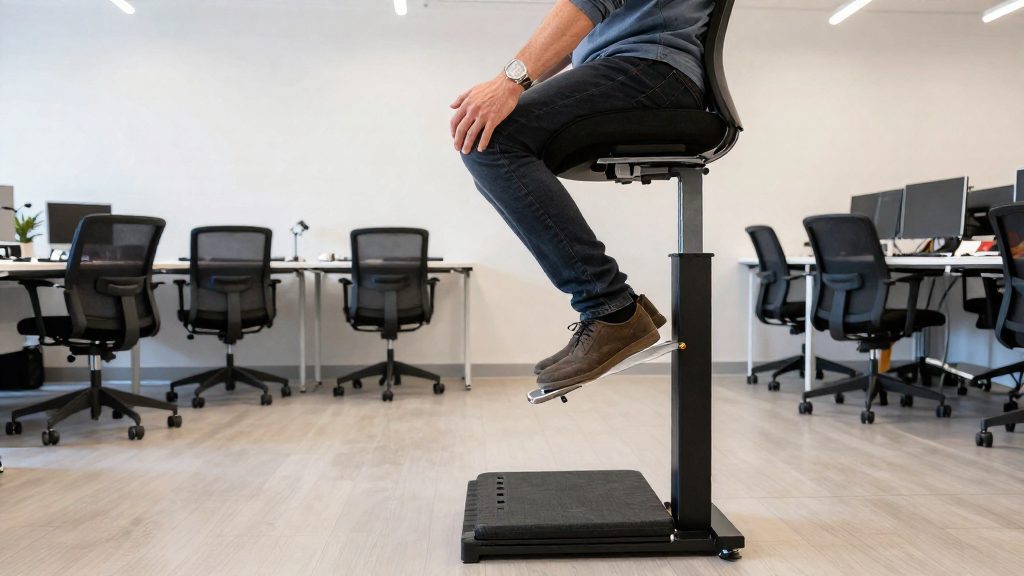
Hot desking raises ergonomic risks because the same workstation is used by different people, and the furniture is rarely reset to fit each one. According to CCOHS (2026), a correct setup depends on the individual’s body dimensions, so settings left by the previous user are unlikely to suit the next person. Three common situations lead to a mismatch: inherited settings, fixed-height furniture, and skipped setup under time pressure.
Why does hot desking raise ergonomic risks?
Furniture left at the previous user’s settings
A chair, armrests, and monitor set for someone else are a starting point that rarely fits. Reset the elements in this order, using the CCOHS (2026) targets:
| Element | Target (CCOHS, 2026) |
|---|---|
| Seat height | Highest point of the seat just below the kneecap, feet flat on the floor |
| Seat depth | About a clenched fist (about 5 cm / 2 in) between the seat edge and the calves |
| Backrest | Adjusted forward/back and up/down to support the hollow of the lower back |
| Armrests | Elbows bent at about 90°, pads just touching the undersides of the elbows |
| Monitor | Top of screen at or below eye level, about 15° below eye level |
Reset the seat first, because the armrest and desk heights depend on it.
Body size mismatch with fixed-height furniture
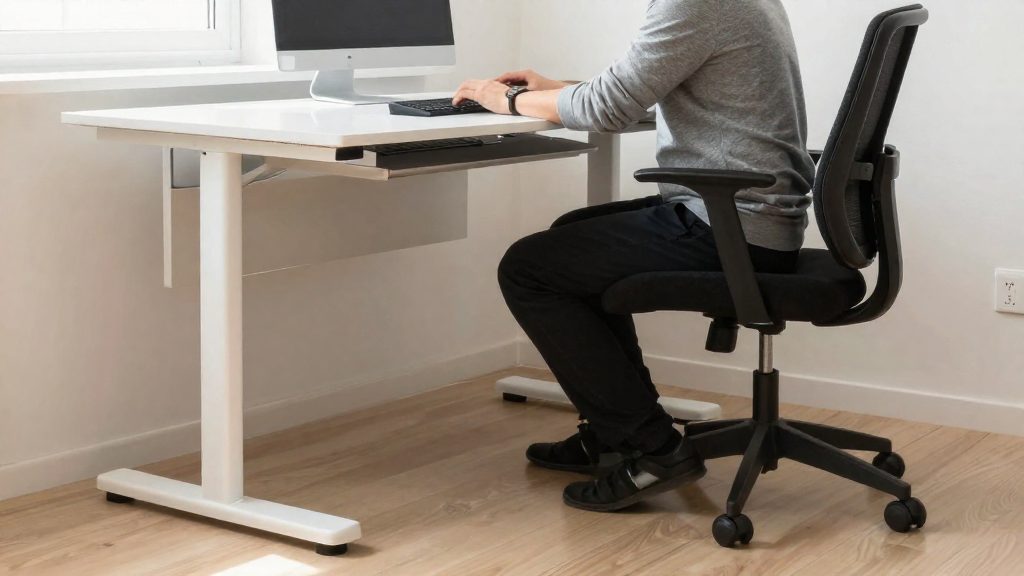
When the desk height is fixed and the elbows must rise to reach the work surface, lower the chair so the elbows sit roughly level with the desk. The knees should stay level with or below the hips, and the wrists should stay straight.
The monitor distance also depends on body size. An arm’s length is a starting viewing distance (the diagram range is 40 to 74 cm). If text is hard to read, enlarge the font instead of moving closer. Wide monitors may need to sit farther away. CCOHS presents these values as starting points, not fixed rules.
Time pressure and skipped setup
A user who skips the setup routine works in an unadjusted position for the whole session. Adjusting the seat, backrest, and armrests is best done as the first action at each desk, before work starts.
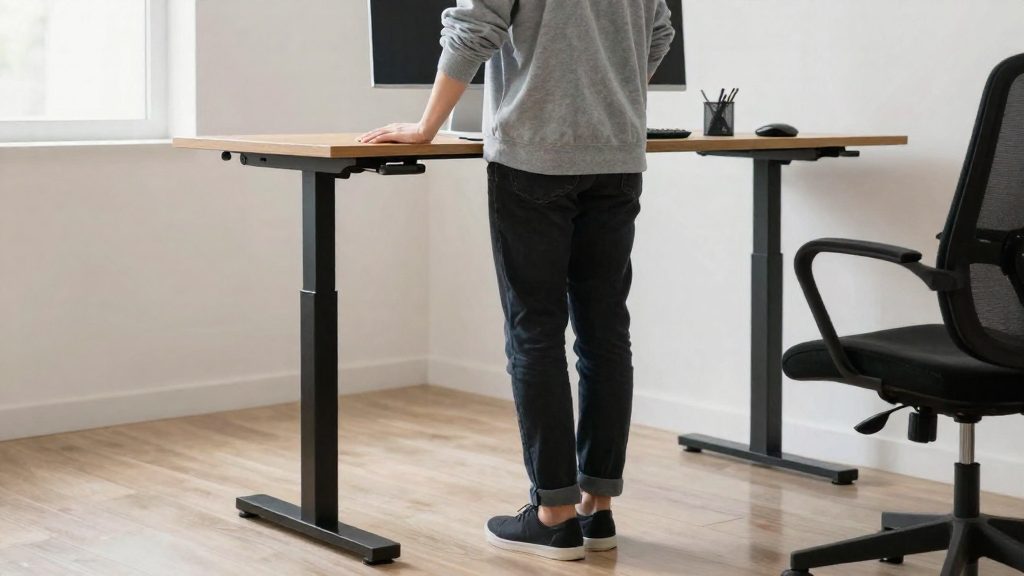
On a sit/stand desk, set the work surface at about standing elbow height, with the elbows close to the body at roughly 90°. CCOHS gives no single schedule for alternating positions, with suggestions ranging from 20 to 60 minutes. It recommends keeping cables and stored items clear so the desk is easy to adjust at each new workstation.
Chair first: the order of adjustments
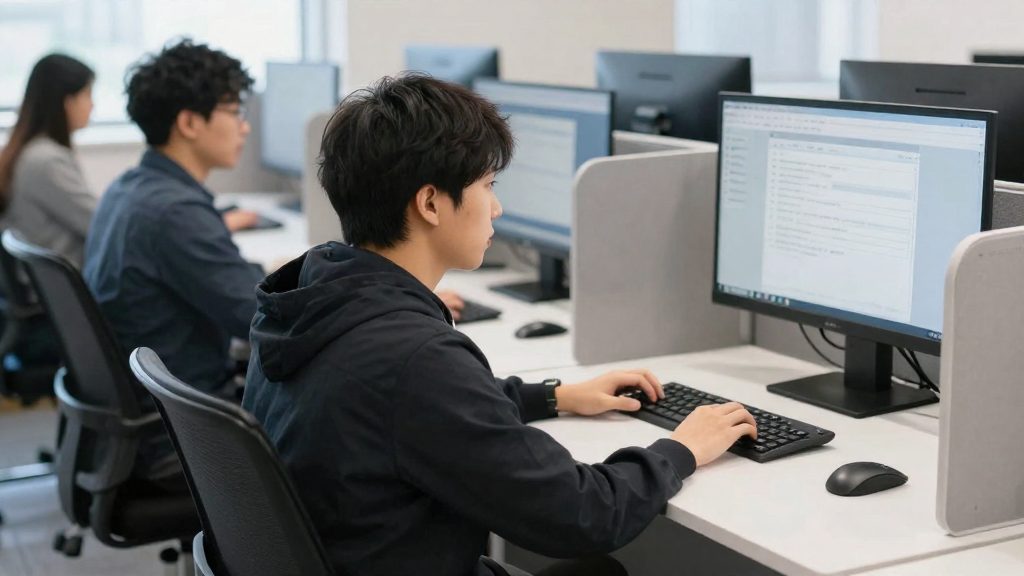
Set the chair before the desk, screen or input devices, because seat height determines where your elbows, wrists and screen end up. The Canadian Centre for Occupational Health and Safety (CCOHS, 2026) gives a sequence that works in order, since each step depends on the one before it.
| Order | Adjustment | Reference point (CCOHS, 2026) |
|---|---|---|
| 1 | Seat height | Stand in front of the chair; the highest point of the level seat sits just below the kneecap |
| 2 | Fist-width gap | About a clenched fist’s width (about 5 cm / 2 in) between the front edge of the seat and the calves |
| 3 | Backrest | Supports the hollow of the lower back, adjusted forward or back and up or down |
| 4 | Armrests | Elbows bent at about 90°, pads just touch the undersides of the elbows |
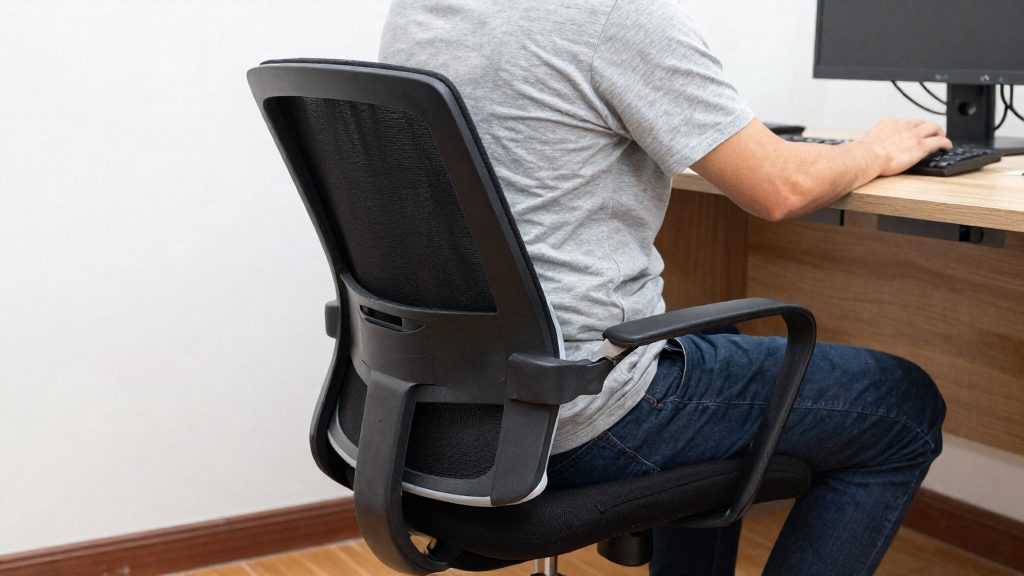
Start with the seat height, measured while standing, then sit with your feet flat on the floor. CCOHS recommends keeping the knees level with or below the hips, so the seat height has to be right before you check anything else. Next, confirm the fist-width gap, then set the backrest so it supports the lower back support point. If the lowest armrest setting still lifts your elbows, remove the armrests.
On a hot desk, repeat this sequence every time you sit down, because the previous user’s settings rarely match your body. If the desk height is fixed and your elbows must rise to reach the work surface, lower the chair until the elbows are roughly level with the desk. If your feet then no longer reach the floor, add an adjustable footrest. Only after the chair is set should you adjust the desk, screen and input devices, since their positions are measured from the seated posture.
Desk height and fixed-desk workarounds
On a fixed-height desk, the work surface cannot move, so the chair becomes the main adjustment. First confirm the desk is fixed. Look for a crank, lever, or electric control under the desktop, and try to lift or press the surface. If nothing moves, adjust the seat, backrest, armrests, and footrest in that order, as CCOHS (2026) describes.
Set the seat height first. Stand in front of the chair and adjust it so the highest point of the seat sits just below the kneecap. Then sit with your feet flat on the floor and leave about a clenched fist’s width (about 5 cm / 2 in) between the front edge of the seat and your calves.
If your elbows must rise to reach the work surface, lower the chair until elbows are level with the desk. Keep the elbows bent at about 90° and close to the body, and keep the wrists straight. Then set the armrests so they just touch the undersides of your elbows. If the lowest armrest setting still lifts your elbows, remove the armrests.
Lowering the chair can leave your feet without floor contact. In that case, place an adjustable footrest under your feet so they rest flat. Keep your knees level with or below your hips. Do not raise the chair again to reach the floor, because that lifts the elbows back above the desk.
| Adjustment | Target position (CCOHS, 2026) |
|---|---|
| Seat height | Highest point of seat just below the kneecap |
| Seat depth | Fist-width gap (about 5 cm / 2 in) to the calves |
| Elbows | About 90°, close to the body, level with the desk |
| Armrests | Just touching the undersides of the elbows |
| Knees | Level with or below the hips |
| Wrists | Straight |
How to position the monitor (laptop sources are limited)
Reset the screen position before you start work at a shared desk, because the monitor sets your head and neck posture for the whole session. CCOHS (2026) gives three reference points for the screen: the screen centre, the viewing distance and the font size.
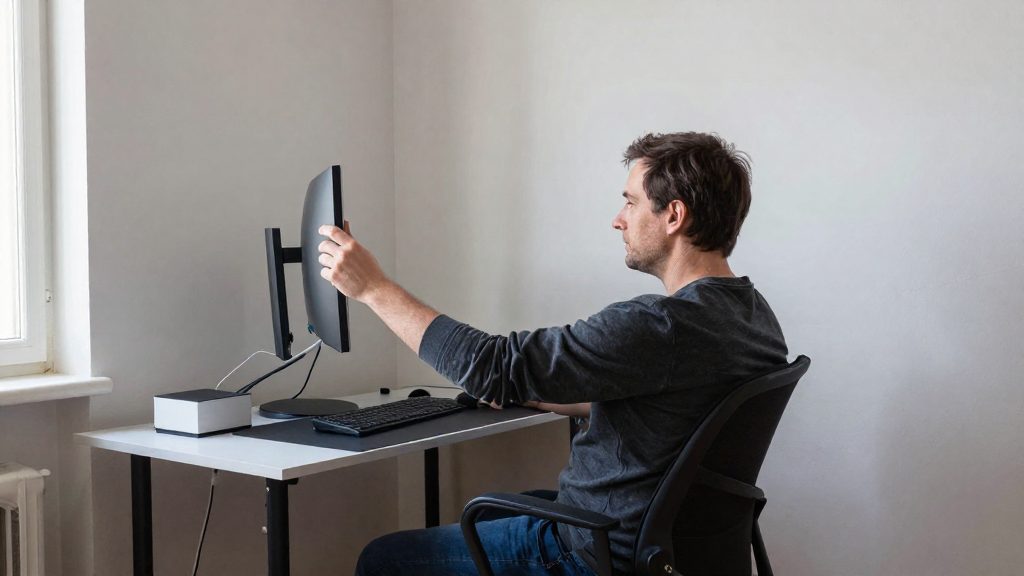
Start with the screen centre. CCOHS (2026) recommends a monitor about 15° below eye level, with the top of the screen at or below eye level. Raise or lower the screen, or the desk surface if it is adjustable, until the centre of the display falls in that zone.
Next, set the viewing distance. CCOHS (2026) gives 40 to 74 cm as the diagram range and presents an arm’s length as a good starting point. Measure from your seated position rather than estimating, because the right value depends on the user and the screen size.
Finally, set the text size. If text is hard to read, enlarge the font instead of moving closer to the screen. Moving closer reduces the viewing distance below the starting range. Font size is changed in the operating system or the application, so it does not require any change to the desk.
| Setting | Starting value (CCOHS, 2026) |
|---|---|
| Screen centre | About 15° below eye level |
| Top of screen | At or below eye level |
| Viewing distance | 40 to 74 cm (diagram range), arm’s length as starting point |
For laptops, the official sources consulted do not specify separate figures. Apply the same screen-centre and viewing-distance checks, and where the laptop screen cannot reach the target, the sources do not provide an alternative setup, so treat the values above as the reference you aim for.
Keyboard, mouse and armrests: keeping wrists neutral
At a shared desk, the aim is a neutral upper body: elbows bent at about 90° and close to the body, wrists straight, and keyboard and mouse at a height that lets you keep both. CCOHS (2026) recommends this arrangement for keyboard and mouse use, and it is the reference point for setting armrests and checking your wrists.
Setting the elbow angle and armrests
Adjust the armrests after the chair is set, so the elbows are supported at the right height:
- Sit with your back supported and your shoulders relaxed.
- Raise or lower each armrest until it just touches the underside of the elbow, with the elbow bent at about 90°.
- If the lowest armrest setting still lifts your elbows, remove the armrests. CCOHS (2026) advises this when the lowest setting cannot be used without raising the shoulders or elbows.
| Situation | Action |
|---|---|
| Armrest just touches the underside of the elbow, elbow at about 90° | Keep the armrest at this height |
| Lowest armrest setting still lifts the elbows | Remove the armrests |
| Fixed desk height forces the elbows up to reach the work surface | Lower the chair so the elbows are roughly level with the desk, then use an adjustable footrest if your feet no longer reach the floor (CCOHS, 2026) |
Keeping the wrists straight
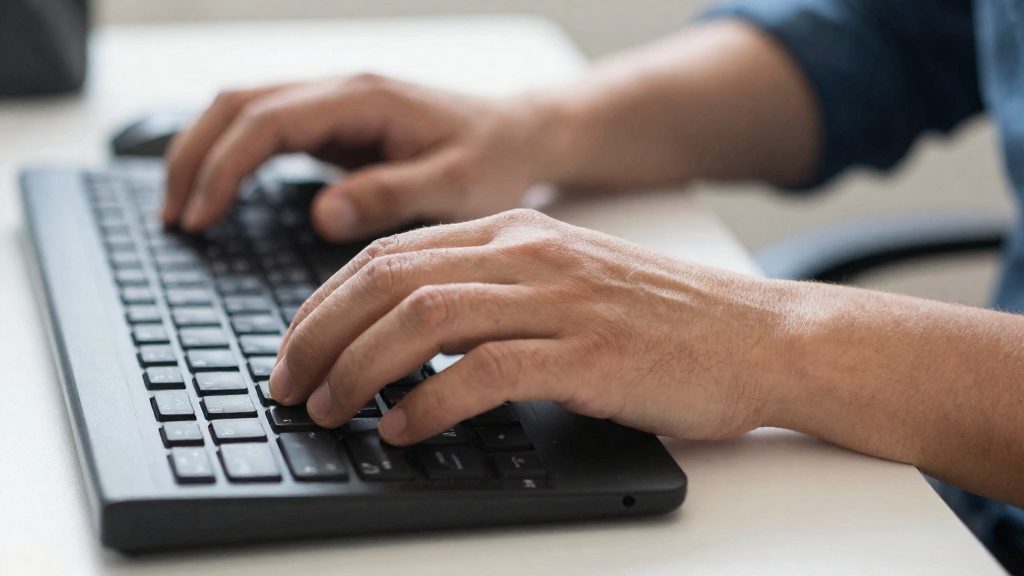
Place the keyboard directly in front of you and the mouse beside it, within easy reach, so you do not have to stretch sideways. Keep the wrists straight, without bending them up, down or to the side, while typing and clicking. Use short, light key presses and keep the hand relaxed.
How often should you change position?
CCOHS (2026) advises not sitting for more than 50 minutes at a time and changing position often. The 50-minute figure is a maximum for continuous sitting, so each seated block should end before that limit, whether you stand, shift your posture, or leave the desk.
Sitting duration and position changes
| Element | Guidance (CCOHS, 2026) |
|---|---|
| Maximum continuous sitting | Not more than 50 minutes at a time |
| Position changes | Change position often, between seated blocks |
| Sit/stand alternation | Suggested range of 20 to 60 minutes; no single schedule given |
The source frames position changes as a habit repeated across the day, not a single break. On a shared desk, this matters more: a worker who sits down at a desk they did not set up may stay in one posture longer than planned.
Standing breaks as part of posture variation
On a sit/stand desk, CCOHS recommends alternating between sitting and standing. For standing, set the work surface at about standing elbow height, with the elbows close to the body at roughly 90°. CCOHS also recommends an anti-fatigue mat where appropriate and supportive footwear.
Practical points for a shared workspace:
- Check the desk height before the first seated block, so a standing period does not start with the elbows raised.
- Keep cables and stored items clear of the desk so that switching positions takes little effort.
- Use the 20 to 60 minute range as a starting point for alternating, then adjust to how your body responds. CCOHS does not prescribe one interval.
What can employers provide at shared desks?
Employers can supply a height-adjustable chair, a sit-stand desk, an external monitor, a laptop stand with a separate keyboard, and a reset routine between users. According to CCOHS (2026), these items matter because each adjustment point sets a measurable posture target: seat height, backrest support, armrest height, desk height, and screen position. A hot desk works only if the next user can return the setup to those targets quickly.
Height-adjustable chairs and sit-stand desks
The chair and desk should adjust far enough to reach the reference positions below. CCOHS (2026) gives these targets:
| Setting | Target position |
|---|---|
| Seat height | Highest point of the seat just below the kneecap, feet flat on the floor |
| Seat depth | About a clenched fist’s width (about 5 cm / 2 in) between the seat front and the calves |
| Backrest | Supports the hollow of the lower back, adjustable forward/back and up/down |
| Armrests | Elbows bent at about 90°, armrests just touching the undersides of the elbows |
| Sit-stand desk surface | About standing elbow height, elbows close to the body at roughly 90° |
If a hot desk has a fixed height, CCOHS (2026) advises lowering the chair so the elbows are roughly level with the desk. If the feet then do not reach the floor, an adjustable footrest is the recommended fix.
It also recommends alternating positions, using an anti-fatigue mat where appropriate, wearing supportive footwear, and keeping cables and stored items clear so the desk moves freely.
External monitors, laptop stands, and keyboards
For an external monitor, CCOHS (2026) recommends positioning the screen so that its top is at or below eye level and about 15° below eye level. An arm’s length is a good starting viewing distance, with the diagram range given as 40 to 74 cm. If text is hard to read, CCOHS suggests enlarging the font rather than moving closer. Wide monitors may need to sit farther away. These figures are starting points, not fixed rules.
The official sources consulted do not specify models, dimensions, or adjustment ranges for laptop stands or keyboards. The posture targets already listed still apply: wrists straight and elbows at about 90° close to the body. A stand and keyboard that allow the screen and hands to meet these targets are the practical test for any model a hot desk provides.
Resetting and cleaning between users
The official sources consulted do not specify cleaning products, cleaning frequency, or disinfection protocols for shared workstations. The reset steps below are based only on the adjustment targets above and the CCOHS guidance on keeping the desk easy to adjust:
- Return the seat height, backrest, and armrests to the target positions.
- Set the desk to the standing or sitting height the next user needs, then check that the elbows are near 90°.
- Re-check the monitor so its top sits at or below eye level.
- Clear cables and stored items from the desk and floor so the next user can adjust it without obstruction.
A quick checklist before you sit down
Run these checks in a fixed order at an unfamiliar desk.
- Clear the desk surface and the floor under it of bags, cables and stored items.
- Set seat height so the highest point of the seat sits just below the kneecap, with feet flat on the floor.
- Leave about a clenched fist’s width (about 5 cm / 2 in) between the front edge of the seat and the calves.
- Adjust the backrest so it supports the hollow of the lower back.
- Set the armrests so the elbows are bent at about 90°, or remove them if the lowest setting lifts the elbows.
- If the desk is fixed and too high, lower the chair until the elbows are roughly level with the desk, then use an adjustable footrest if the feet no longer reach the floor.
- Place the keyboard and mouse so the wrists stay straight and the elbows stay close to the body.
- Set the top of the screen at or below eye level, with the monitor about 15° below eye level.
Bag placement: Keep your bag within reach of the chair but outside the space your feet and knees need. Store it on the floor beside the chair or on a hook, not under the desk, so you do not need to twist or bend to reach it.
Phone placement: Put your phone where you can pick it up without bending the neck, lifting the shoulders or flexing the wrists. Keeping the phone within easy reach, close to the keyboard, helps avoid stretching the arms or bending the wrists.
Time budget: The official sources consulted do not specify a setup duration. A practical approach is to run the eight checks once, then sit down.