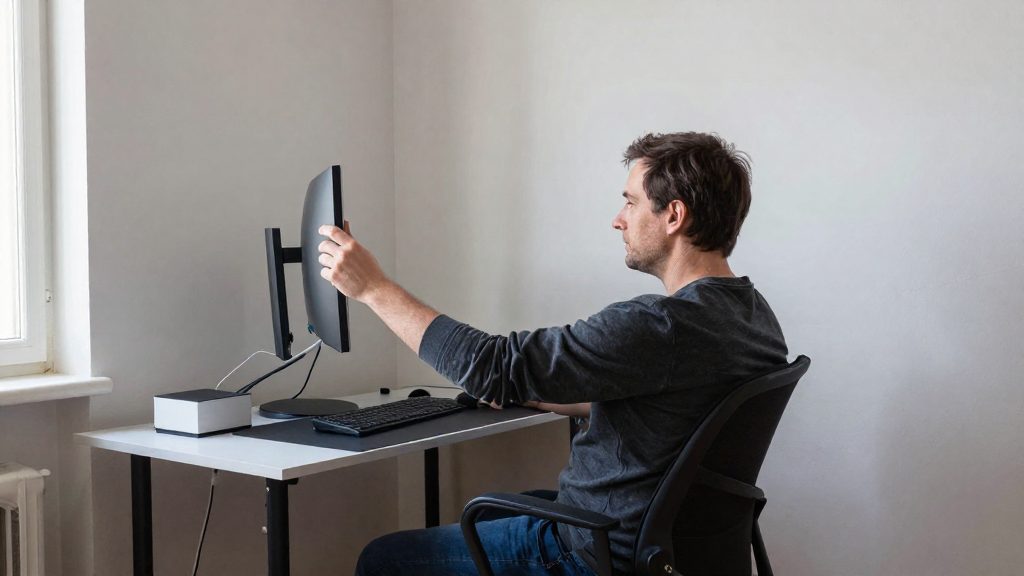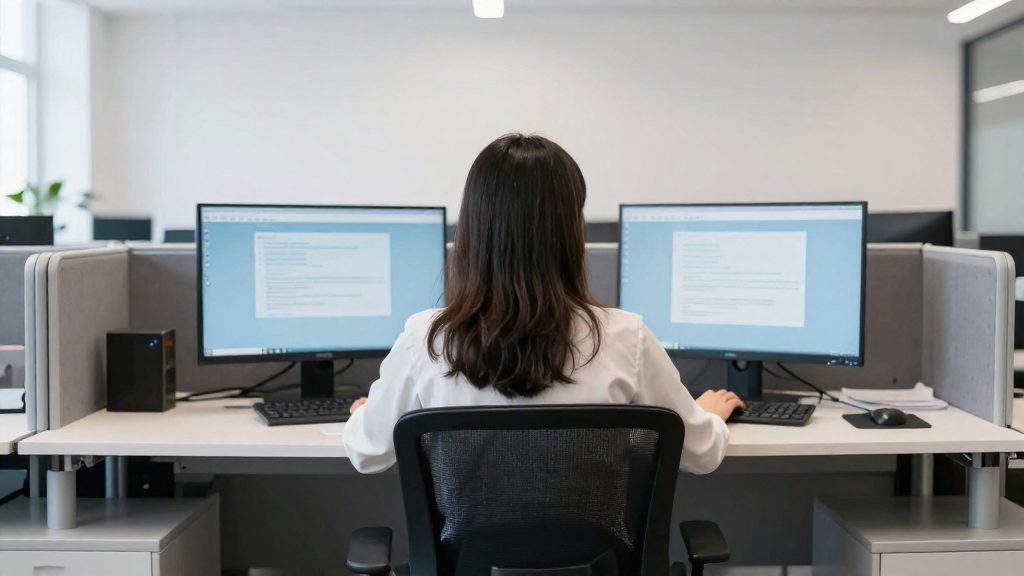
To limit eye and neck strain with two monitors, keep them at the same distance and height, because CCOHS (2026) aims to reduce head and body twisting and eye movement. According to CCOHS (2026), the screens should be about one arm’s length away and at the same height, with the top edge at or slightly below eye level. The layout should also follow how you split your time between the screens, since a symmetrical arrangement suits equal use but not a setup where one screen does most of the work.
Why two monitors can strain your eyes and neck
Eye strain from a screen comes mainly from the focusing effort needed at close range, especially in low light, rather than from looking at a distance. CCOHS (2026) notes that a shorter viewing distance increases this effort. Neck discomfort comes from twisting the head and body between screens, which is why CCOHS (2026) aims to reduce that twisting and the eye movements between screens.
Signs that a screen is badly placed include eye irritation, blurred vision, dry or burning eyes, and headaches. If text is hard to read, the fix is a larger font rather than a closer screen, which keeps the viewing distance from shrinking further.
Placement rules
- Keep both screens at the same height and about 18 to 28 inches (about 46 to 71 cm) from your eyes, roughly one arm’s length (EHS Today, 2016).
- For a tall or portrait-oriented screen, do not let the top edge rise above eye level. People wearing progressive or bifocal lenses may prefer a slightly lower top edge (CCOHS, 2026).
- Place the screen about 15° below the horizontal line of sight, or a little lower. CCOHS (2026) states that a screen placed too high causes more discomfort than one placed slightly too low.
- CCOHS (2026) gives an ideal viewing distance range of 40 to 74 cm, which is close to the 46 to 71 cm (18 to 28 in) given by EHS Today (2016).
Layout by screen usage
The configuration depends on how much each screen is used.
| Usage split | Recommended layout | Source |
|---|---|---|
| Equal use (about 50/50) | Inner edges facing each other in front of the nose, slightly concave | EHS Today (2016) |
| Equal use, edge to edge | Screens placed side by side in a semicircle | CCOHS (2026) |
| One screen dominant | Main screen directly ahead, secondary screen angled to one side | CCOHS (2026) |
| More than 80% on the main screen | Treat the main screen as a single screen; place the second beside it, on the side of your dominant eye, at the same height and distance | EHS Today (2016) |
The goal in every configuration is to reduce head and body twisting as well as eye movement between screens.
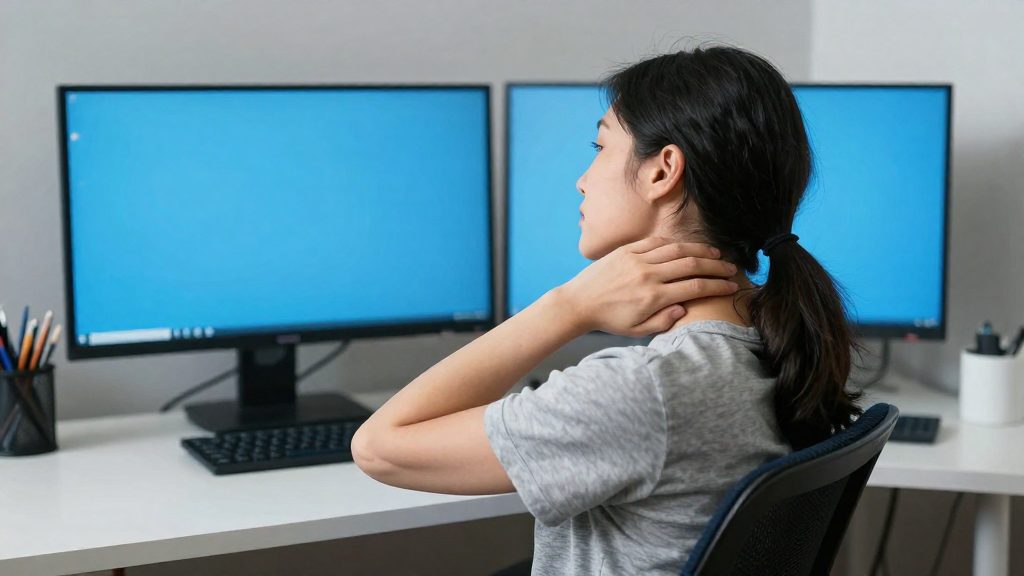
How to position two monitors at the right height?
Position both monitors at the same height, with the screen about 15° below your horizontal line of sight, and keep them roughly one arm’s length from your eyes. According to CCOHS (2026), the screens should sit at eye level, or slightly lower if you wear corrective lenses. Set the height first, then the distance, then the angle.
Step 1: Set the height
- Sit with your back supported and look straight ahead at a level point.
- Lower the screen until your gaze falls about 15° below that point. CCOHS (2026) notes that a screen placed too high causes more discomfort than one placed slightly too low.
- For a tall or portrait-oriented screen, keep the top edge no higher than eye level. Progressive or bifocal wearers may prefer a top edge set slightly lower.
Step 2: Set the distance
- EHS Today (2016) recommends a viewing distance of about one arm’s length, or 18 to 28 inches.
- CCOHS (2026) gives an ideal range of 40 to 74 cm, shown in its Figure 1.
- If text is hard to read, enlarge the font rather than moving the screen closer. A shorter viewing distance increases focusing effort, especially in dim light.
Step 3: Choose the arrangement
The arrangement depends on how much time you spend on each screen.
| Share of use | Arrangement |
|---|---|
| Equal use (50/50) | Place the screens inner edge to inner edge in front of your nose, slightly concave (EHS Today, 2016) |
| Main screen above 80% | Treat it as a single screen, and place the second screen to the side on your dominant-eye side, at the same height and distance (EHS Today, 2016) |
When both screens are used equally, CCOHS (2026) describes an edge-to-edge semicircle. When one screen is used more, place it directly in front of you and angle the secondary screen to the side. The goal is to reduce twisting of the head and body and eye movement between screens.
Primary screen or equal use: which layout to choose?
The right arrangement depends on how you split your time between the two screens. Estimate that split before positioning them. The sources consulted set out two distinct layouts: one for equal use, and one for a clearly dominant primary screen.
| Share of use | Layout | Placement |
|---|---|---|
| About 50/50 | Screens placed inner edge to inner edge, directly in front of your nose, slightly concave | Keep both about one arm’s length away (roughly 46 to 71 cm), at the same height |
| More than 80% on one screen | Treat the main screen as a single screen, placed directly in front of you | Place the second screen to the side, on the dominant eye side, at the same height and distance |
EHS Today (2016) describes the 50/50 setup as the case where the inner edges of both screens face each other in front of the nose. For uneven use, CCOHS (2026) recommends placing the more-used screen directly in front of you and the secondary screen to the side at an angle. This reduces head and body twisting and the eye movements needed to switch between screens.
For splits between 50/50 and 80%, EHS Today (2016) gives no specific layout. CCOHS (2026) covers any uneven use: place the more-used screen directly in front of you and angle the secondary screen to one side.
Whichever layout you choose, keep both screens at the same height. CCOHS (2026) identifies eye level as the reference point, or slightly lower if you wear glasses.
To apply this to your own workstation:
- Note which screen you use most during a typical working day.
- Compare that share with the two thresholds in the table.
- Position the screens accordingly, then check that you are not repeatedly turning your head toward the secondary screen. If you are, move it closer to the centre.
How far should you place your monitors?
According to CCOHS (2026), keep every monitor about one arm’s length from your body, at the same height. EHS Today (2016) gives the same guideline as roughly 18 to 28 inches (about 46 to 71 cm). To check it, sit upright, extend one arm, and set the screen so it sits near your fingertips.
The distance rule applies to each screen, but the arrangement depends on how you split your time between the two monitors. EHS Today (2016) gives these setups:
| Usage split | Placement |
|---|---|
| About 50/50 | Inner edges touching, centered in front of your nose, slightly concave |
| More than 80% on the main monitor | Treat the main monitor as your only screen, and place the second one beside it on the side of your dominant eye, at the same height and distance |
CCOHS (2026) describes a similar logic. If both monitors are used equally, place them side by side in a semicircle. If one is used more, place it directly in front of you and angle the secondary monitor to the side. This reduces twisting of the head and body and limits eye movement between screens.
For height, position the screen about 15 degrees below your horizontal line of sight, or slightly lower. CCOHS (2026) notes that a monitor placed too high causes more discomfort than one placed a little too low. For tall or portrait-oriented monitors, keep the top edge at or below eye level. If you wear progressive or bifocal lenses, a slightly lower top edge may be more comfortable.
Viewing distance also affects focusing effort. A shorter distance requires more muscular effort to focus, and this strain increases in dim lighting. CCOHS (2026) lists eye irritation, blurred vision, dry or burning eyes, and headaches as signs of a poorly placed screen.
Distance alone does not prevent eye fatigue. EHS Today (2016) recommends the 20-20-20 rule: every 20 minutes, look at an object at least 20 feet away for at least 20 seconds.
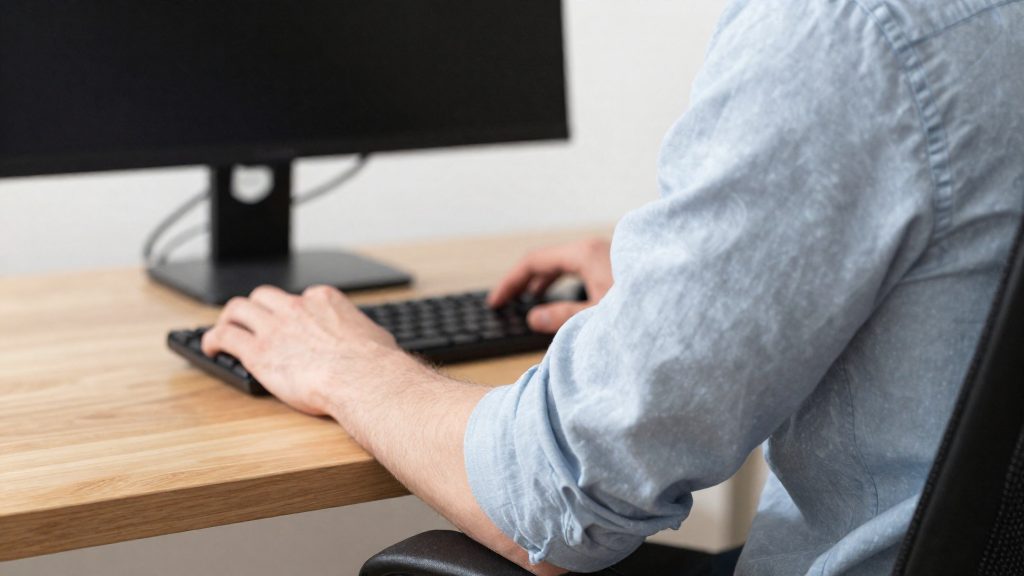
How to Reduce Eye Strain?
Eye strain at a two-monitor desk comes mainly from the muscular effort of focusing at close range, especially in low light, and not from looking at something far away. According to CCOHS (20 October 2026), a shorter viewing distance increases that focusing effort, so keeping both screens at a comfortable distance is the first step. The guidance is to keep both monitors about one arm’s length away, and the CCOHS reference figure shows an ideal range of 40 to 74 cm.
| Guideline | Value | Source |
|---|---|---|
| Viewing distance | About one arm’s length, 18 to 28 in | EHS Today (1 April 2016) |
| Ideal viewing distance range | 40 to 74 cm | CCOHS (20 October 2026) |
| 20/20/20 rule | Every 20 minutes, look at an object at least 20 ft away for at least 20 seconds | EHS Today (1 April 2016) |
In practice, the following steps reduce strain:
- Enlarge the text before moving closer. CCOHS advises increasing font size when text is hard to read, rather than bringing the screen nearer.
- Keep both screens at the same distance. This prevents one screen from pulling your eyes closer than the other.
- Improve the lighting. Focusing effort is greater in dim conditions, so adequate light on the desk reduces the load on your eyes.
- Take regular visual breaks. Apply the 20/20/20 rule and use the pause to blink and refocus on distant objects.
Irritated eyes, blurred vision, dry or burning eyes, and headaches are the signs CCOHS associates with a poorly placed screen. If these symptoms appear, check the distance and placement of both monitors. If they continue after you have corrected your setup, consult a health professional or an eye care professional.
Posture mistakes to avoid with two monitors
Most posture problems with two screens come from placing them for convenience instead of for how work is split between them. According to CCOHS (2026), the goal of any layout is to limit head and body twisting and eye movement, so the arrangement should follow the usage share of each screen.
| Common error | Setting to apply |
|---|---|
| Both screens used equally, but spread far apart | Set them edge to edge, in a slight concave arc in front of you (EHS Today, 2016) |
| Main screen used most of the time, second screen placed straight ahead | Place the secondary screen to the side at an angle, at the same height and distance (CCOHS, 2026) |
| Main screen used more than 80% of the time, second screen placed symmetrically | Treat the main screen as the only one and place the second beside it, on the dominant-eye side, at the same height and distance (EHS Today, 2016) |
| Screens at different heights | Keep both at the same height, at eye level or slightly lower if you wear glasses (CCOHS, 2026) |
| Screen placed closer than arm’s length | Keep the viewing distance at about one arm’s length, roughly 18 to 28 inches (about 46 to 71 cm) (EHS Today, 2016) |
Eye strain has a specific cause. According to CCOHS (2026), it comes from the focusing effort required at short distance, especially in low light, not from looking at a distant object. A shorter viewing distance increases this effort, so moving a screen closer to read small text makes the problem worse. If text is hard to read, increase the font size instead.
Mistakes in height also affect the neck. For tall screens or screens in portrait orientation, the top edge should not rise above eye level. Wearers of progressive or bifocal lenses may need the top edge slightly lower, according to CCOHS (2026).
Signs of a poorly placed setup include eye irritation, blurred vision, dry or burning eyes, and headaches (CCOHS, 2026). These symptoms indicate that the layout, the distance, or the lack of breaks needs adjusting. Under the 20-20-20 rule described by EHS Today (2016), look every 20 minutes at an object at least 20 feet away for at least 20 seconds, which interrupts the sustained focusing effort described above.
Which breaks and stretches should you take?
Two kinds of breaks address the problems a dual-monitor setup creates: visual breaks for eye strain, and postural resets for the neck, shoulders and back. According to CCOHS (2026), eye fatigue comes mainly from the muscular effort of focusing at close range, especially in low light, and regular visual breaks help. The 20-20-20 rule, as described by EHS Today (2016), gives a concrete pattern you can apply at your desk.
| Break | When | How |
|---|---|---|
| Distance break (20-20-20) | Every 20 minutes | Look at an object at least 20 feet (about 6 m) away for at least 20 seconds |
| Arm’s-length check | Each time you sit down | Confirm that both screens sit about one arm’s length away, roughly 18 to 28 inches according to EHS Today (2016) |
| Height and angle check | At the start of the day and after any desk change | Keep the main screen about 15° below the horizontal line of sight, or a little lower, according to CCOHS (2026) |
Posture checks between tasks
- If you use a tall or portrait-oriented screen, keep its top edge at or below eye level. CCOHS (2026) notes that a screen placed too high causes more discomfort than one placed slightly too low.
- If you wear progressive or bifocal lenses, a slightly lower top edge may suit you better, according to CCOHS (2026).
- When you use the secondary screen more often, turn your chair toward it instead of twisting your neck to reach it.
Stretches to do at your desk
These movements are general practice in workplace ergonomics. The official sources consulted do not specify durations or repetitions for them.
- Neck turns: Turn your head slowly toward the main screen, then the secondary one, keeping your shoulders still.
- Shoulder rolls: Lift and roll both shoulders backward, then forward.
- Chest opener: Clasp your hands behind your back, draw your shoulder blades together and open the chest gently.
- Seated back extension: Sit upright, place your hands on your lower back and lean back slightly, keeping your hips in the chair.
- Forearm and wrist stretch: Extend one arm with the palm up and gently draw the fingers back toward you, then repeat on the other side.
Breathe steadily during each stretch and avoid bouncing movements.
Frequently asked questions
How far should two monitors sit from my eyes?
Place both screens about one arm’s length away, roughly 46 to 71 cm (18 to 28 in), according to EHS Today (2016). CCOHS (2026) gives a slightly different ideal range of 40 to 74 cm, so arm’s length is the practical benchmark for both sources.
Which monitor should sit directly in front of me?
It depends on how you split your time between them. For equal use, CCOHS (2026) suggests placing the screens edge to edge in a semicircle. For uneven use, it recommends putting the main screen directly ahead and angling the secondary screen to one side.
Is eye fatigue after a full day on two screens normal?
Eye fatigue mainly comes from the focusing effort needed at close range, especially in low light, according to CCOHS (2026). If irritation, blurred vision or headaches continue after you have corrected your setup, consult an eye care professional.