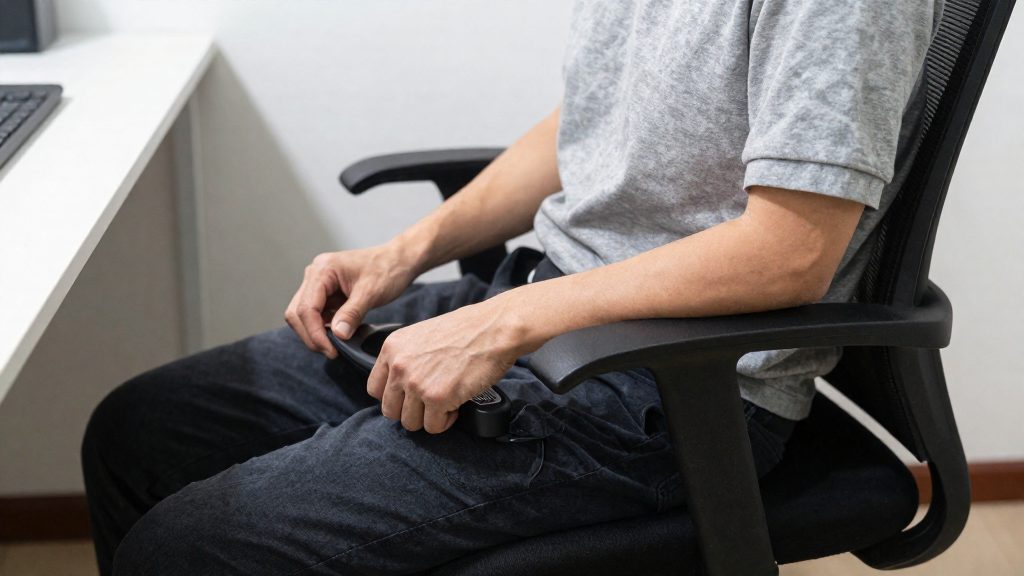
Armrests set too high lift the elbows and shoulders, which keeps the trapezius, neck and upper back working for the whole session. The fact sheet’s reference point is elbows bent at about 90 degrees with the arms hanging loosely, and an armrest that sits above that level pulls the upper body out of its neutral position. Armrests set too low or left unsupported create a different load, so both extremes matter for comfort.
Why armrest height matters
Shoulder and trapezius loading. When the armrest holds the forearm above the natural height of the elbow, the shoulder is pushed into elevation. The trapezius, the large muscle running from the base of the skull across the shoulders, then has to support the weight of the arm instead of letting it hang. If the arm is held up without a firm surface beneath it, that support becomes continuous rather than occasional.
Neck and upper back strain during long sessions. Raised shoulders tend to pull the head and neck forward to keep the screen in view, and the upper back rounds to compensate. Over a full working day, these positions keep the same muscles under low, steady tension. Strain can build gradually, so stiffness or discomfort may not show up until later.
Link between unsupported arms and fatigue. An armrest that is too low, or missing altogether, leaves the arms without support. The shoulders then carry the weight of the arms, and the muscles that stabilise the shoulder girdle work without rest. This sustained muscle work, even at low intensity, is a common source of fatigue in the shoulders and upper back during desk work.
Checking armrest height against the elbow position is therefore a way to limit the load on these muscles, not only a matter of seat comfort.
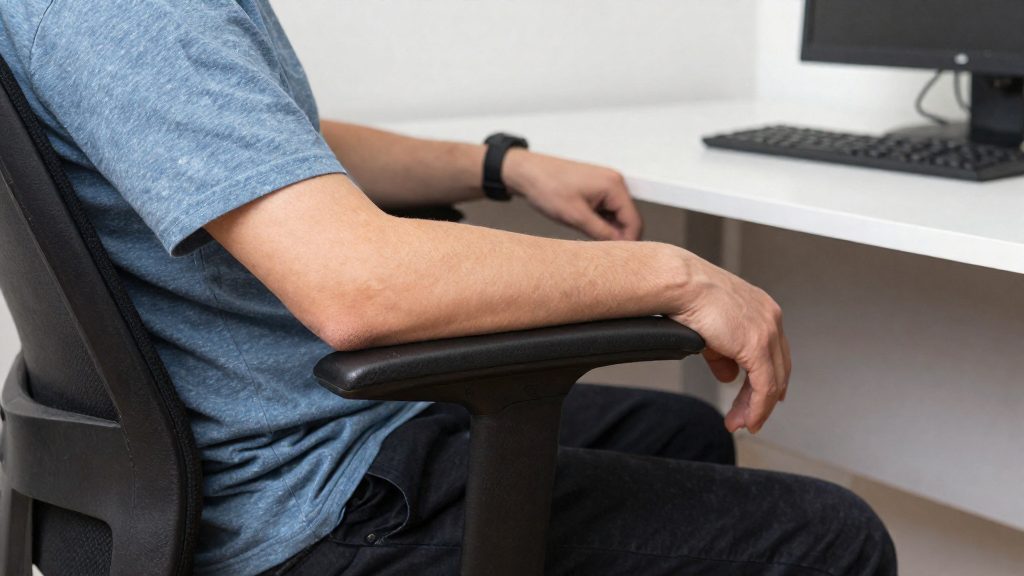
How do you adjust office chair armrests height?
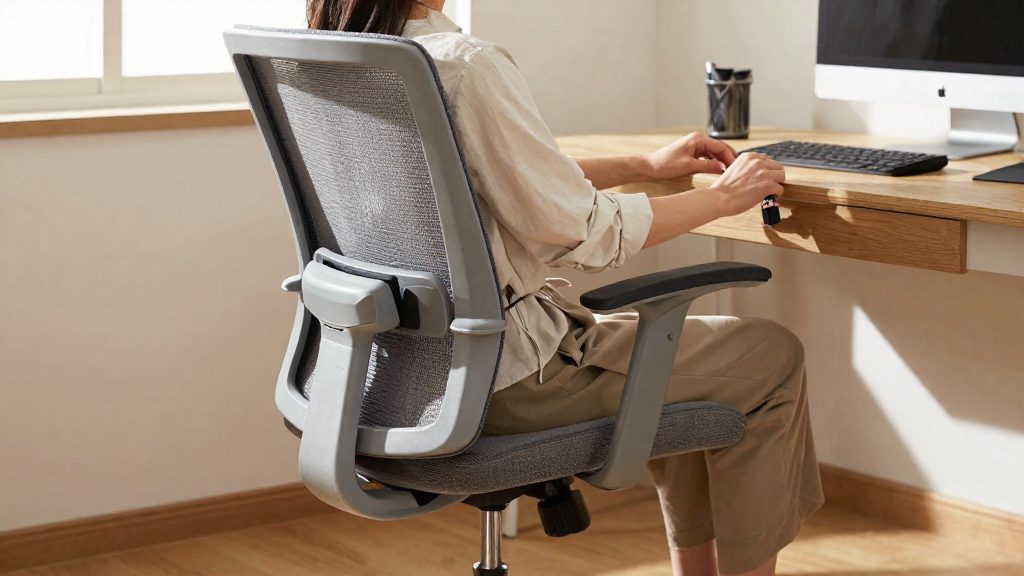
Set the armrests so that they barely touch the undersides of your elbows, so the forearm rests lightly on the pad without the shoulder lifting. If the pads sit below the elbows, raise them until they make light contact. Start from a neutral seated position, change the height in small steps, and recheck after every adjustment.
Sitting posture before adjusting
Sit upright before you touch any control. The CCOHS recommends starting with your elbows bent at about 90 degrees and your arms hanging loosely at your sides. If you adjust while slumped or leaning toward the desk, the armrest will match that posture rather than a neutral one, so the setting will be wrong once you sit normally.
Raising the armrests
- Keep your arms relaxed and your shoulders down.
- Raise the armrest in small increments until its pad reaches the underside of your elbow.
- Stop as soon as the pad makes light contact. Do not push the elbow upward.
Lowering the armrests
- Keep your arms hanging loosely, as above.
- Lower the armrest gradually until the pad just touches the underside of the elbow.
- Stop there.
Locking and rechecking
Tighten the height lock fully after each change, then sit back in your normal working posture. Repeat the cycle until the contact is light and your shoulders stay relaxed.
| Step | Action | Check |
|---|---|---|
| 1 | Sit upright, elbows bent at about 90 degrees, arms hanging loosely | Shoulders relaxed |
| 2 | Raise or lower the armrest in small increments | Pad reaches the elbow underside |
| 3 | Stop at light contact | No upward push on the elbow |
| 4 | Tighten the height lock fully | Armrest does not move |
| 5 | Sit in your normal working posture and recheck | Contact remains light |
What is the right armrest height for your elbows?
The starting point is an elbow angle of about 90 degrees (CCOHS). Kinnarps gives a range of 90 to 100 degrees, measured between the upper arm and the forearm. Kinnarps recommends adjusting the armrest height so the elbows form an angle of 90 to 100 degrees; CCOHS uses about 90 degrees only as the starting posture for the adjustment. The armrest should give light contact under the elbow without lifting the shoulders.
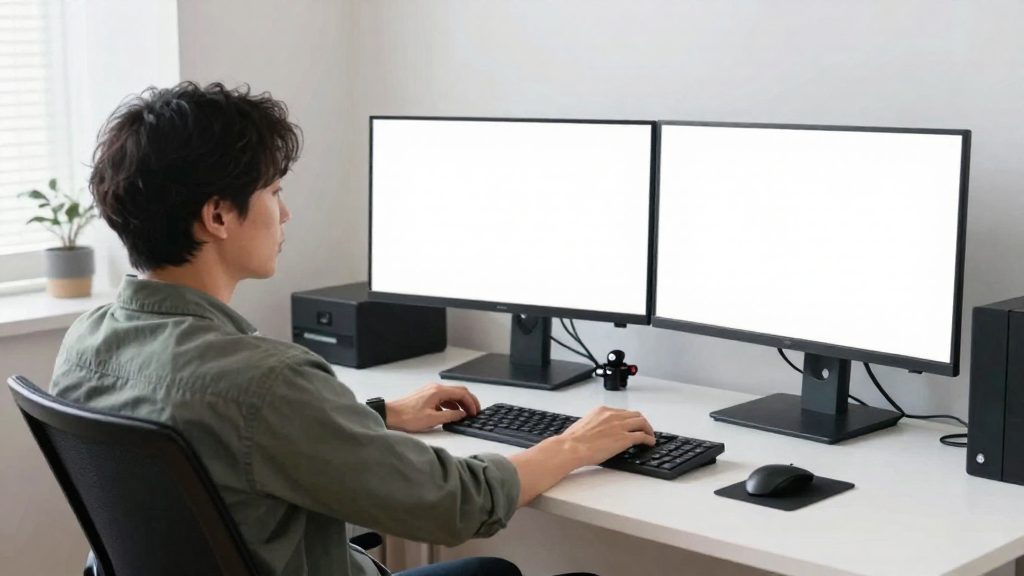
Forearm position relative to the keyboard and mouse matters as much as the angle itself. When you type, the forearm should rest on the armrest at a level that keeps the wrists neutral, not bent upward or downward. If the armrest is set too low, the forearm sinks and you tend to reach forward or lean to the side. Keep the mouse within the same reach as the keyboard, so you can use it without lifting the arm off the support.
| Check | Target | How to verify |
|---|---|---|
| Elbow angle | About 90 to 100 degrees | Estimate from a side photo |
| Elbow contact | Pads barely touch the undersides of the elbows | Arms hang loosely, shoulders relaxed |
| Forearm during typing | Supported, wrists neutral | Type for a few minutes and observe the wrist |
| Mouse reach | Forearm supported while the mouse is in use | Move the mouse to its usual position |
To check the angle with a photo, sit in your normal working posture and have someone take a picture from the side, or use a phone on a stand. Place a protractor on a printed copy of the image, or use a protractor tool on the photo, and measure the angle at the elbow. Repeat the measurement for each arm, since the armrests may be set differently.
Should armrests match your desk height?
On a fixed-height desk, the desk is a given, so the armrests are the variable to adjust. On a height-adjustable desk, you can change both, and the two should work together. According to Kinnarps, an office furniture manufacturer, if you have a height-adjustable desk, you should set the desk to the same height as the armrests. This lets your forearms rest on the desk surface at the same level as the armrest pads, so you do not have to raise your shoulders to reach the keyboard.
Before you decide whether the armrests suit your setup, check this point:
- Desk changes: On a sit-stand desk, the desk height changes throughout the day, but the armrest height does not. Check the armrest setting at the seated height you use most often, since the match with the desk only applies while you are seated.
| Situation | Guidance | Source |
|---|---|---|
| Height-adjustable desk | Set desk to the same height as the armrests | Kinnarps (2026) |
Common armrest adjustment mechanisms
Office chair armrests use one of several adjustment layouts, usually named by the number of axes they move on. The number of axes determines how many positions you can set, and therefore how closely the armrests can match your desk and your arm position. Before comparing layouts, check which movements your chair offers, because the labels are used inconsistently across manufacturers.
| Type | Movements | What it allows |
|---|---|---|
| 2D armrest | Height and pivot (rotation) | Vertical support and angle of the pad |
| 3D armrest | Height, pivot and width | Adds sideways positioning relative to the body |
| 4D armrest | Height, pivot, width and depth | Adds forward and backward positioning of the pad |
The table reflects common industry definitions. Confirm the exact movements of your model in its specification sheet, since some manufacturers label a layout differently.
Height locks: push-button versus twist-lock
Height is the most frequently adjusted axis, and it is locked in one of two ways:
- Push-button mechanism: A spring-loaded pin engages a set of holes in the armrest post. You press the button, raise or lower the armrest, and release it at the next notch. Adjustment is quick, but the height is limited to the spacing of the holes.
- Twist-lock or clamp mechanism: You loosen a collar or lever, set the armrest at any point along the post, then tighten it again. This allows finer positioning, but it takes more steps and the clamp must be re-tightened to prevent slipping.
Test either type before you rely on it. The armrest should stay in place when you lean on it, and a pin or clamp that does not fully engage can cause it to drop under load.
Armrests that adjust in width, depth and height
Kinnarps states that armrests adjusting in width, depth and height are best. This criterion matches the 4D layout in the table, which adds depth to the height, pivot and width movements. A 3D layout offers height, pivot and width but no depth adjustment, so it cannot move the pad forward or backward along the chair frame.
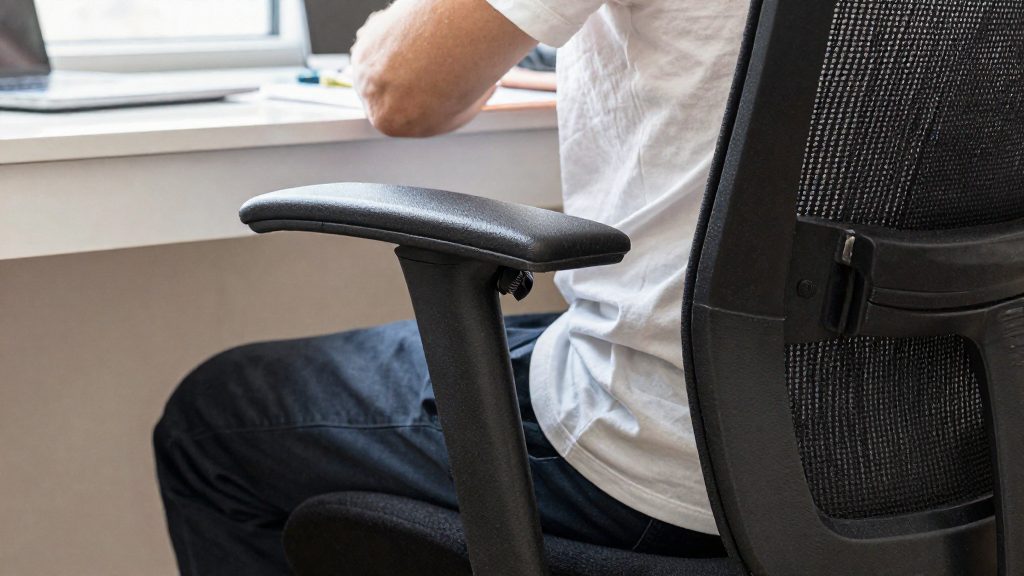
What if the armrests are too high?
If the armrests still push your elbows up at their lowest setting, they are holding your arms in an unsupported position instead of supporting them. CCOHS advises that when the armrests cannot reach the correct level, or still push the elbows up at their lowest setting, you should remove them from the chair.
Removing armrests that still lift the elbows
Use this check to decide whether armrest removal is the right fix:
- Lower the armrests to their minimum height.
- Sit upright with your arms hanging loosely at your sides.
- Bend your elbows to about 90 degrees and look at the pad. If the pad still lifts the elbow above that position, the armrest is too high for your body.
- Check the chair manual to see whether your armrests can be detached, since not all models allow it.
Once the armrests are removed, your forearms can rest on the desk surface or hang freely. Keep your shoulders relaxed and your elbows close to your body.
Signs of shoulder hiking from excessive armrest height
Shoulder hiking means the shoulders are raised toward the ears.
| Sign | What to check |
|---|---|
| Shoulders feel raised while typing | Compare your shoulder position with the armrest pad height |
| Tension in the neck or upper back by the end of the workday | Look for an armrest that keeps your arms lifted during the day |
| Forearms feel unsupported when they rest on the pads | The pad may sit above elbow level, so lower it or remove it |
| Shrugging when reaching for the keyboard or mouse | The armrest may be keeping your elbows above the working position |
When to replace the chair
If the armrests cannot be lowered enough and cannot be removed, replacing the chair is a reasonable option. Consider replacing it if:
- The armrests are fixed at a height that cannot match a bent elbow position of about 90 to 100 degrees.
- Your desk is not height-adjustable, so you cannot compensate for armrests that remain too high by changing the desk.
- The chair has no armrest adjustment at all.
When you choose a replacement, look for replacement criteria that include height adjustment in the armrests. Choose a model whose armrests adjust in height at the least.
Armrest width and depth tweaks
Armrest width and depth control how close your chair can get to the desk and where your shoulders sit while you type. Set them after the armrest height, so the pads support your forearms without raising your shoulders or keeping you away from the work surface.
Maximum extension from the seat back
The Canadian Centre for Occupational Health and Safety (CCOHS) states that armrests extending 10 in (25 cm) or less from the back of the seat may be acceptable, because the chair can then move close to the desk. To check this, measure from the backrest to the front edge of the armrest pad. If the pad extends beyond that distance, the chair may not slide in far enough to reach the keyboard without leaning forward.
Width to match shoulder width
Adjust the width so the pads sit just outside your upper arms when your shoulders are relaxed and your elbows hang at your sides. Pads set too wide can push your shoulders outward and up, which may strain the neck and upper trapezius. Pads set too narrow leave the arms unsupported and encourage leaning to one side. Sit upright, let your shoulders drop, and move each pad inward until it touches the side of your arm without squeezing it.
Depth to clear the desk edge
The depth setting moves the pads forward or back along the chair frame. Pads should support the forearm at the point where your elbow rests, and they must not strike the desk when the chair is pushed fully under it. To test this, slide the chair in until it stops, then look for contact between the pads and the desktop or its front edge. If contact occurs, shorten the depth setting or detach the armrest, which is covered in the removal section. Check the test again after any change, because depth alters the clearance at every height.
Quick check for remote workers
Home setups often combine a chair and desk that were never designed to work together, so a short self-check helps you confirm whether the armrests actually support your arms. Run it once the chair and desk are in their final positions.
Sitting test at the home desk
- Sit in your usual working position with your back against the backrest and your feet flat on the floor.
- Let your arms hang loosely, then bring your hands to the keyboard or mouse.
- Check whether your shoulders rise or your elbows drift away from your body. Either sign suggests the armrests are not matching your arm position.
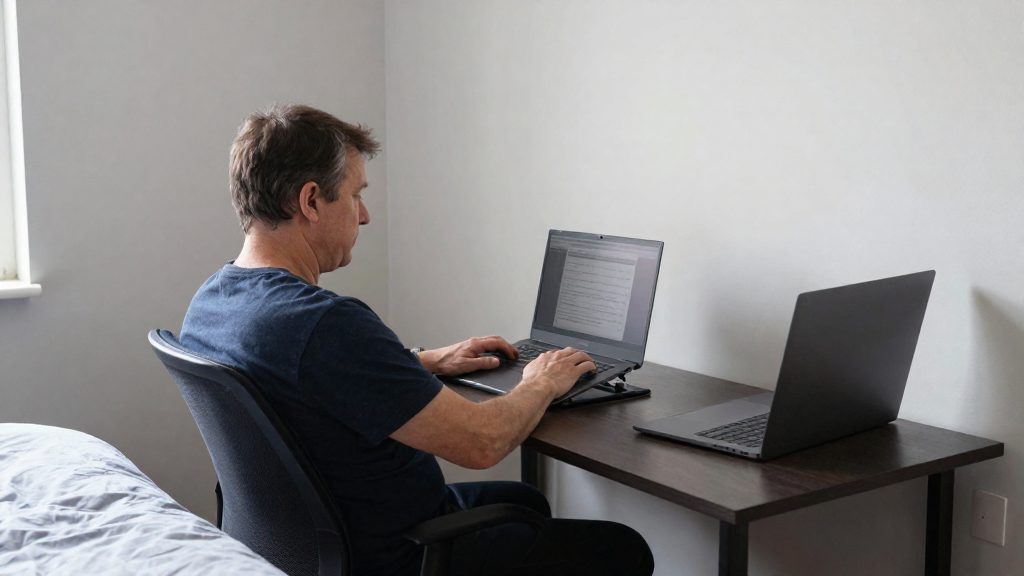
Laptop use on a table without armrest adjustment
Many remote workers use a dining chair, a sofa, or a table without any armrest adjustment. In that case, the test shifts from the armrests to the work surface:
- Place the laptop on the table, sit down, and type for a few minutes.
- If you have to lean forward or raise your shoulders to reach the keys, the table or seat is not suited to your arm position.
- Stop using the setup for long sessions if the discomfort returns each time you sit down.
Reassessing after chair or desk changes
Repeat the test after any change to the chair, the desk, or the distance between them. A few points to check:
| Change | What to check |
|---|---|
| New chair | Armrest extension from the back of the seat |
| Desk replaced or repositioned | Whether your arms still rest in the same relaxed position when typing |
Frequently asked questions
What elbow angle should you aim for when setting armrest height?
CCOHS starts you with your elbows bent at about 90 degrees and your arms hanging loosely. Kinnarps gives a target range of 90 to 100 degrees, so a setting that places your elbow angle within that band is the goal.
What should you do if your armrests are set too low?
Raise them until they make light contact under your elbows and your forearms rest lightly on the pads. Stop raising them once the pads touch the undersides of your elbows, because pads set higher than that lift your shoulders.
What if the armrests still push your elbows up at their lowest setting?
CCOHS advises removing the armrests when they cannot reach the correct height or still lift your elbows at their lowest setting. Check your chair manual to see whether the armrests detach, since not all models allow it. If they cannot be lowered or removed, replacing the chair is a reasonable option.