Working From Bed: Posture, Ergonomics, and Work Boundaries
Working from bed is not recommended as a routine arrangement. Cleveland Clinic (July 2020) advises avoiding it because it can encourage awkward posture and contribute to aches and pain, and NewYork-Presbyterian (July 2020) advises against working lying down all day, every day. The risk depends mainly on how often and how long you work in bed. Occasional use, meaning short sessions that do not become your default workspace, carries a lower posture risk than prolonged daily sessions, which both publishers warn against.
Is Working From Bed Actually Safe?
Posture risks of lying-down work
Lying down or propping yourself on pillows tends to push the head forward and the shoulders into rounded positions that are hard to hold for long. NewYork-Presbyterian (July 2020) specifically advises avoiding prolonged slouching and forward-head posture. Cleveland Clinic favors lying on the back with a tablet and discourages leaning against a headboard, but no single best bed posture has been confirmed, so treat this as a starting point rather than a standard.
| Publisher | Advice on working from bed | Date |
|---|---|---|
| Cleveland Clinic | Avoid; can encourage awkward posture and aches | July 2020 |
| NewYork-Presbyterian | Avoid lying down all day, every day; avoid prolonged slouching and forward-head posture | July 2020 |
Occasional use versus prolonged daily sessions
The distinction rests on three factors:
- Frequency: an exception, or a routine habit
- Session length: a short task, or several consecutive hours
- Role of the bed: a temporary spot, or the fixed workstation
No universally safe daily duration for bed work has been established. Set any time limit as a personal guideline, and stop if the arrangement becomes your regular workplace.
Stop signals and breaks
NewYork-Presbyterian (July 2020) advises treating discomfort as information: a position that causes pain is unsuitable for you, so change it or stop.

Support Your Back and Keep Your Neck Neutral
The main risk of working from bed is the posture it encourages. The aim in this section is to limit slouching and forward-head posture when you do work in bed.
Avoid prolonged slouching and forward-head posture
Sustained slouching shifts load onto the lower back, and a head pushed forward toward a screen increases strain on the neck.
No single bed posture has been shown to be safe for everyone. Published guidance differs on specific positions:
| Position | Guidance |
|---|---|
| Sitting upright with back supported | Keeps the spine supported; its safety for everyone is not established |
| Lying on your back with a tablet | Favored by Cleveland Clinic (2020) |
| Leaning against a headboard | Discouraged by Cleveland Clinic (2020) |
Lumbar support and seat back positioning
When you sit up in bed, place pillows behind your lower back so the lumbar curve is supported and your back is not rounded. Keep your back upright against the support rather than sliding down toward the mattress. A lap desk or wedge pillow may improve your setup, but no established evidence shows that either one prevents musculoskeletal injury, so judge them by comfort and by how your spine feels over time.
Neutral neck posture independent of screen height
Keeping your neck neutral means your head stays balanced over your shoulders instead of drifting forward. When you work on a laptop, the screen and keyboard are fixed together, so you may lower your head to see the screen. When you read a tablet or phone in bed, prop it so you can see it with your head in a relaxed, upright position rather than bending your neck to reach it.
Position Your Screen for Comfortable Viewing
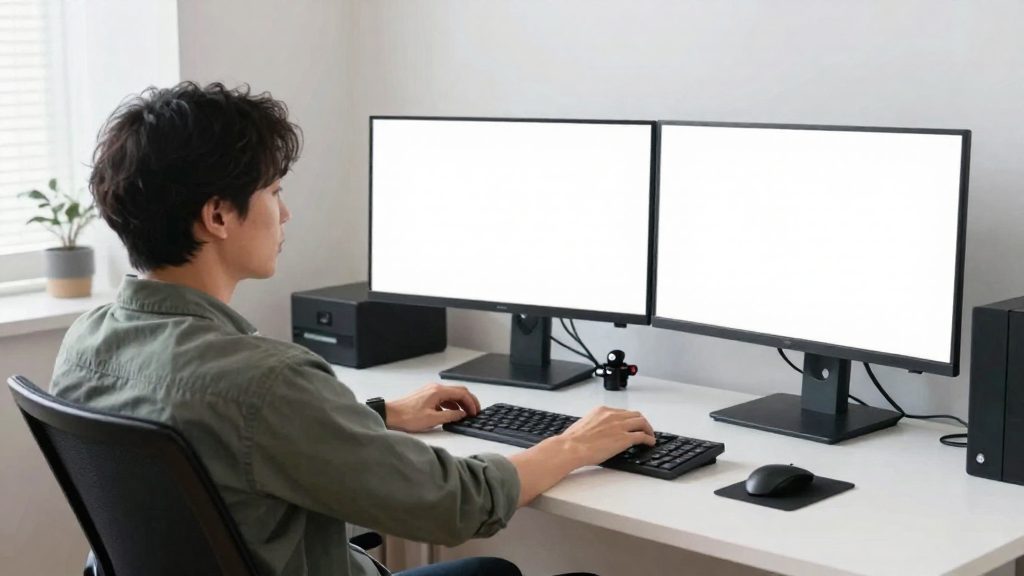
NIOSH recommends placing an external monitor about an arm’s length away, with the top of the display at or below eye level (CDC / NIOSH, 2020-11-20). Both settings reduce how far you need to tilt your head to read the screen.
| Setting | Recommended position | Source |
|---|---|---|
| External monitor distance | About an arm’s length away | CDC / NIOSH (2020-11-20) |
| Top edge of the display | At or below eye level | CDC / NIOSH (2020-11-20) |
Raising a laptop screen
A laptop screen is hinged to its base, so its top edge can only be raised by elevating the whole unit. Use a laptop stand or riser, then raise the laptop until its top edge sits at or below eye level. Check that the stand is stable on the surface you are using.
- No specific riser height or model is established as the right choice.
- Follow the manufacturer’s stated maximum height and load limits.
- In bed, a stand can shift or tip on a soft mattress. Set it on a firm, level surface, or do not use one on the mattress.
Keep Your Keyboard and Mouse Within Reach
Working from bed often means the laptop is the only input device, so the screen, keyboard, and trackpad stay in one fixed position. Positioning the keyboard and mouse separately from the screen is the most direct way to change that setup.
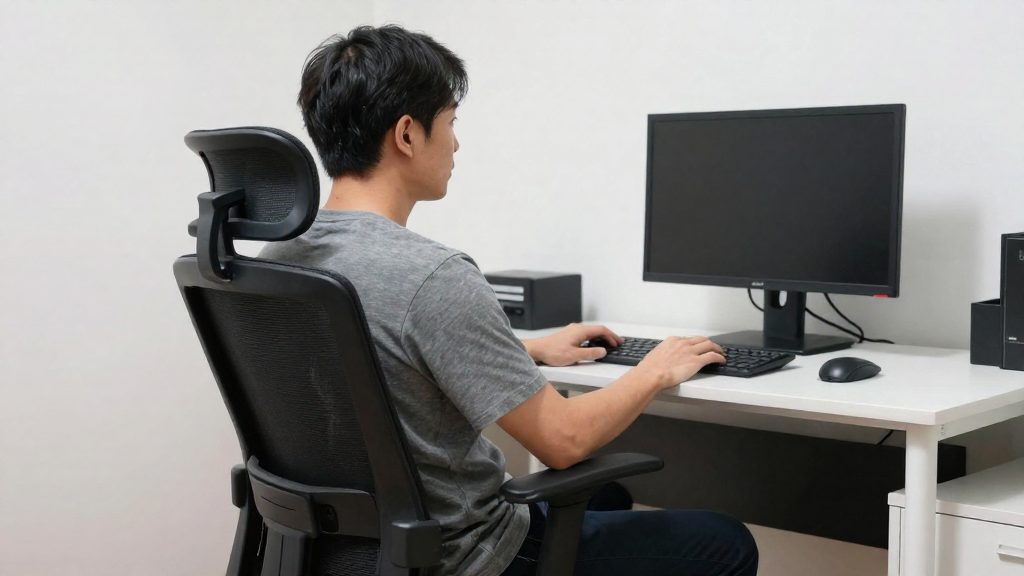
Separate input devices can be positioned independently of the laptop screen. According to CDC / NIOSH (2020), a separate keyboard and mouse allow this. The table below lists the target position for each element.
| Element | Target position | Source |
|---|---|---|
| Keyboard | Directly ahead of you | OSHA |
| Mouse | Separate from the screen, positioned independently | CDC / NIOSH (2020-11-20) |
| Shoulders | Relaxed | OSHA |
| Elbows | Close to the body | OSHA |
| Wrists | Neutral: straight, in line with the forearms | OSHA |
| Work surface edges | Avoid unpadded cornered edges | CDC / NIOSH (2020-11-20) |
Hard or sharp edges can create contact pressure on the forearms and wrists. Before you rest your arms on a surface, check whether its edges are rounded or padded. If they are not, move your forearms away from the edge.
Evaluate a lap desk for stability and comfortable keyboard and mouse placement, and evaluate a wedge pillow for back support and comfort. Neither should force your neck or back into an uncomfortable position.
How Often Should You Take Breaks?
For computer work, OSHA recommends a five-minute break from computer tasks every hour, using that time to look away from the screen, stretch, stand, or walk. NIOSH reports that short hourly breaks can reduce discomfort among computer workers (CDC/NIOSH, 2026).
| Source | Recommended interval | Suggested activity |
|---|---|---|
| OSHA | Five minutes every hour | Look away, stretch, stand, or walk |
| Cleveland Clinic (2020) | Get up every 45 to 60 minutes | Move away from the work position |
| CDC/NIOSH (2026) | Short hourly breaks | Reduce discomfort in computer work |
The Cleveland Clinic interval is a general recommendation, not a threshold proven for bed-based work.
Five-Minute Breaks Every Hour
Set a reminder at the start of each hour and stop computer tasks for five minutes. Stopping input, not only changing tabs, is what interrupts static load on the neck, shoulders, and wrists. If you work in bed, get out of bed for the break, because staying in the same position defeats the purpose.
Looking Away, Standing, or Walking
During a break, direct your gaze to a distant point, stand up, and walk a short distance. Standing also changes the load on the spine and hips compared with the position you held during work. Walking to refill water or move to another room is a practical way to meet the break without planning a separate activity.
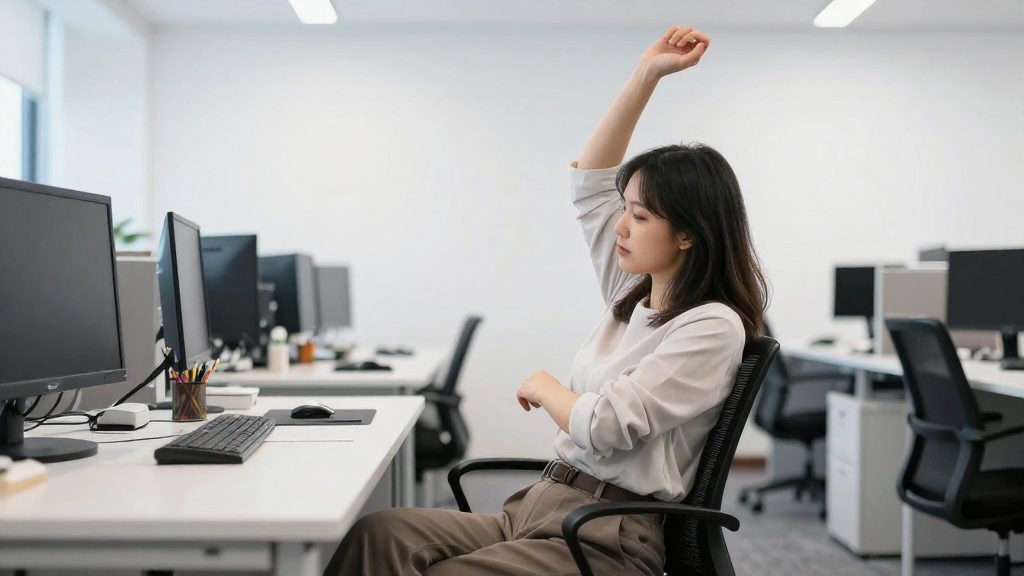
Stretching Routines for Seated Desk Work
Use a short routine that addresses the areas most loaded by typing and screen work:
- Neck: Tilt the head gently toward each shoulder, then turn slowly to each side. Move within a comfortable range and stop if you feel pain.
- Shoulders: Roll the shoulders backward and forward, then lift and lower them to release tension.
- Wrists and forearms: Extend one arm with the palm facing up, gently pull the fingers back with the other hand, then reverse.
- Chest and upper back: Clasp the hands behind the back, open the chest, and hold the position without bouncing.
Stop any stretch that causes pain, even if the pain is not sharp, and avoid forcing a range of motion.

Reduce Glare and Rest Your Eyes
Glare from windows and bright lamps is one of the most common sources of eye strain when working from bed. According to CDC/NIOSH (2020), placing the display perpendicular to windows, or adjusting the blinds, reduces glare. In bed, the window is often beside you or above you, so check where light falls on the screen before you settle in.
Position the Screen Against the Light
- Turn the screen so that the window is at its side, not behind it or directly in front.
- If the light still reflects on the display, close or partly close the blinds or curtains on that window.
- Avoid placing a bright lamp directly behind the screen or in your line of sight.
Match Brightness to the Room
No numeric brightness target is established for this setting, so use these checks:
- Set the screen brightness so that the display does not look like a light source compared with the room.
- In a dim room, lower the screen brightness. In a bright room, raise it.
- Turn on a soft light near the bed or behind your screen, not a harsh overhead light that reflects on the display.
Apply the 20-20-20 Rule
CDC/NIOSH (2020) suggests the 20-20-20 rule for eye fatigue. The rule is a recommendation for reducing eye fatigue, not a proven safety threshold for bed work.
| Interval | Action | Duration |
|---|---|---|
| Every 20 minutes | Look at an object about 20 feet (about 6 metres) away | 20 seconds |
Choose a fixed object in the room or through a window, and focus on it briefly before returning to the screen.
Protect Your Sleep With Clear Work Boundaries
Separating work from your bed keeps sleep and wind-down routines distinct from work tasks. Cleveland Clinic (2020) notes that regularly working in bed can associate the bed with work, which can make it harder to unwind and sleep.
Reduce the bed-work association
Your brain links a place with the activities you repeat there. If you answer email in bed, the bed starts to signal alertness rather than rest. To weaken that link:
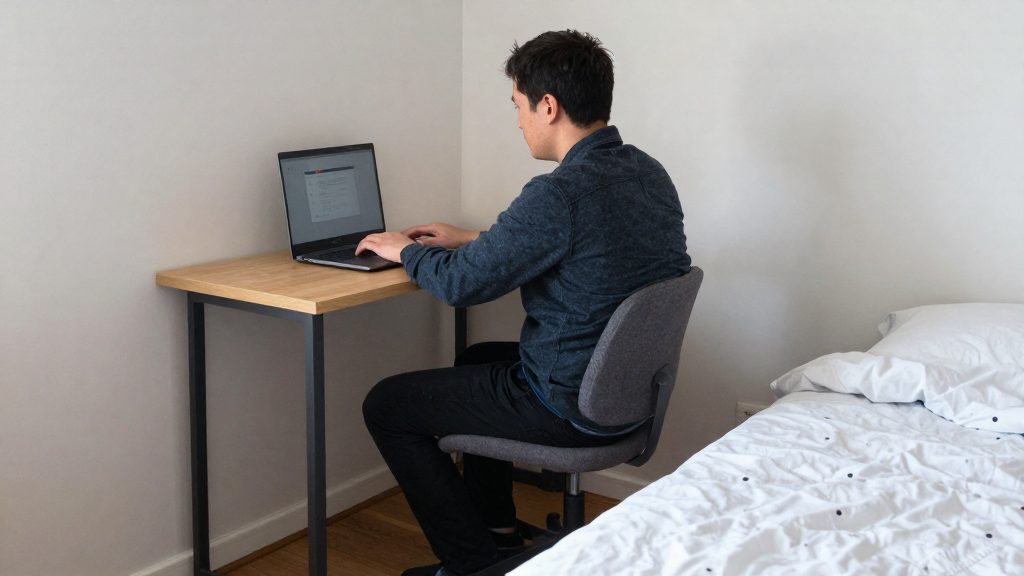
- Work at a desk, table, or chair set up for work, even if the space is small.
- Keep the bed for sleep and rest only.
- If you must work from bed, stop and move to another room once the task is done, rather than staying in bed afterward.
Set up a dedicated workspace
A dedicated workspace makes it easier to start and stop work on purpose. Choose a spot in a room or corner used only for work, and keep work equipment there after hours.
Run an end-of-day shutdown routine
A fixed sequence signals the transition from work to rest. A practical routine:
- Set a fixed stop time and treat it as the end of the workday.
- Write down the first two or three tasks for tomorrow.
- Close work applications and log out of work accounts.
- Move your laptop, charger, and work papers out of the bedroom or out of sight.
- Change out of work clothes or leave the room before your evening routine begins.
Limit screens before bedtime
Work notifications arriving late in the evening make it harder to stop working. Before bed:
- Turn off work email and chat notifications after your stop time.
- Use the focus or night modes built into your phone or computer. Check your device manufacturer’s instructions for how to schedule them.
- Avoid checking work messages in bed, even briefly.
Change Your Setup When Discomfort Starts
Discomfort during work from bed is a signal to change the setup before it becomes lasting.
Early warning signs to act on
Treat these signs as reasons to adjust your setup, not as normal end-of-day fatigue:
- Aches that return at the same point in each session, such as the neck, shoulders, lower back, or wrists.
- Pain or stiffness that continues after you stop working.
- Persistent numbness, tingling, or a hand or forearm that feels asleep during work.
- Eye fatigue after screen use.
- Difficulty unwinding or sleeping after work sessions in bed.
Adjust by location
Start with the body area that hurts during each session, then change the element linked to it.
| Where discomfort occurs | Adjustment | Source |
|---|---|---|
| Eyes | Place the display perpendicular to windows, or adjust blinds, to reduce glare | CDC/NIOSH (2020) |
| Forearms and wrists | Avoid resting the arms on unpadded, cornered edges, which can create contact pressure | CDC/NIOSH (2020) |
When to consult a healthcare professional
Book an appointment with a doctor or physiotherapist if pain or numbness continues after you have adjusted your setup, or if it returns after each session. Seek emergency medical care if numbness begins suddenly, spreads rapidly, affects an entire arm or one side of your body, or occurs with sudden weakness, difficulty speaking, confusion, or vision changes. Bring a short record of when symptoms occur, which activity preceded them, and which adjustments you have tried, so the professional can assess the pattern.